
top free ai background removers online are a practical shortcut when you need a clean cutout fast, without opening Photoshop or learning complex masking tools.
If you sell on Etsy, post content for Instagram, build slides for work, or just want a nicer headshot, background removal is one of those chores that looks easy but turns into a time sink. The best free tools now do a surprisingly solid job in a browser, especially for portraits and clear product shots.
This guide focuses on what actually matters: which tools are truly free (or “free enough”), how they handle hair and tricky edges, what you should watch for with privacy and licensing, and a simple workflow to get consistent results.

What “free” really means for online background removers
Most “free” background removers fall into one of these buckets, and knowing the difference saves frustration.
- Unlimited previews, paid downloads: You can see the cutout, but exporting full resolution costs credits.
- Free low-res exports: Great for social posts, rough comps, and thumbnails, less ideal for print or marketplaces.
- Limited free credits per day/month: Usually enough for occasional use, not for a catalog refresh.
- Free with account + usage limits: You trade convenience for sign-in and occasional rate limits.
One more nuance: some tools are “free” but add a watermark, while others keep it clean and instead reduce resolution. For most people, a watermark is the deal-breaker, low-res often still works.
Quick comparison: top free AI background removers online (practical view)
There’s no single winner for every photo. Hair, transparent objects, and busy backgrounds can flip the results. Here’s a straightforward way to shortlist.
| Tool | Best for | Free tier reality | Edge quality notes | Good to know |
|---|---|---|---|---|
| remove.bg | People + products | Preview + limited free downloads (often low-res) | Usually clean, hair can vary | Fast, widely used, paid for HD |
| Adobe Express (Remove Background) | Social graphics workflows | Free plan available, export limits vary by asset/features | Solid for portraits | Nice if you also need templates |
| Canva (BG Remover) | Design + quick composites | Typically Pro feature; free users may have limited access/trials | Good enough for most | Great if you already live in Canva |
| PhotoRoom | Reselling + product shots | Free tier often exports with limits; HD may be paid | Nice edges for products | Also generates backgrounds |
| Pixlr (Remove BG) | Light editing in browser | Free use with limits/ads depending on plan | Mixed on fine details | Handy if you want extra edits |
Key takeaway: if you need truly free, full-resolution PNGs every day, you may end up rotating tools or using a freemium product with occasional paid credits. That’s normal in this category.
How to tell which remover will work best for your photo
People often blame the tool when the real issue is the input image. A quick self-check helps you pick the right approach.
Fast self-check (30 seconds)
- Subject contrast: Does your subject clearly stand out from the background in color or brightness?
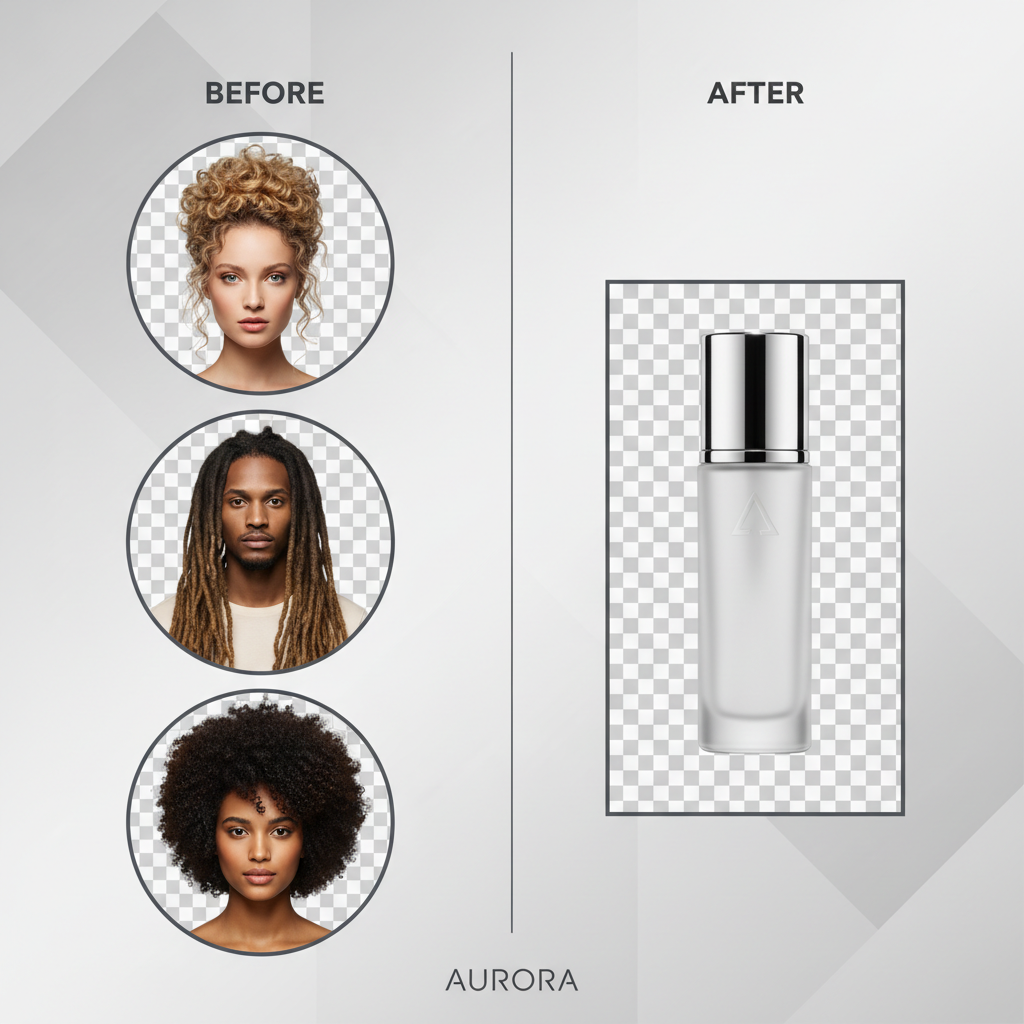
- Edge complexity: Hair, fur, lace, plants, bicycle spokes, glassware, and translucent plastics raise difficulty.
- Motion blur: Slight blur around hands or hair usually creates jagged edges.
- Lighting: Backlit shots can confuse the cut line; even lighting tends to export cleaner PNGs.
- Compression: Heavily compressed images (messaging apps, low-quality downloads) produce “crumbly” edges.
If you check two or more “hard” boxes, expect to do a small manual touch-up in a second tool, even if the first cutout looks close.
A simple workflow to get clean results (and avoid redoing work)
When you rely on top free ai background removers online, the win is speed, but speed disappears if you keep exporting and noticing problems later. This workflow stays efficient.
Step 1: Start with the best source image you can
- Use the original camera file when possible, not a screenshot.
- Avoid heavy filters before removal; add style after the cutout.
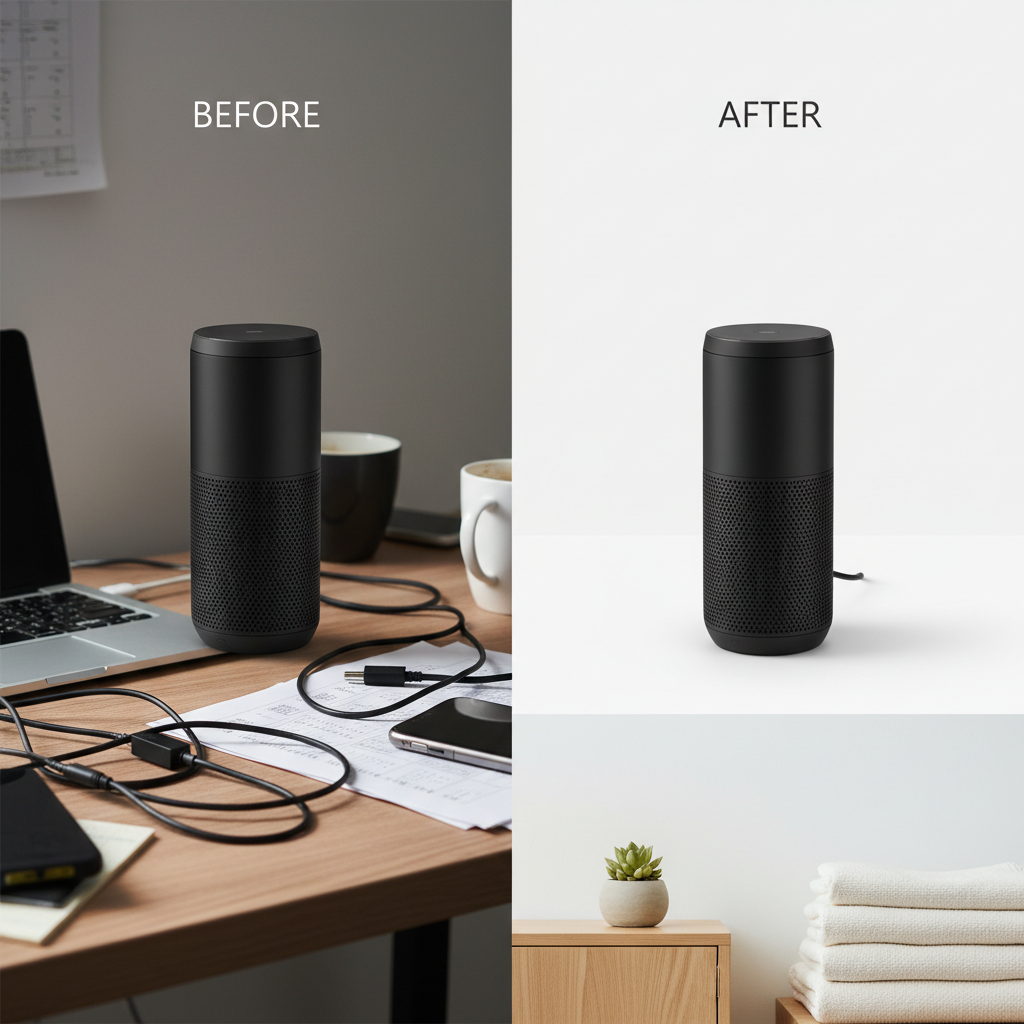
- For products, place the item near a simple background with soft, even light.
Step 2: Run two tools if edges matter
It sounds redundant, but it’s faster than fighting one tool. Try one remover for the initial cut, then a second if hair, straps, or holes look wrong. Different models fail in different ways.
Step 3: Export as PNG (transparent) and check at 100%
- Zoom in on hairline, fingers, and corners of products.
- Look for “halo” (a light outline) or jagged pixels.
Step 4: Do quick fixes only if they’re worth it
Many tools offer a basic erase/restore brush. Use it for obvious mistakes, not perfection. If you spend more than a few minutes, it may be cheaper to use a dedicated editor or one paid HD export.
Common mistakes that make free results look “cheap”
Most bad cutouts are predictable. Fix these and your output looks instantly more professional.
- White halos around the subject: Often from bright backgrounds. Try a tool with “decontaminate” or add a 1–2px inner shadow in your design app.
- Over-sharpened edges: If the cut line looks crunchy, re-export at higher quality if available, or soften edges slightly.
- Busy new backgrounds: A clean cutout can still look fake on a loud gradient or detailed photo; match lighting and direction.
- Wrong aspect ratio for marketplaces: Don’t crop after the fact without checking your platform’s image rules.
According to Adobe, clean selections and consistent edges are a big part of what makes composites look believable, which is why tiny halos and mismatched lighting stand out more than people expect.
Privacy, licensing, and brand safety (don’t skip this)
Free online tools are convenient, but you’re uploading images to someone else’s servers. For casual social content that’s usually fine, for client work it depends.
- Sensitive images: If a photo includes personal data, client documents, or children, consider a local/offline workflow.
- Commercial usage: Check the tool’s terms for free plan exports, especially if you’re selling products or using images in ads.
- Retention: Some services may keep uploads for model improvement or troubleshooting. If that’s a concern, look for clear deletion policies.
According to the Federal Trade Commission (FTC), being mindful about how personal data is collected and shared online is a basic consumer protection habit, and images can carry more personal information than you think.
When it’s worth upgrading or using a pro editor
Free tools are great until they aren’t. A few scenarios usually justify paying or switching to a more controlled workflow.
- You need HD exports daily: Catalogs, menus, real estate, or frequent listings often exceed free limits.
- Fine detail is the whole point: Hair for beauty brands, bridal fabrics, glass, or jewelry tends to need higher-quality matting.
- Team workflows: Shared brand templates, consistent shadows, and batch processing save time at scale.
- Compliance or confidentiality: Client contracts, healthcare, legal, or internal docs suggest using enterprise tools or offline editing.
If you’re unsure, a practical rule: if a single image going wrong costs you more than a few dollars in lost time or a missed sale, paying for one clean export is often rational.
Conclusion: pick one “fast tool” and one “quality fallback”
If you want reliable results from top free ai background removers online, keep it simple: choose one tool that’s fast for everyday posts, then keep a second option for tricky hair, reflective products, or when the first cutout looks slightly off.
Two action steps that usually pay off immediately: start with a higher-quality source image, and check edges at 100% before you design the final graphic. Those small habits do more than switching tools every week.
FAQ
- What are the top free AI background removers online right now?
remove.bg, Adobe Express, PhotoRoom, and Pixlr are commonly used. “Top” depends on whether you need HD exports, better hair edges, or quick design templates. - Can I remove a background for free and download a transparent PNG?
Often yes, but many sites limit resolution on free downloads. If you only need social-size graphics, that can be enough. - Why does my cutout have a white outline?
That halo usually comes from bright backgrounds and edge smoothing. Try a different tool, or add a tiny inner shadow/defringe option in your editor. - Which photos are hardest for AI background removal?
Wispy hair, fur, transparent objects, motion blur, and low-resolution images tend to break down first, even with strong tools. - Is it safe to upload client photos to an online background remover?
It depends on the client, the image content, and the tool’s terms. For sensitive work, consider offline editing or get client approval before uploading. - How do I make a cutout look natural on a new background?
Match lighting direction, add a soft shadow, and avoid backgrounds that are sharper or more saturated than the subject. The mismatch is what people notice. - Do these tools work on mobile?
Many do, but mobile uploads can be more compressed if you’re pulling from chat apps. If quality matters, upload the original photo file.
If you’re removing backgrounds often for listings, ads, or team content, and you want a more consistent workflow than hopping between free tools, you may prefer a solution that supports batch processing, clean HD exports, and simple touch-ups without turning every image into a mini project.