
Top free ai code generators for beginners can save hours when you’re learning syntax, building small apps, or just trying to understand why your code breaks, but only if you pick tools that explain what they generate and keep you in control.
Most beginners don’t actually need a “magic” coder, they need a patient helper that can draft scaffolding, spot obvious bugs, and translate ideas into starter code without turning everything into a confusing black box.
This guide compares beginner-friendly, no-cost options (including free tiers), what each one is good at, and how to use them without accidentally creating messy, insecure code you can’t maintain.
What beginners should expect from a free AI code generator
Free tools vary a lot. Some are great at autocomplete in your editor, others behave more like a chat tutor, and a few focus on specific tasks like writing SQL, generating tests, or explaining error messages.
For beginners, the best experience usually comes from tools that do three things well: small, readable outputs, clear explanations, and fast iteration when you paste an error or ask for a rewrite.

Also worth knowing: “free” often means a daily message cap, limited model access, or usage restrictions. That’s not automatically bad, it just changes how you plan your learning sessions.
Quick comparison table (free plans and best use cases)
Below is a practical shortlist you can start with. Availability and limits change often, so treat this as a decision map rather than a permanent spec sheet.
| Tool | Best for beginners who want… | Where it works | Typical free limitation |
|---|---|---|---|
| ChatGPT (free) | Explain errors, draft small functions, learn concepts | Browser / app | Message limits, model/access may vary |
| Google Gemini (free) | Quick code drafts plus strong “why” explanations | Browser / app | Usage caps and feature differences by region/account |
| GitHub Copilot (free for verified students/teachers) | Autocomplete while you type, faster practice | VS Code, JetBrains, etc. | Eligibility requirements for no-cost access |
| Amazon Q Developer (free tier) | IDE help, explanations, AWS-adjacent projects | IDEs + AWS ecosystem | Free tier limits, org policies may apply |
| Codeium (free for individuals) | Copilot-like autocomplete without paying up front | Many editors/IDEs | Team/enterprise features not included |
| Tabnine (limited free) | Autocomplete with a simpler setup | Many editors/IDEs | Advanced models/features gated |
| Replit (free plan) | All-in-one coding in the browser, quick demos | Browser IDE | Compute limits, some AI features may be capped |
If you’re choosing only one to start, most beginners do well with a chat-style tool for explanations plus an IDE assistant for repetition and muscle memory.
The top free AI code generators for beginners (what to use, when)
These are popular options in the U.S. market that beginners tend to stick with because the workflow feels natural. I’m intentionally focusing on how you’d use each tool in a real learning session.
1) ChatGPT (free): best for error explanations and small building blocks
ChatGPT works well when you can describe what you were trying to build, paste a snippet, and ask for a fix plus an explanation. The win is not just the patch, it’s the commentary when you ask “explain like I’m new to this.”
- Use it for: debugging help, refactoring tiny functions, learning syntax, writing tests from examples
- Skip it for: generating a whole app in one prompt, especially if you can’t review the output
2) Google Gemini (free): good for drafts plus fast iteration
Gemini can be a solid generalist: describe a feature, ask for a starter file structure, then request smaller pieces. If you keep your prompts tight, it tends to work like a coding partner that doesn’t mind repeating itself.
- Use it for: starter code, explanations, alternative approaches when you’re stuck
- Tip: ask it to show “the minimal working version” before adding features
3) Codeium (free for individuals): strong autocomplete without the paywall friction
For many beginners, the fastest learning is still typing code yourself, just with better hints. Codeium shines here: autocomplete suggestions, multi-line completions, and a workflow that lives inside your editor.
- Use it for: practicing loops, APIs, React components, repetitive patterns
- Watch for: accepting suggestions you don’t fully understand, that’s how messy code sneaks in
4) GitHub Copilot (free for eligible students/teachers): best “learn by building” companion
If you qualify for the free access program, Copilot can feel like a superpower in VS Code. It’s not a teacher by default though, so you may need to force it into “explain” mode using comments or a chat feature in your environment.
- Use it for: learning common patterns, filling in boilerplate, quick prototyping
- Good habit: after accepting code, ask “what are two edge cases?” and implement them
5) Amazon Q Developer (free tier): nice if you touch AWS or cloud projects
Amazon Q Developer can be a practical pick if your beginner projects involve AWS services, IAM permissions, or SDK setup, areas where docs can feel dense. In many cases, it helps you navigate the ecosystem faster.
- Use it for: cloud setup questions, SDK examples, IDE guidance in AWS contexts
- Reality check: always verify cloud permissions and security settings before deploying
6) Replit (free plan): simplest path to “I built something” in one sitting
Replit lowers the setup pain, which matters a lot early on. When your goal is to ship a tiny demo and share a link, a browser IDE can remove the biggest beginner blocker: local environment problems.
- Use it for: quick prototypes, class assignments, collaboration, learning by tinkering
- Watch for: relying on hosted defaults without understanding how you’d run it locally
7) Tabnine (limited free): lightweight autocomplete for straightforward workflows
Tabnine can be a decent, less distracting autocomplete layer. If you feel overwhelmed by chat tools, a calmer completion tool can keep you focused on syntax and structure.
- Use it for: steady practice, consistent suggestions, smaller projects
- Tradeoff: the free experience may feel less powerful than paid tiers
Why these tools help, and where they commonly go wrong
The reason top free ai code generators for beginners work is simple: they compress the feedback loop. You try, you break something, you ask, you fix, you learn. That loop is what many people never get from static tutorials.

But when they go wrong, they go wrong in predictable ways. The model may guess missing context, use outdated APIs, or generate code that runs but fails quietly in edge cases. Beginners often accept it because “it looks professional.”
- Hallucinated APIs: functions, packages, or parameters that don’t exist
- Hidden complexity: code works once, then becomes hard to extend
- Security foot-guns: unsafe input handling, weak auth assumptions, secrets in code
According to OWASP, common web app risks include injection and broken access control, which is a reminder that generated code still needs basic security review, even for hobby projects.
A simple self-check: which tool fits your situation?
Use this quick checklist and pick one primary tool, don’t download five and burn your week on setup.
- If you mainly need explanations and debugging, choose a chat-first tool (ChatGPT or Gemini).
- If you mainly need help while typing and practicing, pick an IDE autocomplete tool (Codeium, Copilot if eligible, Tabnine).
- If installs and environments keep derailing you, start in a browser IDE (Replit) and migrate later.
- If you’re learning cloud skills, consider Amazon Q Developer for ecosystem guidance.
One more honest question: are you trying to learn, or trying to ship? The best beginner setup is often one tool for learning, one for speed, used intentionally.
Practical prompting recipes that keep you learning (not just copying)
You’ll get better results with smaller asks. Big prompts encourage big, fragile output. Here are prompt patterns that tend to work across most generators.
Recipe 1: “Minimal working version”
- Prompt: “Write the minimal working example of a REST API in Node/Express with one GET endpoint, include install steps, keep it under 60 lines.”
- Follow-up: “Now add input validation and explain why each validation matters.”
Recipe 2: “Explain then change one thing”
- Prompt: “Here’s my error and code. Explain what the error means in plain English, then show the smallest fix.”
- Follow-up: “Show one alternative fix and when you’d prefer it.”
Recipe 3: “Write tests first” (surprisingly beginner-friendly)
- Prompt: “Given this function signature, write 5 unit tests including edge cases, then implement the function to satisfy them.”
Key point: if the tool can’t explain its code clearly, treat that as a red flag. You can still use it, but keep the output smaller.
Hands-on workflow: using free AI safely in a beginner project
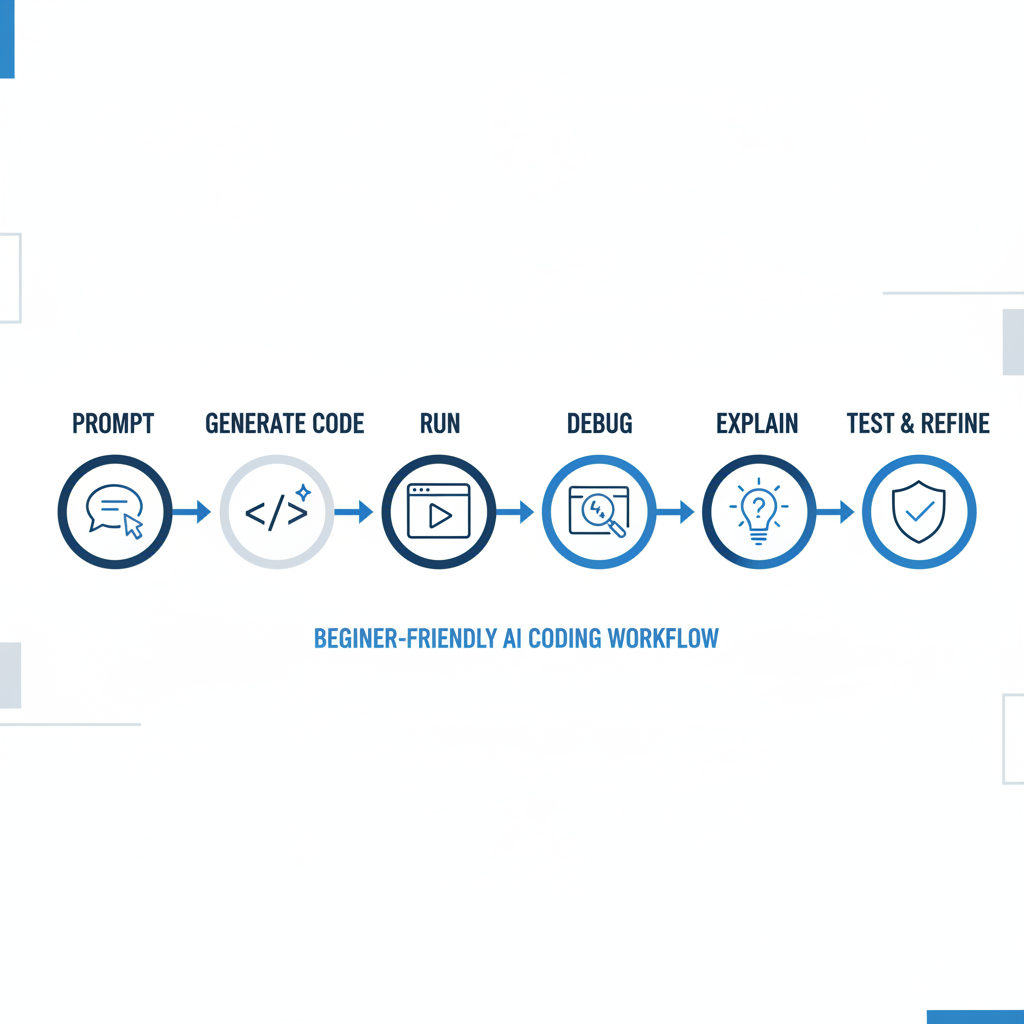
This is the workflow that usually prevents the “AI wrote it, I can’t debug it” trap.
- Step 1: describe the feature in one sentence, then list inputs and outputs.
- Step 2: ask for a tiny implementation, one file if possible.
- Step 3: run it, then paste the exact error text back into the tool.
- Step 4: request an explanation of what changed, line by line for the risky parts.
- Step 5: ask for two edge cases, then add tests or manual checks.
If you’re building anything that handles logins, payments, or user data, slow down. Free generators can help draft scaffolding, but you should validate security basics, and in many cases it’s smart to ask a more experienced developer to review before you deploy publicly.
Common mistakes (and what to do instead)
- Mistake: asking for a full app in one go. Do instead: ask for file-by-file, feature-by-feature output.
- Mistake: accepting autocomplete blindly. Do instead: pause and summarize what the code does in your own words.
- Mistake: copying secrets into prompts. Do instead: use placeholders, rotate keys if exposed, follow your platform’s guidance.
- Mistake: ignoring licensing questions. Do instead: keep outputs simple, avoid pasting proprietary code, follow your org or school policy.
According to GitHub, responsible use of AI coding tools includes reviewing and testing suggestions before merging, which is basically the adult version of “don’t copy homework answers without checking them.”
Conclusion: pick one tool, then build a repeatable habit
Top free ai code generators for beginners are most useful when they help you practice and debug faster, not when they replace thinking. A chat tool plus an editor assistant is usually enough, then you iterate from there.
If you want a simple next step: choose one beginner project you can finish in a weekend, set a rule that you must understand every function you paste, and keep a small log of prompts that worked so you can reuse them.
FAQ
Are free AI code generators good enough to learn programming?
In many cases, yes, especially for learning syntax, debugging, and seeing examples on demand. The gap is usually structure and long-term maintainability, so you still want a curriculum, exercises, or small projects to guide you.
Which is better for beginners: chat-based tools or IDE autocomplete?
Chat tools are better for understanding and debugging, IDE tools are better for repetition and speed. Many beginners improve fastest when they use both, but with clear roles so they don’t become dependent on suggestions.
Can I use these tools for school assignments without getting in trouble?
It depends on your class policy. Some instructors allow AI for debugging but not for generating final solutions. If rules aren’t clear, it’s worth asking directly, that’s usually less stressful than guessing.
How do I know if the generated code is insecure?
Look for missing input validation, raw SQL string building, hardcoded secrets, and overly permissive auth checks. If your app touches real user data, consider a review by an experienced developer, and use established frameworks and security guidance.
What should I paste into an AI tool when debugging?
Include the smallest reproducible snippet, the full error message, and what you expected to happen. Avoid sharing private keys, personal data, or proprietary code from work.
Why does the tool suggest code that doesn’t compile?
Often it’s missing context like versions, imports, or framework setup, sometimes it guesses an API that changed. Asking “what version is this for?” and providing your package versions usually improves accuracy.
Do I need to pay for an AI code generator to get real value?
Not immediately. Free tiers can be plenty for beginner projects and daily practice. Paying tends to matter when you want higher limits, tighter IDE integration, or you’re building frequently enough that caps slow you down.
If you’re trying to pick from all these options and you want a more “no guesswork” setup, it may help to choose one chat tool for explanations and one IDE assistant for autocomplete, then run the same mini-project through both so you can feel the difference before committing.