
how to set up parental controls on youtube is mostly about picking the right “layer” of protection for your child’s age, then tightening a few settings that YouTube doesn’t always surface up front.
If you’ve ever handed over a phone “just for one video” and then heard something wildly inappropriate two minutes later, you already know why this matters. YouTube has strong tools, but they’re split across YouTube Kids, supervised experiences, Restricted Mode, and device-level controls, and that split is where many families get stuck.
This guide walks you through the practical setup for iPhone, iPad, Android, and desktop, plus quick ways to test if your settings actually work. I’ll also call out common traps, like thinking Restricted Mode blocks everything, or forgetting that autoplay can be the real problem.
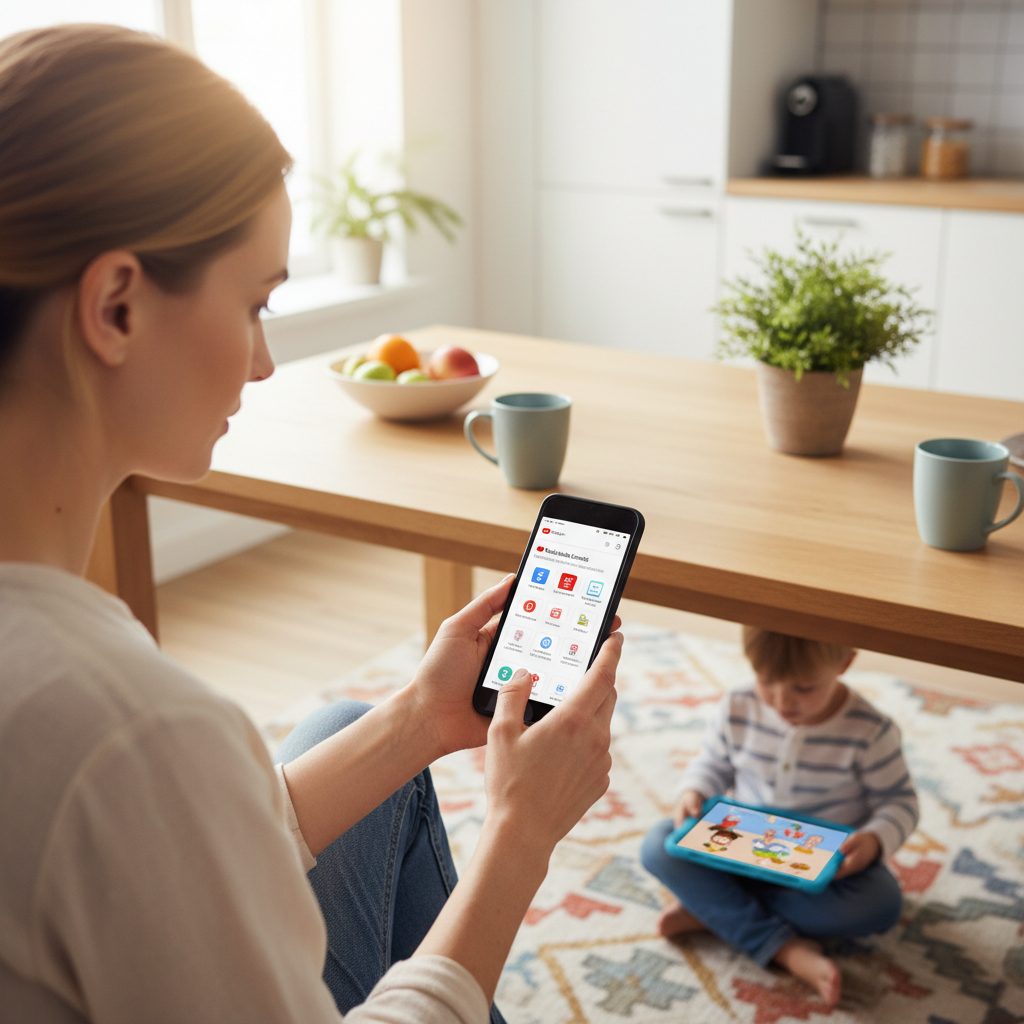
Pick the right YouTube setup for your child (the “layer” that fits)
Before you touch any toggles, decide which YouTube experience your child should use. This choice affects what you can filter, what you can approve, and how much reporting you get.
- YouTube Kids: Usually the simplest for younger kids. Stronger filters and parent controls, but content selection can feel limited.
- Supervised experience (YouTube with a child’s Google Account): Better for tweens/teens who need “regular YouTube,” with age-based content settings and visibility into activity.
- Restricted Mode: A lightweight filter for YouTube in browsers or the main app. Helpful, but not a full parental-control system.
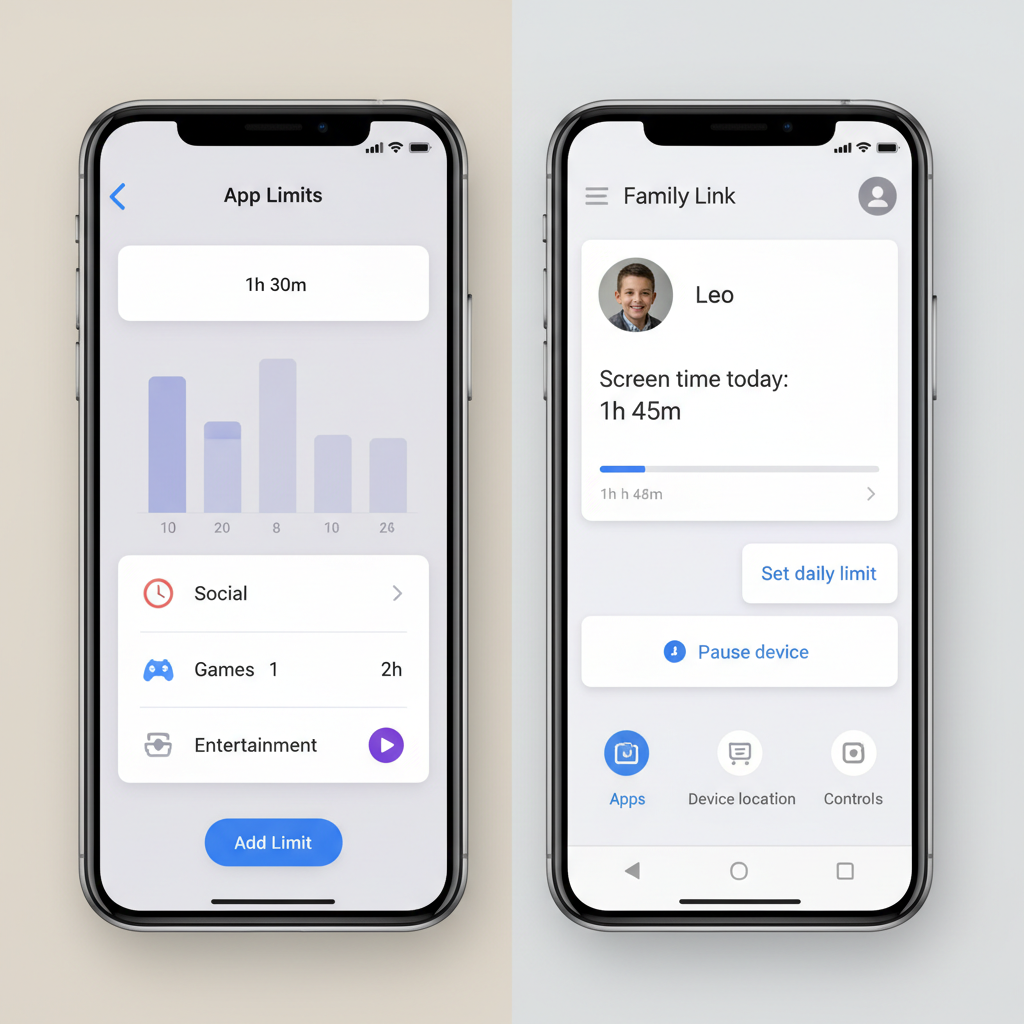
- Device/app controls (Screen Time, Family Link): Great for time limits, app blocking, and “bedtime,” regardless of what YouTube is doing.
According to Google Safety Center, families can use supervised accounts and Family Link to manage content settings and digital ground rules across Google services, which is why many households pair YouTube settings with device-level limits.
Fast comparison: YouTube Kids vs Supervised vs Restricted Mode
If you want the quick decision view, use this table. It’s not perfect, but it matches what most parents actually need day to day.
| Option | Best for | Strengths | Limits to know |
|---|---|---|---|
| YouTube Kids | Kids who don’t need full YouTube | Kid-focused filters, search control, timers | Some weird content can still slip through; requires periodic review |
| Supervised experience | Tweens/teens who want regular creators | Age-based content settings, activity visibility | Still not “no-risk,” and settings vary by device and account |
| Restricted Mode | Shared devices, quick filters | Easy to turn on in app/browser | Not foolproof, and can be bypassed if not locked down |
| Device controls | Any age, especially routine building | Time limits, downtime, install blocks | Doesn’t filter YouTube content by itself |
How to set up YouTube Kids parental controls (most common “easy” route)
If your goal is “safe enough with minimal maintenance,” start here. YouTube Kids works best when you treat it like a curated TV channel, not an open web.
Step-by-step setup
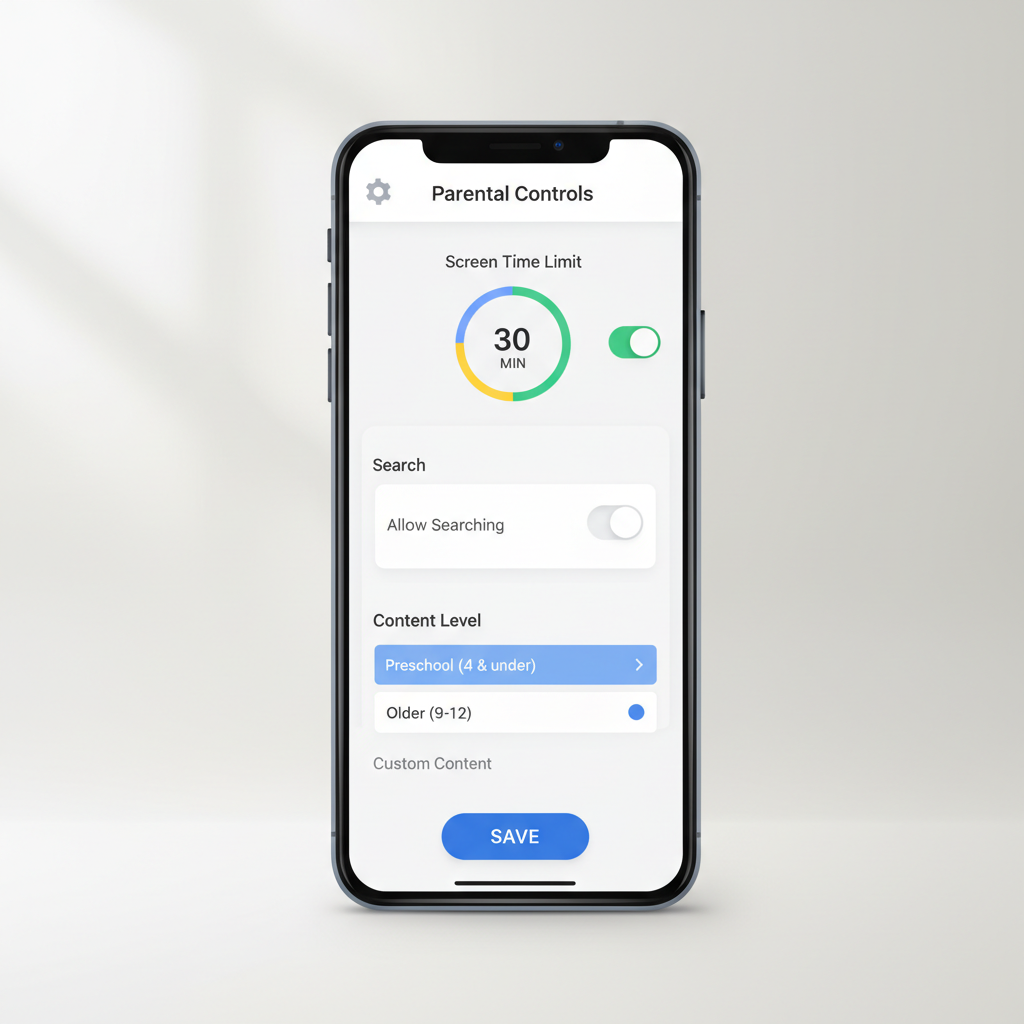
- Install YouTube Kids and sign in with a parent Google Account.
- Create your child profile and pick an age level.
- Decide on Search: turn search off for younger kids if you want fewer surprises.
- Set a timer inside the app, then back it up with device-level time limits.
- Review “Watch Again” occasionally, remove anything that feels off, and block channels/videos as needed.
One real-world note: many families get better results by turning Search off and using Approved content only for a while, then loosening later if things look stable.
How to set up supervised YouTube for a child or teen (more control on “regular” YouTube)
If your child insists on the main YouTube app, a supervised Google Account is usually the next-best option. It gives you guardrails without forcing a separate “kids” app experience.
What you typically need
- A Google Account for your child (managed under your family group)
- Google Family Link app for the parent (Android and iOS)
Practical setup flow (high level)
- Create or convert your child’s account into a supervised account in Family Link.
- In YouTube settings, choose the content setting that matches your child’s age comfort level.
- Decide whether to allow search, manage notifications, and review watch history.
According to YouTube Help, supervised experiences are designed to offer age-appropriate content settings and parental oversight features, but they still rely on classification and signals, so it’s smart to combine this with device time limits and an occasional review.
Turn on Restricted Mode (useful, but don’t treat it as a lock)
Restricted Mode is a filter meant to reduce mature content. It’s worth enabling on shared TVs, browsers, and “guest” devices, but it’s not a guarantee and it’s not the same as a fully managed child account.
On the YouTube app (iPhone/Android)
- Open YouTube → profile icon → Settings
- Find General → toggle Restricted Mode
On desktop (browser)
- Go to YouTube → click profile icon
- Toggle Restricted Mode on
If possible, lock the device and account so a child can’t simply toggle it back off. In many households, this is where “we enabled it” quietly turns into “it stayed on for one afternoon.”
Add device-level limits (where screen time and bedtime rules actually stick)
YouTube settings handle content, but device controls handle habits. Pairing both is usually the difference between a plan that looks good on paper and one that survives a weekend.
iPhone/iPad: Screen Time
- Settings → Screen Time → turn on Screen Time
- Set Downtime (bedtime hours) and App Limits for YouTube
- Use a Screen Time passcode your child doesn’t know
Android: Family Link
- Install Family Link (parent + child devices)
- Set daily limits, bedtime, and approve/block apps
- Make sure your child can’t add new accounts without approval
According to Apple Support, Screen Time can limit app usage and schedule downtime, which is why it pairs well with YouTube content controls when your main issue is “they can’t stop watching.”
Quick self-check: are your YouTube parental controls actually working?
This is the part many parents skip, then feel confused later. Take three minutes and test like a kid would.
- Search test: try a few broad terms your child might type, see what appears.
- Autoplay test: start with an innocent video, watch what autoplay suggests after 2–3 hops.
- Account test: confirm your child uses the intended profile, not a second account or “guest.”
- Toggle test: check whether Restricted Mode or timers can be turned off without a passcode.
- TV test: if you use a smart TV, verify the YouTube app there has the same restrictions.
Key takeaway: if the device has multiple accounts and no passcode, most content settings become “polite suggestions.”
Common mistakes that make YouTube controls feel useless
- Relying on Restricted Mode alone: it helps, but it won’t cover everything, especially edge content.
- Ignoring Shorts: Shorts can change what a child encounters because the feed is fast and sticky.
- Not locking settings: if a child can sign out or switch accounts, your setup becomes fragile.
- Assuming one setting applies everywhere: phone, tablet, browser, and TV can behave differently.
- No plan for headphones: even safe content can become a “private” rabbit hole if you never check history.
If you’re aiming for a calmer home, you don’t need perfection, you need a setup that holds under normal kid behavior.
When to get extra help (and what “extra help” usually means)
If your child is repeatedly exposed to disturbing content, shows signs of anxiety, sleep disruption, or compulsive viewing, it may help to talk with a pediatrician, school counselor, or another qualified professional. Online safety tools reduce risk, but they can’t replace support when a problem shifts from “settings” to “well-being.”
For co-parenting situations, it also helps to align rules across households. Mismatched expectations can turn even solid controls into a constant argument.
Conclusion: a simple setup that most families can maintain
how to set up parental controls on youtube gets much easier when you stop hunting for one magic switch and instead combine a content layer (YouTube Kids or supervised YouTube) with device limits (Screen Time or Family Link), then test autoplay and account switching.
If you do only two things this week, make it these: lock down the account/device so settings stay put, and set a realistic daily time limit that you can enforce without constant battles.
If you need a more hands-off routine, consider creating a short list of approved channels, then re-check it monthly, it’s boring, but it works.