
how to enable dark mode on windows 11 comes down to one setting in Personalization, but getting it to apply cleanly across apps, browsers, and file dialogs takes a couple extra tweaks.
If you work late, stare at spreadsheets all day, or just prefer a calmer look, Dark Mode can make Windows feel easier to live with. It won’t magically “fix” eye strain for everyone, but many people find bright white UI fatiguing, especially in dim rooms.
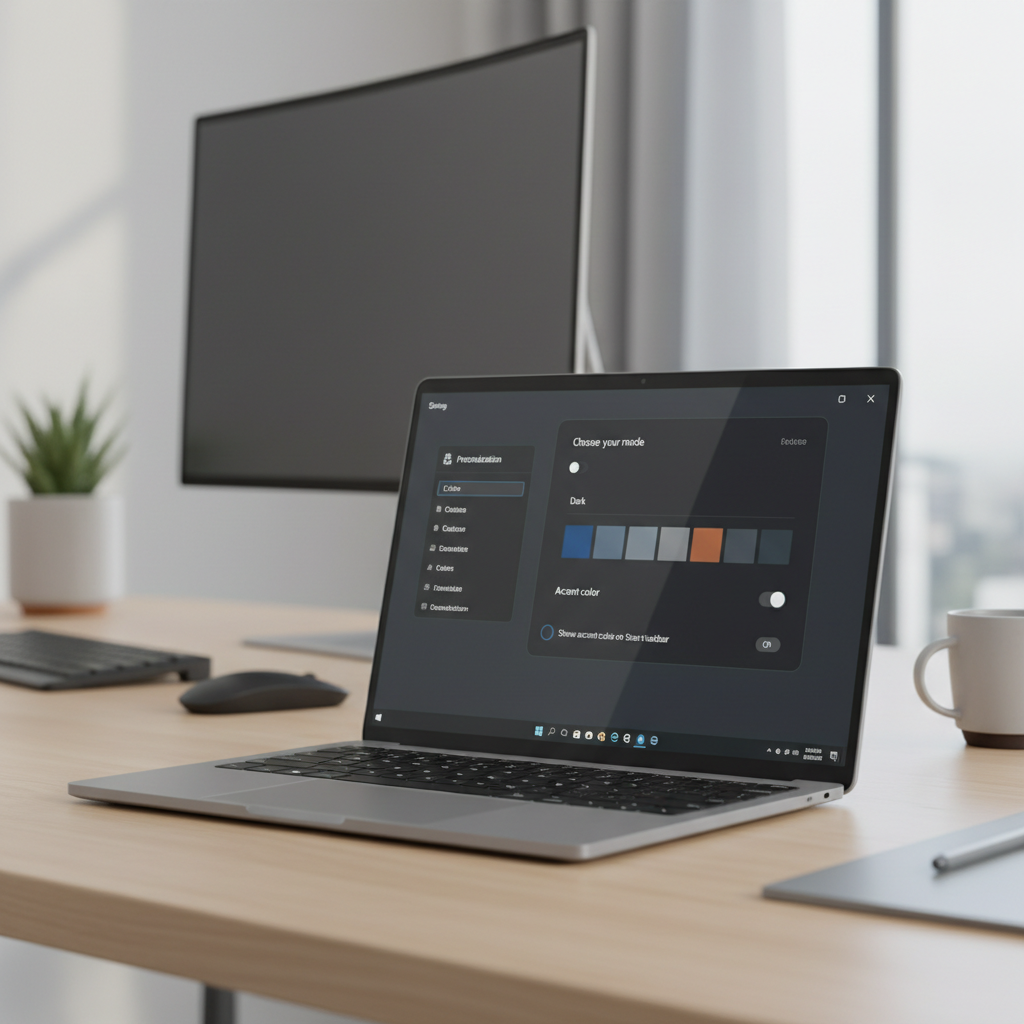
The catch is that Windows has more than one “theme” layer: system UI, apps, high-contrast accessibility modes, and individual app settings. This guide helps you switch Dark Mode fast, then troubleshoot the few places it often doesn’t stick.
Enable Dark Mode in Windows 11 (the main switch)
The quickest path is inside Settings. You’re changing the system-wide color mode Windows uses for most built-in UI and many apps.
- Open Settings (press Windows + I).
- Go to Personalization → Colors.
- Find Choose your mode and select Dark.
If you want taskbar and Start to look darker too, keep reading, there’s one more setting that often matters.
Use “Custom” mode to control Windows UI vs apps
Windows 11 lets you split Dark Mode into two pieces: the Windows interface (taskbar, Start, system surfaces) and app surfaces. This is where people usually get confused, because “Dark” isn’t always what they actually want.
- Settings → Personalization → Colors
- Under Choose your mode, pick Custom
- Set Choose your default Windows mode to Dark (this hits taskbar/Start)
- Set Choose your default app mode to Dark (this hits supported apps)
Key point: If your apps are dark but taskbar is still bright (or the reverse), this Custom split is usually why.
What Dark Mode changes (and what it doesn’t)
Dark Mode is broad, but not absolute. Some legacy screens, older software, and certain dialogs may ignore it.
Here’s a quick reality check so expectations stay sane:
| Area | Usually switches with Windows Dark Mode | Often needs extra steps |
|---|---|---|
| Settings app, Start menu, taskbar | Yes (especially with Custom → Windows mode: Dark) | Theme conflicts, contrast settings |
| File Explorer | Mostly | Some dialogs and older control panels |
| Microsoft Store apps | Often | App-level theme overrides |
| Browsers and websites | Browser UI often | Websites need their own dark setting or extension |
| Office/Adobe/third-party tools | Varies by app | Usually requires in-app theme selection |
According to Microsoft Support, Windows personalization settings like color modes and themes are managed in Settings, and some app appearance preferences can be controlled separately within each app.
Make Dark Mode look better: accent color, transparency, and contrast
Once you know how to enable dark mode on windows 11, the next win is making it comfortable instead of “muddy.” A few small toggles can improve readability.
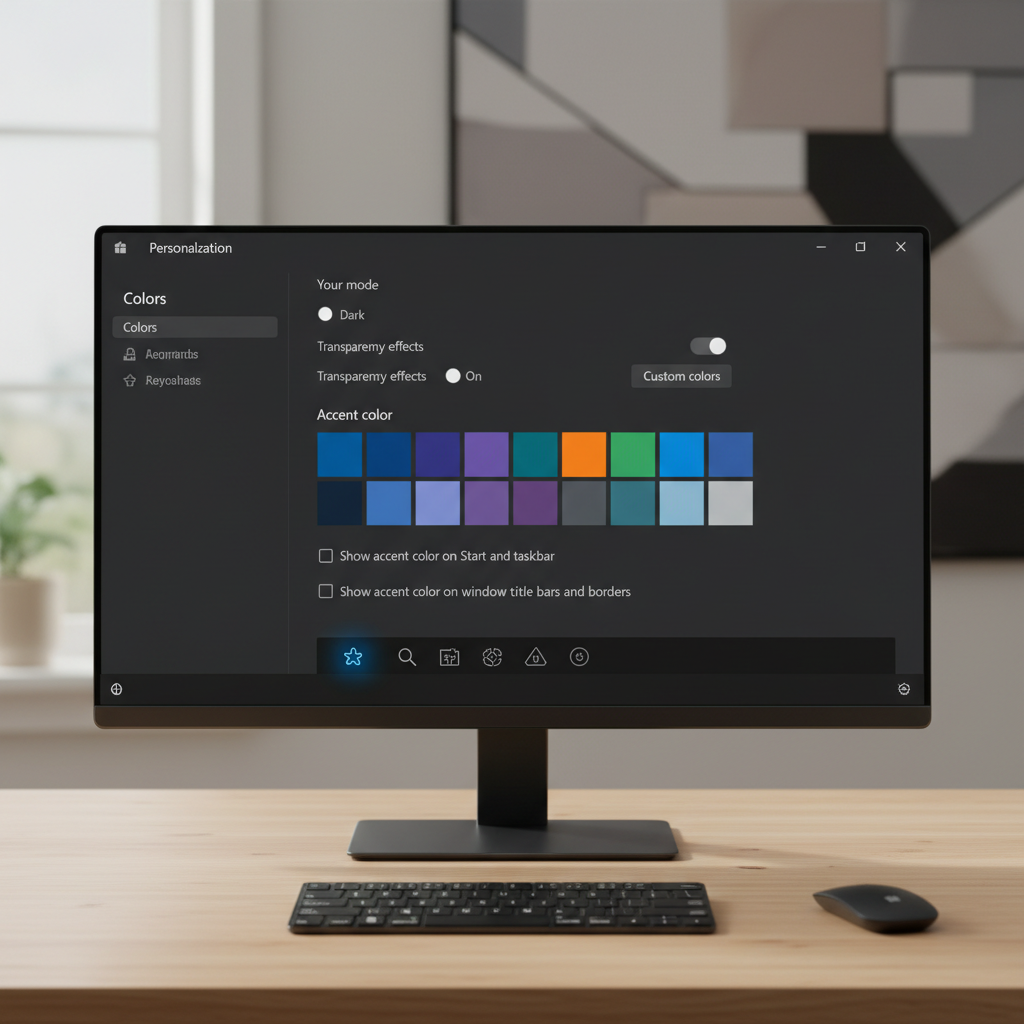
Try these adjustments:
- Accent color: Settings → Personalization → Colors → choose an accent color that stays readable on dark backgrounds.
- Show accent color on Start and taskbar: Turn on only if you like a tinted taskbar, otherwise it can feel loud.
- Transparency effects: Dark + transparency can look great, but on some PCs it reduces clarity. Toggle and decide.
- Text size and scaling: Settings → Accessibility → Text size, or System → Display → Scale, helpful if dark UI feels “thin.”
Quick comfort tip: In a bright room, pure black UI can feel harsh. If you don’t love the look, try a dark gray theme in apps (many offer options like “Dark Gray” vs “Black”).
If some apps stay bright: where to change themes inside apps
Plenty of popular apps don’t fully follow the Windows setting, or they default to “Use system setting” but get stuck. In practice, you’ll often need to toggle inside the app once.
Common places to look
- Microsoft Office: Account or Options → Theme (names vary by version)
- Browsers (Chrome/Edge/Firefox): Appearance → Theme; also check extensions/themes
- Slack/Teams/Discord: Settings → Appearance → Theme
- Adobe apps: Preferences → Interface (usually several brightness levels)
If you’re using a work-managed device, some settings can be controlled by your organization, so the theme option might be locked or overridden.
Troubleshooting: Dark Mode not applying (fast checklist)
When people say Dark Mode “doesn’t work,” it’s usually one of these. Run this quick list before you reinstall anything.
- Check Custom mode splits: Confirm both Windows mode and app mode are set the way you expect.
- Restart the app: Some apps only re-skin after a full close and reopen.
- Update Windows: Settings → Windows Update; theme bugs do get patched.
- Look for High Contrast: Settings → Accessibility → Contrast themes; if enabled, it can override normal dark styling.
- Graphics/remote sessions: In some remote desktop or outdated graphics driver scenarios, UI rendering can behave oddly. A driver update may help.
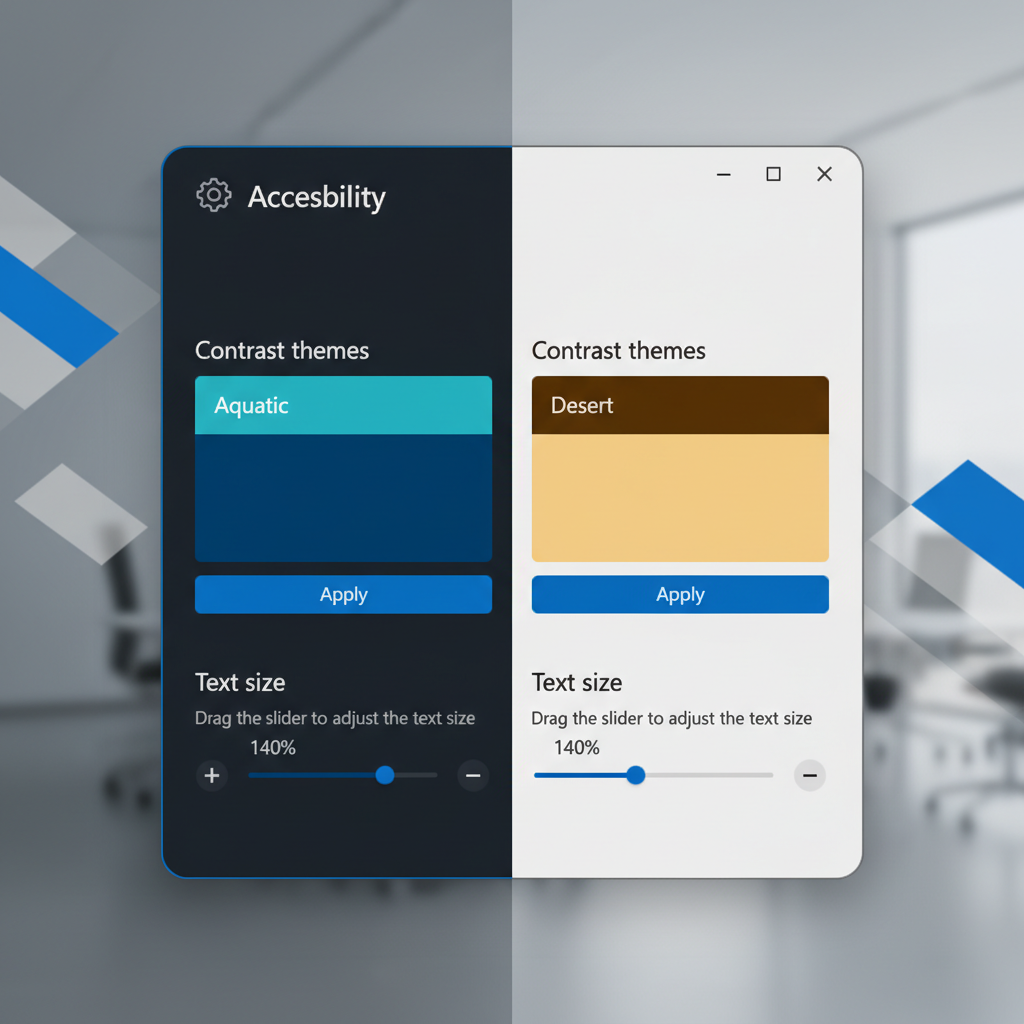
If a specific legacy tool stays bright no matter what, it may simply not support modern theming. In that case, you’re choosing between living with it, switching apps, or using a third-party theme tool, which can bring stability and security trade-offs.
Practical setup ideas (so it fits your day, not just your PC)
After you enable it, a small routine makes Dark Mode feel intentional rather than accidental.
- Pair with Night light: Settings → System → Display → Night light; it shifts color temperature at night. It won’t be perfect for everyone, but it’s worth trying if late screens feel harsh.
- Use a “dark browser” strategy: Keep browser UI dark, then turn on site-level dark themes where available. For sites without one, consider reader mode or a reputable extension, and be careful with permissions.
- Create a quick contrast rule: If you edit photos/video, you might prefer light UI for color accuracy; keep those apps on their own theme while Windows stays dark.
Key takeaway: Dark Mode is a system preference, but your best setup is usually mixed, Windows dark, apps that follow system, and a few exceptions where readability or color work matters more.
Conclusion: a clean Dark Mode setup in under 5 minutes
how to enable dark mode on windows 11 is simple, switch Personalization → Colors to Dark or Custom, then confirm both Windows mode and app mode match what you want. After that, clean up the stragglers by adjusting app-level themes and checking Accessibility contrast settings if anything looks “off.”
If you want a quick next step, set Custom to dark for both Windows and apps, restart your most-used programs, then tweak accent color and transparency once, you’ll feel the difference immediately.
Key points (save this)
- Settings → Personalization → Colors is the main control.
- Custom mode fixes most “taskbar vs apps” mismatches.
- Some apps need their own theme toggle, even when Windows is dark.
- Accessibility contrast themes can override your look, check it when colors seem wrong.