
How to fix slow internet on phone usually comes down to three things: signal quality, network congestion, or a setting/app on your device that quietly gets in the way. The good news is you can narrow it down in minutes, and most fixes don’t require any tech magic.
If you’re on Android or iPhone and everything feels stuck—web pages crawl, Instagram won’t load, Zoom drops, maps lag—this guide helps you diagnose what’s actually happening, then apply the right fix without wasting time on random tips.
One quick note before we start: “slow internet” can mean slow Wi‑Fi, slow cellular data, or both. The fixes overlap, but the best next step depends on which connection is failing, and whether it’s just your phone or everyone on the same network.
Quick diagnosis: is it Wi‑Fi, cellular, or the phone?
Don’t troubleshoot everything at once. Do two fast tests and you’ll know where to focus.
Two-minute test
- Test A (Wi‑Fi): Turn on Airplane Mode, then turn on Wi‑Fi only. Load 2–3 sites and one app.
- Test B (Cellular): Turn Wi‑Fi off, keep cellular on. Try the same sites/apps again.
If Wi‑Fi is slow but cellular feels fine, it’s usually the router, Wi‑Fi signal, or ISP congestion. If cellular is slow but Wi‑Fi is fine, it’s typically coverage, carrier congestion, or data settings. If both are slow, your phone settings, VPN, DNS, or a bad app process becomes more likely.
Fast fixes that solve a surprising number of cases
These are the “low effort, high hit rate” moves. They work because they clear stuck network states, force fresh connections, and stop background traffic.
- Toggle Airplane Mode for 10–15 seconds, then turn it off. This triggers a clean reconnect to towers and Wi‑Fi.
- Restart the phone. It’s boring, but it clears hung network services and memory pressure.
- Turn off VPN/Private Relay temporarily. VPNs can add latency or route you through overloaded servers.
- Disable Low Data Mode / Data Saver (temporarily) to see if it’s throttling background activity too aggressively.
- Move closer to the router or step away from dense interference (microwaves, thick walls, crowded apartment buildings).
According to Apple Support, resetting network settings can resolve persistent Wi‑Fi and cellular connectivity issues when basic steps don’t help. That’s a later step, but it’s worth remembering.
Wi‑Fi slow on your phone: what to check (and what to ignore)
If your phone is slow only on Wi‑Fi, treat it like a Wi‑Fi problem first. Many people waste time digging through phone settings when the router is the bottleneck.

Do these checks first
- Forget and rejoin the Wi‑Fi network (especially after router changes). It refreshes the saved security and DHCP lease.
- Restart modem + router (unplug 30 seconds). Many routers degrade over time until rebooted.
- Try 5 GHz vs 2.4 GHz: 5 GHz is often faster at close range; 2.4 GHz reaches farther but gets crowded.
- Check if other devices are hogging bandwidth: cloud backups, game downloads, smart TV streaming.
- Run a speed test near the router, then again where you usually sit. Big drops usually mean range/interference, not your phone.
Router realities (the part nobody wants to hear)
If the Wi‑Fi is slow for everyone, your phone probably isn’t the culprit. Old routers, crowded channels in apartments, or ISP peak-time congestion can all show up as “my phone is slow.” In many households, a router upgrade every few years is the quiet fix.
According to FCC consumer guidance, internet speeds can vary by network congestion and the type of connection, especially during peak hours. That variability matters when you test, so try once in the evening and once mid-day before you conclude anything.
Cellular data slow: the settings that matter on Android and iPhone
If slowdowns happen on LTE/5G, you’re dealing with coverage, congestion, or how the phone negotiates the connection. You can’t “optimize” your way out of a saturated tower, but you can avoid common traps.
What to do on iPhone
- Settings > Cellular: confirm Cellular Data is on for the affected apps.
- Settings > Cellular > Cellular Data Options: check Voice & Data (5G Auto/On/LTE). If 5G is unstable in your area, testing LTE for a day can be revealing.
- Disable Low Data Mode temporarily (per line). If it fixes the issue, re-enable and adjust app behavior instead.
- Update carrier settings when prompted. Carrier bundles can affect network behavior.
What to do on Android (varies by brand)
- Settings > Network & Internet: confirm Mobile data is on and you’re not in “data saver” mode.
- Preferred network type: try Auto first, then test LTE/4G only if 5G handoffs seem flaky.
- Check APN settings only if you recently switched carriers or SIM/eSIM. Wrong APN can cause slow or broken data.
- Disable “Always-on VPN” if enabled by a work profile, to see if routing causes the slowdown.
When it’s “both slow”: apps, VPNs, DNS, and hidden background use
If Wi‑Fi and cellular both feel sluggish, you’re closer to a device-level cause. This is where the right small change can suddenly make everything normal again.
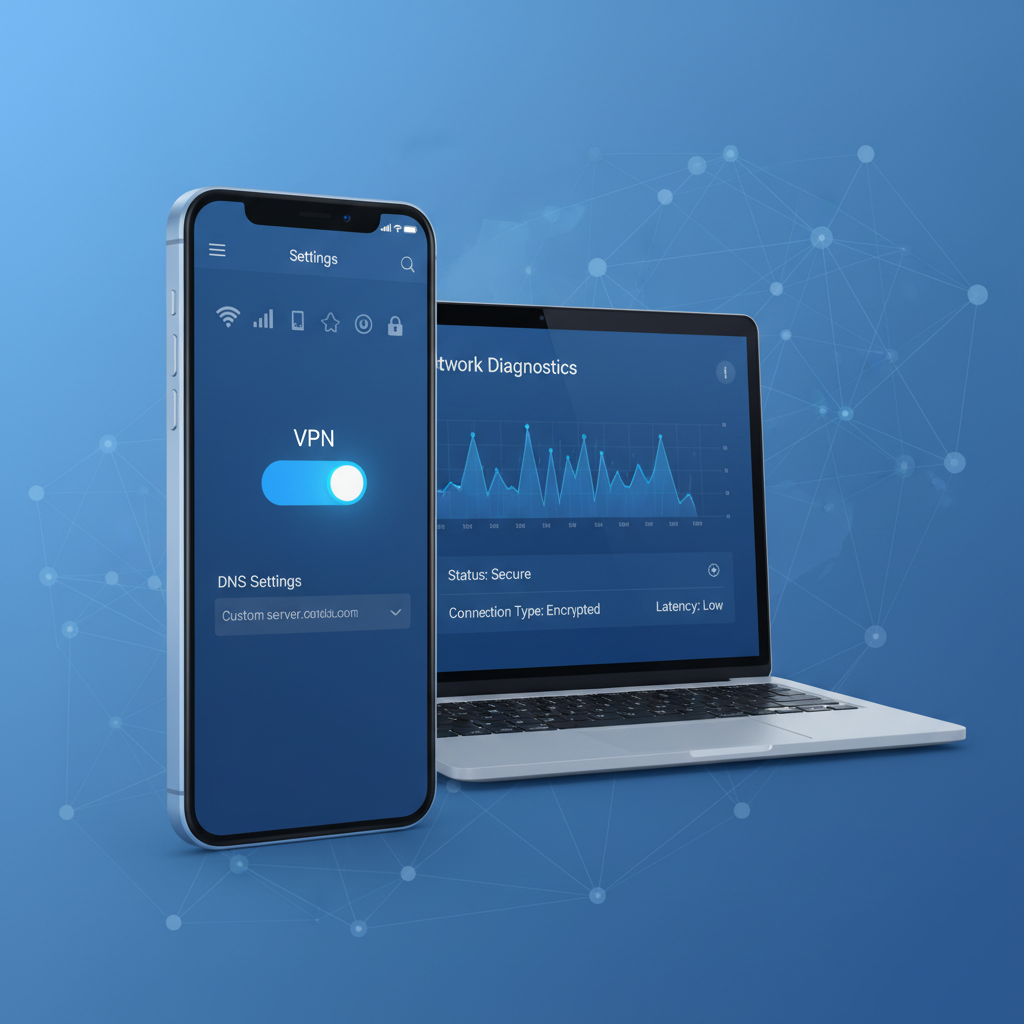
Common culprits
- VPN or security apps: extra hops add latency, and some servers get overloaded.
- Custom DNS: fast DNS helps, but a bad/blocked resolver can cause delays and failed lookups.
- Background sync storms: photo backups, podcast downloads, cloud drive syncing, app updates.
- Browser bloat: too many tabs, heavy extensions (on Android browsers), or corrupted cache.
Practical fixes
- Pause big background tasks (Google Photos/iCloud Photos uploads, Dropbox/Drive sync) and retest.
- Clear browser cache (or try another browser) to separate “internet slow” from “browser slow.”
- Turn off private DNS/custom DNS temporarily, or switch back to “Automatic.”
- Check per-app data use: if one app used a huge amount in the background, it’s a strong hint.
According to Google’s Android Help resources, Safe Mode can help identify whether third-party apps are causing issues; if performance improves in Safe Mode, an installed app is often involved.
Reset options: what to try before the nuclear button
If you’ve tried the obvious steps and the problem keeps coming back, resets can help, but do them in a controlled order so you don’t create extra work.
Best-effort reset ladder (least disruptive to most)
- Reset network settings (keeps your data, removes saved Wi‑Fi and Bluetooth pairings).
- Update OS (iOS/Android) and key apps. Network stack fixes arrive through updates sometimes.
- Remove and re-add eSIM or reseat physical SIM (only if carrier supports and you have access to re-provisioning).
- Factory reset as a last resort, after backing up. If you go here, test internet before restoring every app.
Cheat sheet: symptoms → likely cause → fix
Use this to avoid guesswork when deciding what to try next.
| What you notice | Likely cause | Try this first |
|---|---|---|
| Wi‑Fi slow only in one room | Weak signal / interference | Switch to 2.4 GHz, move router, consider mesh |
| Wi‑Fi slow for everyone at home | Router/ISP congestion | Reboot modem/router, test at off-peak, call ISP |
| Cellular slow in crowded places | Tower congestion | Toggle Airplane Mode, try LTE/5G setting changes |
| Both Wi‑Fi and cellular feel laggy | VPN/DNS/app background use | Disable VPN, set DNS to automatic, pause uploads |
| Fast speed test but apps still buffer | App/server issue, DNS, or Wi‑Fi stability | Try another app/site, change DNS back to automatic |
Key takeaways (so you don’t overthink it)
- Separate Wi‑Fi from cellular first, otherwise you chase the wrong problem.
- VPN and private DNS are common “why is everything slow?” triggers, especially after updates.
- Wi‑Fi range and interference cause more “slow internet” complaints than people expect.
- Carrier/ISP congestion is real, and no phone setting fully fixes it.
When to contact your carrier, ISP, or a repair shop
If you’ve worked through the steps and speeds remain consistently poor across multiple locations and networks, it’s time to stop blaming the phone. Call your carrier if cellular is slow in many areas, or your ISP if Wi‑Fi is slow for multiple devices.
Seek hands-on help if you see SIM not detected errors, frequent no service in places that should have coverage, the phone overheats during normal browsing, or the device can’t hold a stable connection even after a network reset. Hardware faults are less common than settings issues, but they do happen, and a technician can confirm without guesswork.
Conclusion: get back to a fast connection without random tinkering
If you came here wondering how to fix slow internet on phone, focus on quick isolation first, then apply targeted fixes: stabilize Wi‑Fi or cellular, remove VPN/DNS friction, and only then consider resets. Pick one change, retest, and you’ll usually find the culprit faster than you expect.
If you want an easy next move, run the two-minute Wi‑Fi vs cellular test now, then do the top fast fixes in order, most people see improvement before they reach the reset steps.