
how to fix overheating android phone issues usually comes down to three buckets: what the phone is doing (apps and settings), how it’s being used (charging, signal, environment), and whether something physical is failing (battery, port, damaged parts).
If your phone feels hot once in a while, that can be normal, especially during gaming, video calls, navigation, or fast charging. But if heat shows up daily, comes with battery swelling, sudden shutdowns, or severe lag, it’s worth treating as a real reliability and safety problem, not just an annoyance.
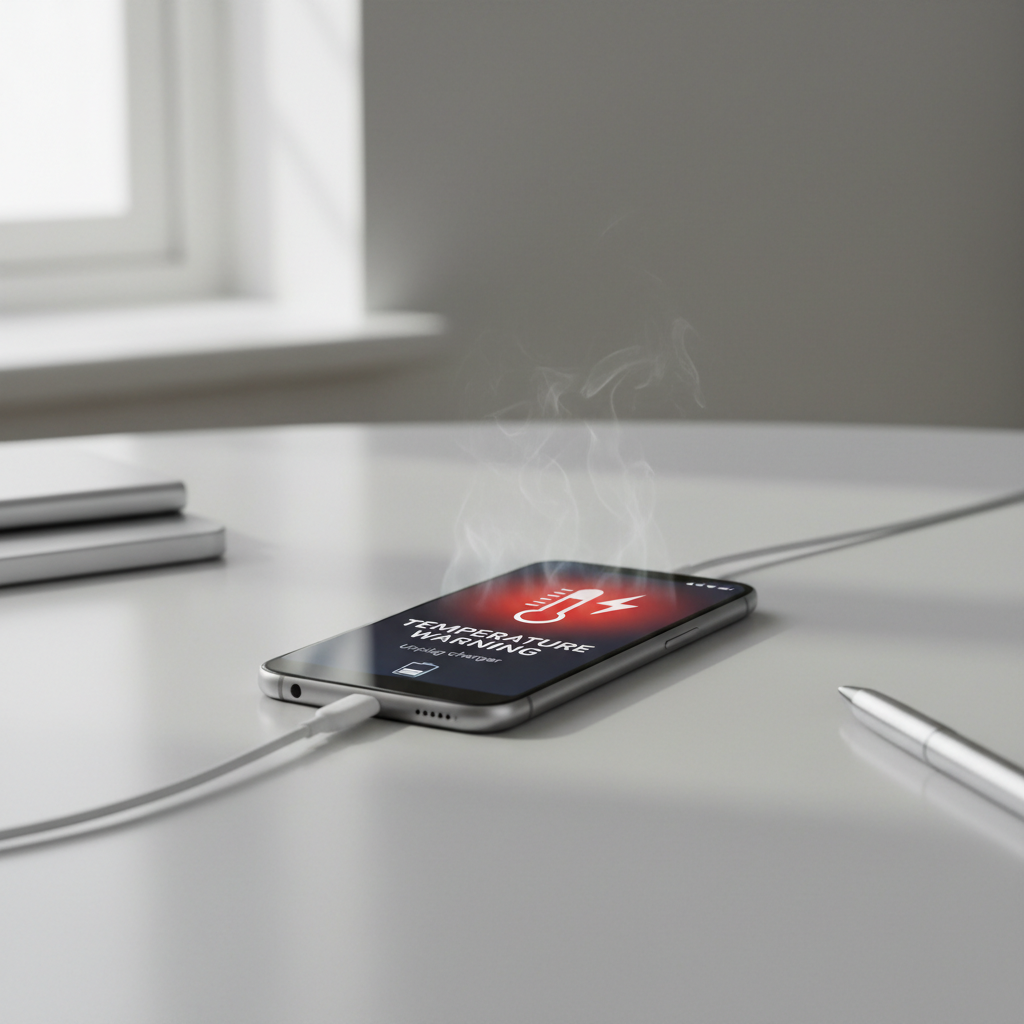
Below is a practical way to diagnose what’s causing the heat, plus fixes that work in most real-life cases. I’ll also flag situations where you should stop using the phone and consider professional help, because overheating can occasionally point to hardware trouble.
What “overheating” really means on Android
Heat is a symptom, not a diagnosis. Your phone warms up when the CPU/GPU works hard, the modem fights for signal, or the battery charges quickly. Android may also show a warning, dim the display, slow performance, or pause charging to protect components.
According to Google (Android Help), devices may become warm during setup, updates, intensive use, or charging, and you should let the phone cool down and avoid using it until it returns to normal temperature.
- Warm: noticeable but comfortable to hold, no warning, performance mostly normal.
- Hot: uncomfortable to hold, screen may dim, charging slows, apps lag.
- Overheating: warning appears, phone shuts down, camera/flash disabled, charging paused.
Quick self-check: identify the most likely cause in 2 minutes
Before changing a bunch of settings, pin down when the heat happens. The timing usually tells you the cause faster than any single “cooling app” ever will.
- Only while charging → cable/adapter, fast charging, case insulation, or battery aging.
- Only on certain apps → runaway background activity, video, camera, or a buggy update.
- Only outdoors/in car → sunlight, windshield “greenhouse” heat, navigation + charging combo.
- Mostly in weak signal areas → cellular radio working harder, hotspot use, constant handoffs.
- Random, even idle → background sync loop, malware, or battery/board issue.
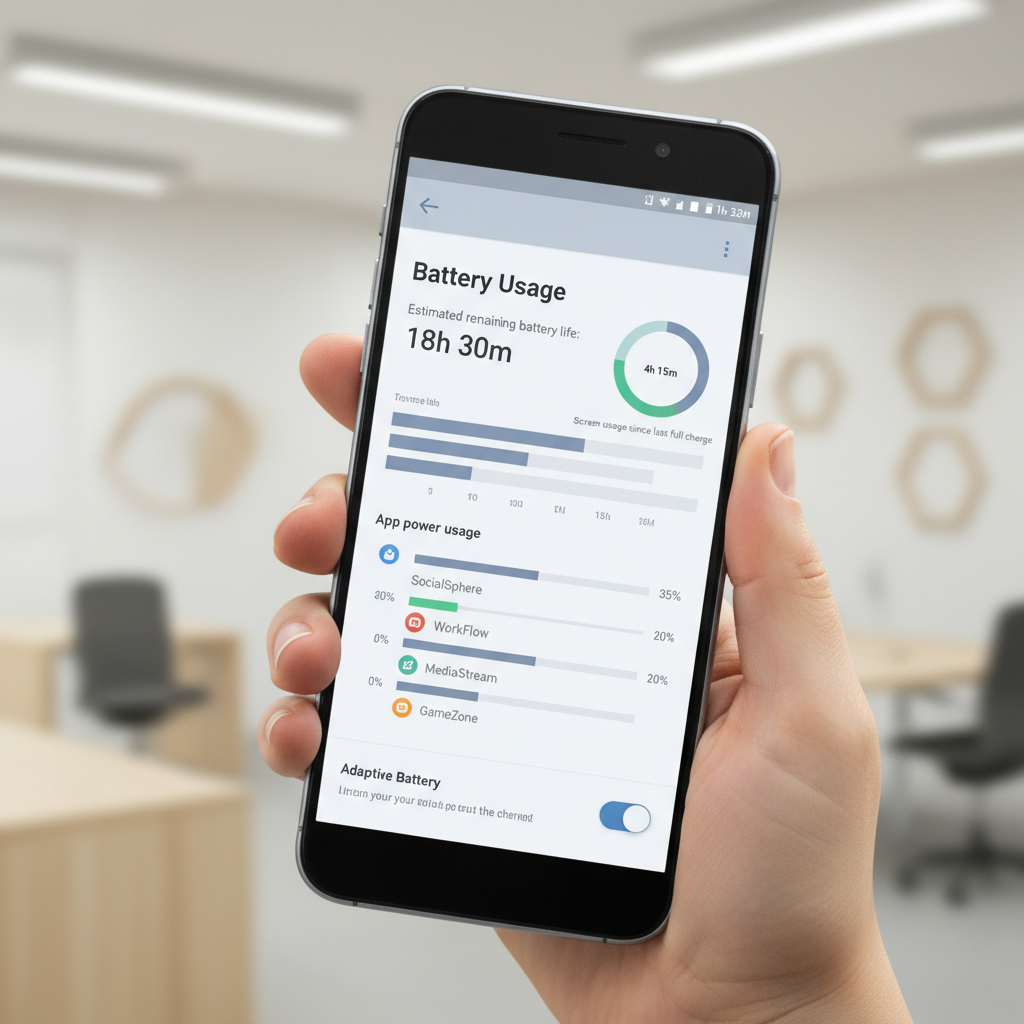
Also check your phone’s own clues: in Settings > Battery (wording varies by brand), look for apps with unusually high background use, and note whether heat aligns with a recent app install, OS update, or new charger.
Fast fixes that cool the phone safely (what to do right now)
If you need the phone to cool down quickly, aim for “less work for the chip” and “less heat trapped around the battery,” not gimmicks.
- Stop charging for 10–20 minutes and unplug accessories.
- Move to shade and off hot surfaces; avoid dashboards and direct sun.
- Remove the case if it’s thick or rubberized and the phone feels hot.
- Close heavy apps (camera, games, TikTok/IG, GPS navigation) and wait a few minutes.
- Turn on Airplane mode if you’re in weak reception and don’t need connectivity.
- Lower screen brightness; display power adds heat quickly.
Avoid putting the phone in a fridge/freezer. Sudden temperature change can create condensation, and moisture plus electronics is a bad mix.
Find the culprit: apps, updates, and background activity
When people search how to fix overheating android phone problems, the most common “hidden” cause is an app that keeps the CPU awake in the background. It might be obvious (a game), but it’s often something boring like a social app stuck uploading, a backup loop, or a buggy update.
Steps that usually work
- Check Battery usage: Settings > Battery > Battery usage (or similar). If one app dominates, that’s your first suspect.
- Force stop the suspect app and see if temperature stabilizes within 5–10 minutes.
- Update the app in Google Play; overheating after an update can also mean you need the next patch.
- Clear cache for that app (Settings > Apps > [App] > Storage > Clear cache). If issues persist, consider Clear storage after backing up.
- Limit background activity: restrict background data or battery usage for non-essential apps.
Quick decision rule
If heat appears only when an app is open, it’s likely workload. If heat appears even when you’re not touching the phone, it’s more likely background behavior, sync, or connectivity problems.
Charging and battery heat: where most damage happens
Charging is the moment when heat matters most because the battery is involved. Many phones run warm during fast charging, but there’s a line between “warm” and “this feels wrong.” According to Apple (Battery and performance guidance) and many battery safety recommendations broadly, excessive heat can accelerate battery aging; the same principle applies across lithium-ion devices, including Android phones.
Safer charging checklist
- Use a reputable charger and cable that matches your phone’s charging standards. Cheap cables can waste power as heat.
- Avoid charging under pillows or on beds; soft surfaces trap heat.
- Try slower charging: disable fast charging (if your phone offers it) or use a lower-watt adapter at night.
- Don’t game while charging; stacking CPU load + charging is a classic overheating trigger.
- Clean the USB-C port gently if the connection feels loose or charging runs unusually warm. If you’re unsure, get it checked rather than poking aggressively.
If the phone gets hot specifically at the lower edge near the port, test with a different cable and adapter first, it’s a simple win when it’s the culprit.
Heat from signal, hotspot, and location services (the sneaky one)
Weak cell signal can heat phones more than people expect because the modem increases power to maintain a connection. Tethering and hotspot use adds more work, and GPS navigation keeps multiple radios active.
- If you’re in a low-signal building, switch to Wi‑Fi calling (if available) or use Wi‑Fi for data when possible.
- Turn off hotspot when not needed, especially in areas with poor reception.
- Limit location access to “While in use” for apps that don’t need constant tracking.
- Download offline maps before long drives; it can reduce background data churn.
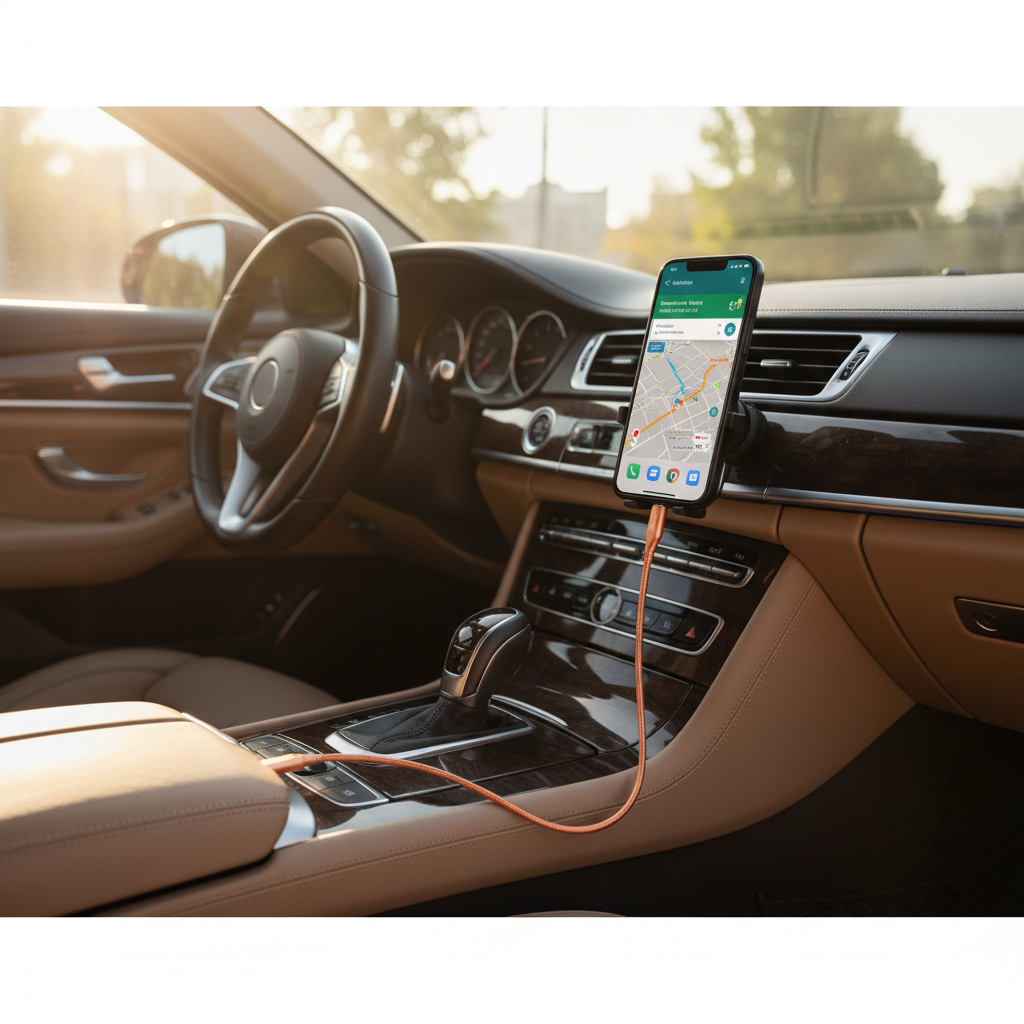
The car scenario is worth calling out: navigation + music streaming + charging + sun on the screen is basically a heat stress test. Moving the mount out of direct sun often helps more than any setting tweak.
Troubleshooting table: symptom → likely cause → what to try
| What you notice | Most likely cause | Try this first |
|---|---|---|
| Hot only while charging | Fast charging, poor cable/adapter, case trapping heat | Swap cable/adapter, remove case, try slower charging |
| Hot during one specific app | App bug or heavy workload | Update app, force stop, reduce settings (HD video, FPS) |
| Hot even when idle | Background sync loop, rogue app, malware | Check Battery usage, uninstall recent apps, run Play Protect scan |
| Hot in weak signal areas | Cell modem power draw | Use Wi‑Fi, Airplane mode temporarily, limit hotspot |
| Overheats in car on sunny days | Sunlight + bright screen + navigation + charging | Move out of sun, lower brightness, pause charging |
| Sudden heat + battery drains fast | Battery aging or failing component | Back up data, stop heavy use, consider battery/service check |
Deeper fixes if the problem keeps coming back
If you’ve handled the obvious triggers and the phone still runs hot, go one layer deeper. This is where fixes start to feel annoying, but they’re often the ones that actually stick.
- Restart (not just screen off). A stuck process can keep the phone warm for hours.
- Update Android and security patches. Thermal management changes sometimes ship in firmware updates.
- Boot into Safe Mode to test third-party apps. If heat disappears, an installed app is likely involved.
- Reduce high-heat settings: high refresh rate, always-on display, constant 5G in marginal coverage, or high-resolution recording.
- Back up and factory reset if idle overheating persists and you can’t isolate a single cause. This is a last resort, but it clears software loops that don’t show up cleanly in battery charts.
According to Federal Trade Commission (FTC) guidance on device security basics, keeping software updated and removing suspicious apps helps reduce risks from unwanted or malicious behavior, which can also present as unusual battery drain and heat.
Common mistakes that make overheating worse
- Using “cooler” booster apps that constantly run in the background. Many simply kill processes repeatedly, which can create more work and more heat.
- Ignoring a puffy battery. If the back cover lifts or the screen separates, stop using the phone and seek service.
- Charging in sealed spaces like a closed bag or under blankets.
- Blasting the phone with extreme cold (freezer, ice packs touching the chassis). Condensation risk is real.
When to stop troubleshooting and get professional help
Some heat patterns suggest hardware risk. If any of the below happens, it’s safer to pause DIY fixes and talk to your carrier, manufacturer support, or a reputable repair shop.
- Battery swelling, chemical smell, hissing, or the phone feels hot while doing nothing.
- Repeated overheating warnings even after app cleanup and slower charging.
- Random shutdowns paired with sudden drops in battery percentage.
- Heat concentrated in one spot (especially near the battery area) that persists across restarts.
If you feel the phone could be a burn or fire hazard, keep it away from flammable materials and consider professional evaluation. This is one of those areas where “wait and see” can be the wrong move.
Key takeaways and a simple action plan
For most people, fixing heat is less about one magic setting and more about removing a repeating trigger. Start with the easiest wins: change charging habits, identify the one app causing spikes, and reduce sun and signal stress.
- Today: remove case while charging, swap cable/adapter, check Battery usage for one runaway app.
- This week: update Android and top-used apps, adjust hotspot/location settings, test a slower charge routine.
- If symptoms persist: Safe Mode test, then consider a service check for battery health.
FAQ
Why is my Android phone overheating even when I’m not using it?
This often points to background activity, like an app stuck syncing, uploading, or looping after an update. Check Battery usage for high background drain, uninstall recent installs, and test Safe Mode to separate system vs third‑party causes.
Can a phone case cause overheating?
It can, especially thicker cases that trap heat during charging or gaming. If heat is noticeably worse with the case on, treat that as a useful clue and run a quick test charging without it.
How do I fix overheating while charging?
Start simple: try a different cable and reputable adapter, charge on a hard surface, and pause fast charging if your phone allows it. If the phone still runs hot and battery life keeps dropping fast, a battery health check may be warranted.
Is it normal for Android phones to get hot during gaming or video calls?
Some warmth is normal because the CPU/GPU and network radios work hard. If you see warnings or the phone becomes uncomfortable to hold, lower graphics settings, reduce brightness, and take breaks so the device can cool.
Does 5G make my phone hotter?
In some situations, yes, especially when coverage is marginal and the phone constantly switches bands. If heat correlates with weak reception, trying LTE temporarily or leaning on Wi‑Fi can reduce strain.
What should I do if my phone shows an overheating warning?
Stop heavy use, move it to a cooler spot out of sunlight, and unplug charging. Let it cool before resuming, and if warnings repeat frequently, look for a specific app trigger or consider professional support.
Will a factory reset stop overheating?
Sometimes, particularly when idle overheating comes from persistent software conflicts or corrupted settings. It’s still a last resort because you’ll need backups and time to restore, and it won’t fix a failing battery.
One more practical option if you want less trial-and-error
If you’re still stuck after the quick checks, a more structured approach helps: document when heat happens, test one variable at a time (charger, case, hotspot, one suspect app), and if you’d rather avoid guesswork, a manufacturer support visit or reputable repair shop can run battery diagnostics and rule out hardware issues faster.