
how to hide taskbar windows 11 is mostly a one-minute Settings change, but the part that frustrates people is when Auto-hide feels inconsistent, especially with multiple monitors or full-screen apps.
If you want more screen space, fewer distractions, or a cleaner desktop for presentations, hiding the taskbar can help, as long as you know what trade-offs you accept, like needing an extra hover to reach Start or pinned apps.
This guide walks through the exact Windows 11 toggles, what to check when the taskbar won’t stay hidden, and a few practical alternatives that keep things tidy without fighting your system every day.
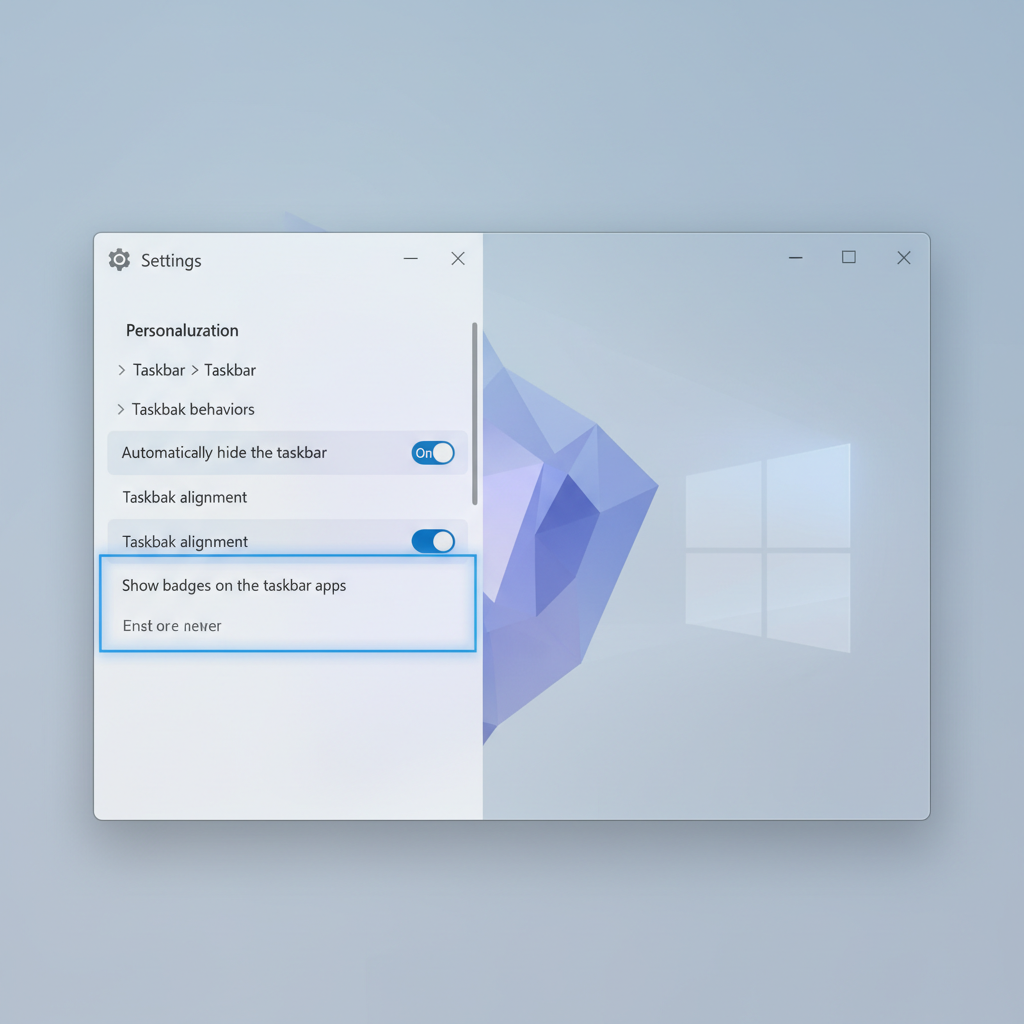
What “Hide the Taskbar” Actually Means in Windows 11
Windows 11 doesn’t offer a “permanent hide” mode in the classic sense, it uses Auto-hide. That means the bar disappears until your pointer hits the bottom edge, then it slides back in.
This matters because “auto-hide” behavior changes depending on what you do, for example:
- Full-screen apps can block the reveal gesture, or delay it.
- Multiple monitors can make you feel like the taskbar “sticks” to one display.
- Taskbar badges/notifications sometimes force the bar to reappear.
According to Microsoft... Windows 11 taskbar personalization lives under Settings, and taskbar behaviors includes the auto-hide option, so if you’re hunting in the old Control Panel, you’ll waste time.
Quick Steps: Hide the Taskbar in Windows 11 (Settings Path)
If your goal is strictly how to hide taskbar windows 11, this is the cleanest path and it works for most PCs without any extra tools.
Turn on Auto-hide
- Open Settings
- Go to Personalization → Taskbar
- Open Taskbar behaviors
- Check Automatically hide the taskbar
Tip that saves a little annoyance: once enabled, move your cursor slowly to the bottom edge, give it a beat, then the bar should appear. If you “slam” the cursor down while an app is busy, it can feel like it ignores you.
Common Reasons Auto-hide Feels “Broken” (And What Usually Fixes It)
When someone says “it won’t hide,” it’s often one of a few repeat offenders. Some are bugs, some are normal behavior that looks like a bug.
1) An app keeps the taskbar active
Chat apps, download managers, screen recorders, and meeting tools sometimes keep flashing indicators, which can keep the taskbar visible. Close the obvious suspects, then test.
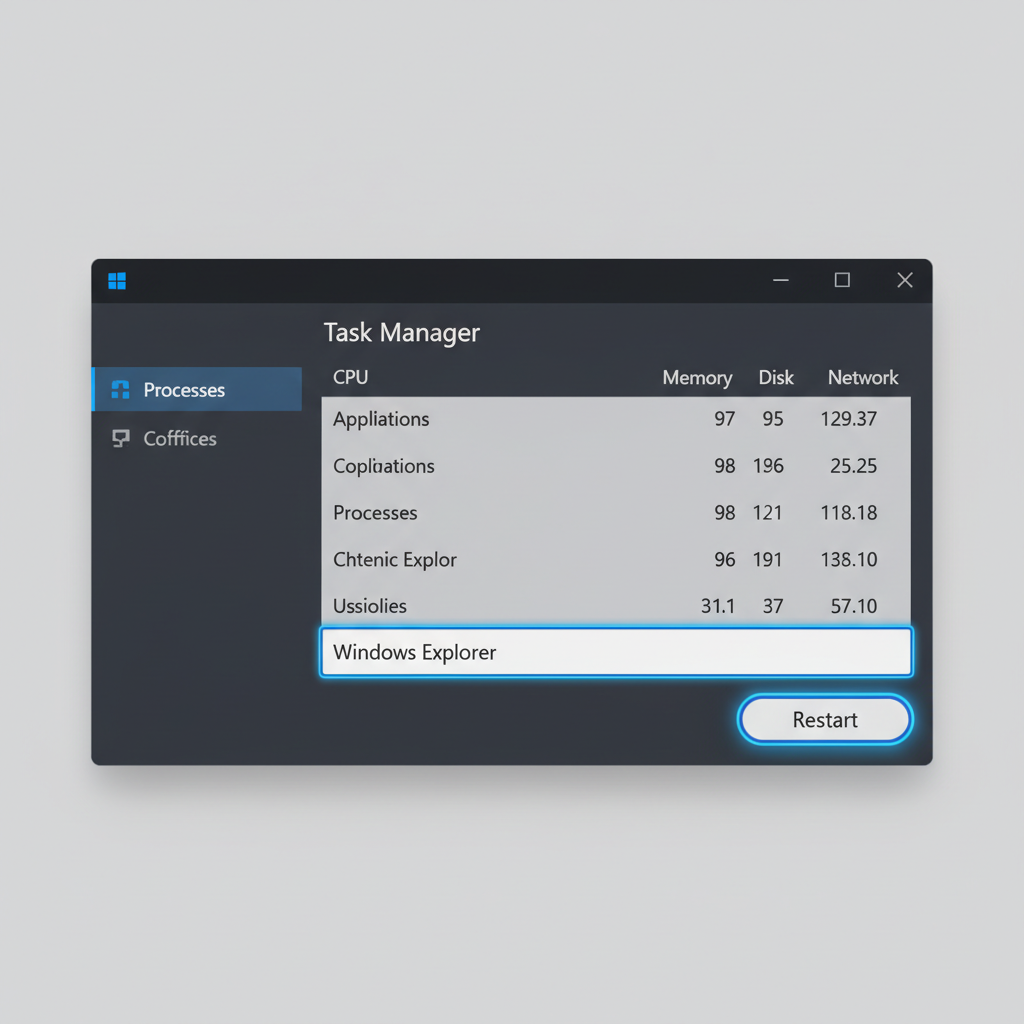
2) Windows Explorer needs a quick restart
The taskbar is tied to Explorer. If it gets stuck, a restart often resets auto-hide without rebooting the whole PC.
- Press Ctrl + Shift + Esc to open Task Manager
- Find Windows Explorer
- Select it, click Restart task
3) Notification icons and widgets are pulling focus
Sometimes the bar pops in because something demands attention. If this happens constantly, it’s worth trimming what can interrupt you, rather than blaming auto-hide.
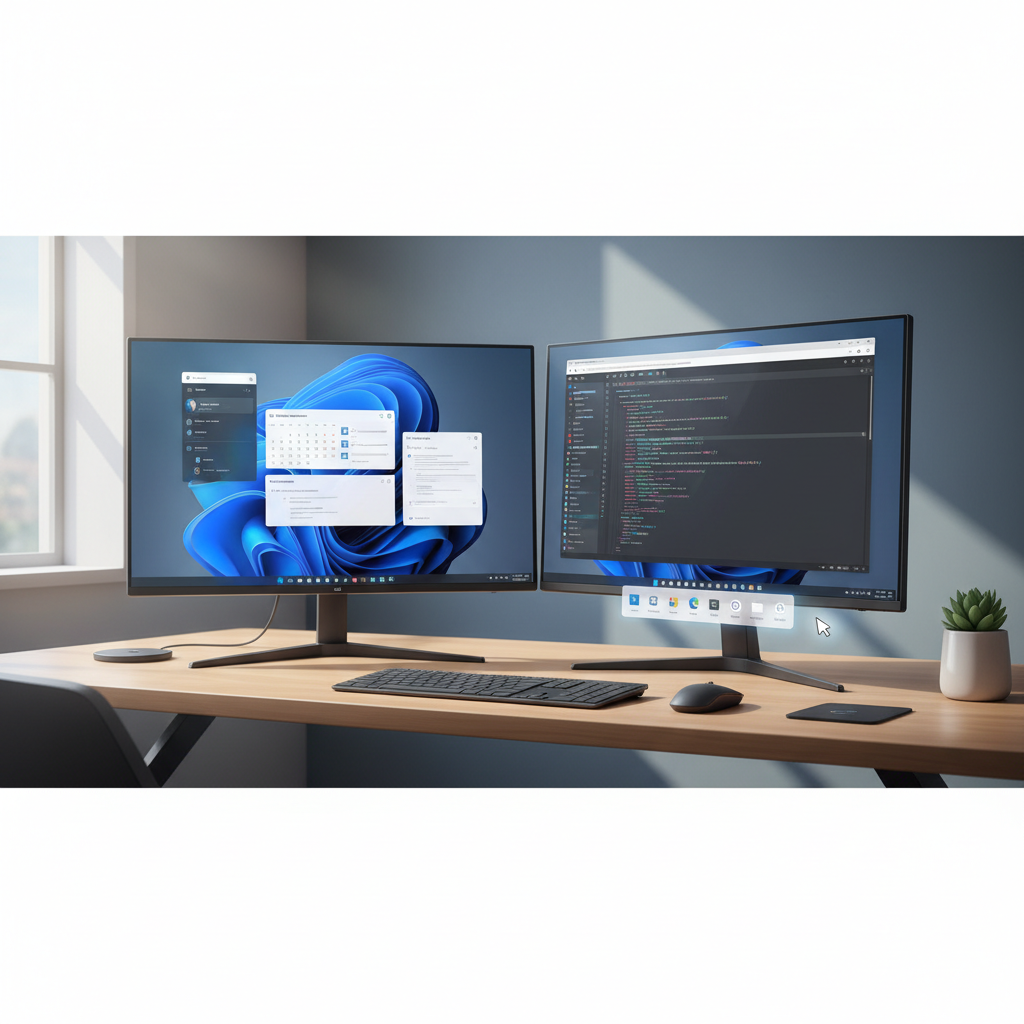
Multi-Monitor Tips: Keeping the Taskbar Hidden Where You Expect
Multi-monitor setups are where people most often re-search how to hide taskbar windows 11, because behavior can feel inconsistent when each display has different scaling, refresh rate, or app usage.
- Test each monitor edge: move the cursor to the bottom of each screen to confirm where the reveal gesture works.
- Check your main display: Settings → System → Display, confirm which monitor is “Make this my main display.”
- Mind full-screen apps: games and some video players can “capture” the cursor, making the reveal action harder.
If you rely on a secondary monitor for chat or music controls, consider not hiding the taskbar at all times, and instead using a cleaner taskbar layout, it’s often less friction than fighting hover-reveal all day.
Better Than Hiding? Practical Alternatives That Still Save Space
Auto-hide is all-or-nothing. If what you really want is fewer distractions, try these first, they often deliver the same “clean desktop” feeling with less annoyance.
Trim what shows on the taskbar
- Settings → Personalization → Taskbar
- Turn off items you don’t use, such as Widgets or Task view (availability can vary by build)
Hide notification noise
Go to Settings → System → Notifications and reduce which apps can alert you. Less “urgent” flashing often means the taskbar stays calmer even when visible.
Use keyboard shortcuts more often
- Win key opens Start instantly
- Win + number launches pinned apps by position
- Alt + Tab switches apps without touching the taskbar
Troubleshooting Checklist (Fast Self-Test)
If auto-hide still won’t behave, run this quick check. You’re trying to identify whether it’s a setting issue, an app conflict, or an Explorer glitch.
- Auto-hide enabled in Settings → Taskbar behaviors
- Explorer restarted via Task Manager
- Problem happens in Safe Mode too (suggests system-level issue)
- Happens only with one app (suggests app conflict)
- Happens only on one monitor (display config or scaling oddity)
One more practical test: create a new local user account and try auto-hide there. If it works, your main profile likely has a conflicting startup app or shell customization.
Settings Summary Table (What to Change, What It Affects)
If you prefer seeing the options at a glance, this table covers the levers that usually matter when you’re trying to clean up the taskbar experience.
| Goal | Where to change it | What you’ll notice |
|---|---|---|
| Hide taskbar | Settings → Personalization → Taskbar → Taskbar behaviors | Taskbar slides away until you hover at the bottom edge |
| Reduce clutter | Settings → Personalization → Taskbar | Fewer buttons like Widgets/Task view (varies by build) |
| Less interruption | Settings → System → Notifications | Fewer popups and badge-triggered attention grabs |
| Fix stuck taskbar | Task Manager → Windows Explorer → Restart task | Auto-hide often starts responding again |
When You Should Consider Deeper Fixes (Or Professional Help)
Most cases stop at settings and an Explorer restart. If you see persistent glitches across reboots, there may be a broader Windows issue, a shell customization tool conflict, or corrupted system files.
- If your PC is managed by work IT, ask them before changing policies or installing tweak tools, corporate settings can override taskbar behavior.
- If you recently installed a taskbar customization app, disable or uninstall it to test. These tools can be useful, but they also cause “sticky” UI problems.
- If the taskbar keeps reappearing with no obvious trigger, consider running Windows Update and checking for known issues in your build notes.
For business-critical machines where downtime matters, it can be worth consulting IT support rather than repeatedly modifying system settings, especially if device compliance tools are involved.
Key Takeaways (So You Don’t Have to Re-Learn This Later)
- Auto-hide is the real “hide taskbar” option in Windows 11, it’s under Taskbar behaviors.
- If it acts weird, restart Windows Explorer before you do anything drastic.
- Multi-monitor setups and full-screen apps cause most “it won’t hide” moments.
- If you mainly want a cleaner look, reducing taskbar clutter can feel better than hiding it.
Conclusion: A Cleaner Desktop Without Constant Friction
how to hide taskbar windows 11 comes down to enabling Auto-hide, then making sure Explorer and a few noisy apps aren’t sabotaging the behavior. Once it’s stable, you get extra space and a calmer desktop, with the small cost of an extra gesture when you need your pinned apps.
If you want a quick next step, enable Auto-hide now, then spend two minutes trimming taskbar items you never use. That combo usually gives the “clean” feeling without turning your taskbar into a daily annoyance.