
how to remove password from windows 11 usually comes down to one question: are you signing in with a Microsoft account or a local account, and do you still want basic protection on the device.
People ask this because typing a password every time gets old fast, especially on a home PC that never leaves the desk. The catch is that Windows 11 ties sign-in security to other features like device encryption, password managers, and recovery options, so “removing” a password can mean different things depending on your setup.
This guide walks you through the realistic options, what Windows will and won’t allow, and a couple of safer alternatives like PIN, Windows Hello, and auto sign-in, because in many homes those solve the annoyance without leaving the door wide open.
Before you remove anything: what “remove password” really means
On Windows 11, “no password” can mean one of these:
- Local account with a blank password: Windows may allow you to set it to empty, which effectively removes the password requirement.
- Microsoft account: you can’t truly remove the account password from Windows itself, because it’s the same password used for Microsoft services, but you can switch to a local account or use auto sign-in.
- Password replaced by a faster method: PIN, fingerprint, face sign-in, or a security key. This still counts as protected access, just less typing.
According to Microsoft Support, Windows Hello and PIN sign-in are designed to be more convenient while keeping strong device protection, and they work differently from an online account password.
Quick decision table (pick your path in 30 seconds)
If you’re unsure where to start, use this quick table to choose the right method based on your situation.
| Your situation | Recommended approach | Why it fits |
|---|---|---|
| You use a Microsoft account | Switch to local account OR enable auto sign-in | Microsoft password can’t be “removed” locally in a clean way |
| You already use a local account | Change password to blank (if allowed) OR auto sign-in | Local accounts give you more control over sign-in requirements |
| You want less friction but still security | Use PIN / fingerprint / face | Fast unlock, still blocks casual access |
| Shared family PC | Keep passwords, use separate accounts | Prevents accidental access to email, saved cards, files |
Self-check: confirm what type of account you have
Before you follow any steps, confirm whether you’re on a Microsoft account, because it changes what Windows will let you do.
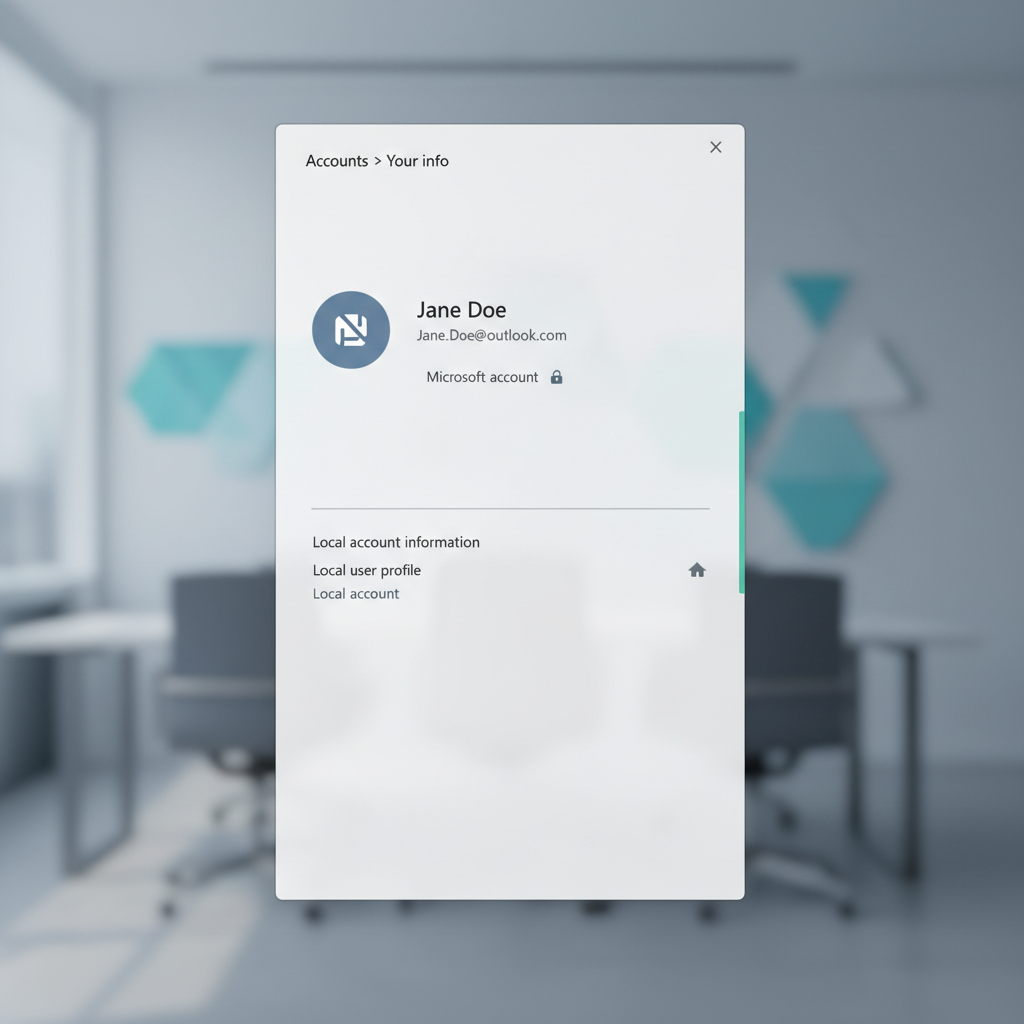
- Go to Settings → Accounts → Your info
- If you see an email address and “Microsoft account,” you’re signed in online
- If you see “Local account,” you’re on a device-only sign-in
This is also a good moment to check whether you have BitLocker/device encryption enabled and whether you know your recovery key. Removing sign-in protection on an encrypted device can create awkward recovery situations later.
Option A: Remove the password on a local account (blank password)
If your PC uses a local account, you can often remove the password by setting it to blank. Windows may warn you, and in some environments (work devices, policies) it might block you.
Steps (Settings method)
- Open Settings → Accounts → Sign-in options
- Select Password → Change
- Enter your current password
- Leave the new password fields empty, then finish
If Windows refuses a blank password, don’t fight it with random tweaks. In many cases the simpler workaround is auto sign-in (below) or keeping a short password and switching to a PIN for daily use.
Option B: Switch from Microsoft account to local account (then remove password)
If you’re searching how to remove password from windows 11 while signed in with a Microsoft account, this is the most direct route. You’re not deleting your Microsoft account, you’re just stopping Windows from using it as the sign-in identity.
Steps (switch to local)
- Go to Settings → Accounts → Your info
- Choose Sign in with a local account instead
- Follow the prompts to set a username (and optionally a password)
- Sign out and sign back in
After that, you can attempt Option A and set the local password to blank. Just keep in mind: switching away from a Microsoft account can change how OneDrive, Microsoft Store, and some sync features behave, so expect a few “please sign in” prompts later.
Option C: Enable automatic sign-in (no prompt at startup)
For many people, auto sign-in is the practical answer: you keep an account password in place, but Windows logs in without asking on boot. This is convenient, and also easy to regret if the laptop leaves the house.
Steps (netplwiz method)
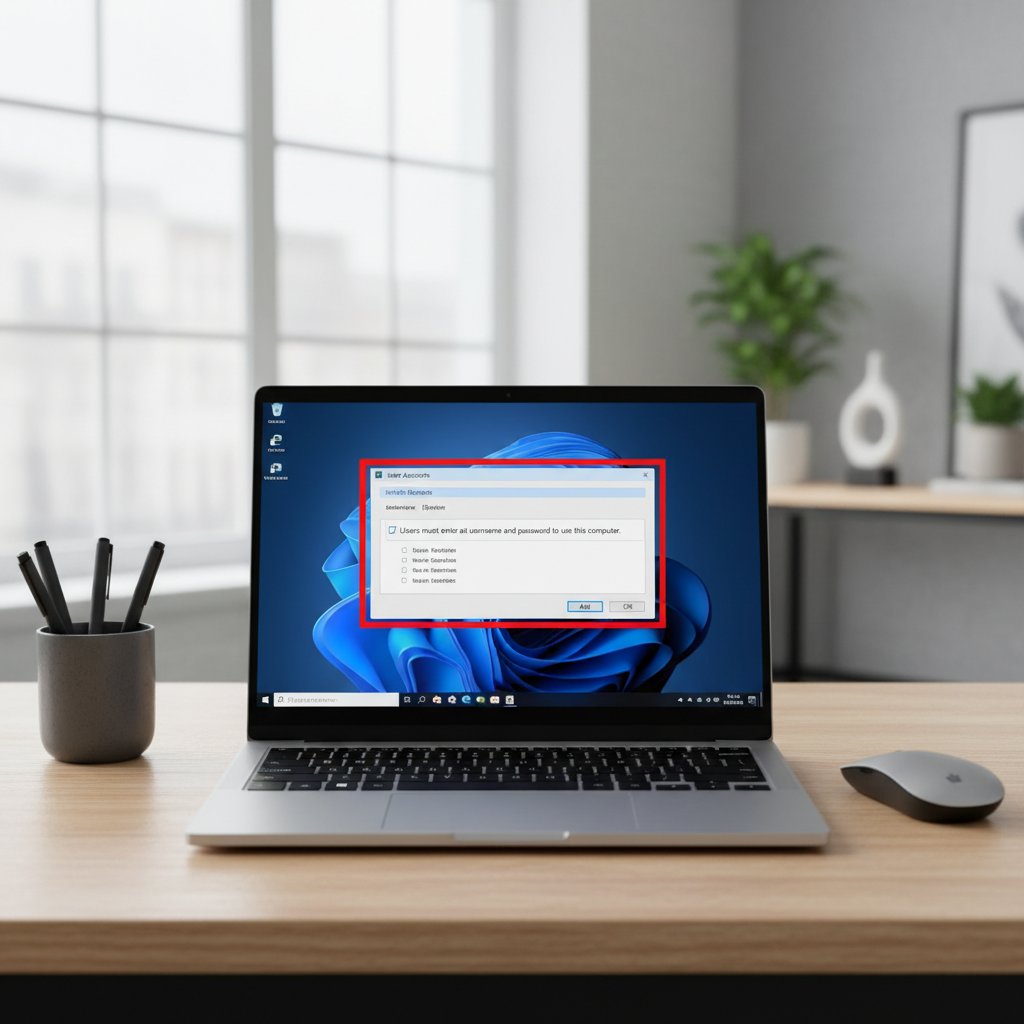
- Press Win + R, type netplwiz, press Enter
- Select your user account
- Uncheck Users must enter a user name and password to use this computer
- Click Apply, enter your current credentials when prompted
- Restart and test
If you don’t see that checkbox, Windows Hello sign-in requirements may be hiding it. Try: Settings → Accounts → Sign-in options → toggle off “Only allow Windows Hello sign-in for Microsoft accounts on this device” (wording varies by build), then re-check netplwiz.
Key point: auto sign-in means anyone with physical access can open the session after boot. If you still want a little protection, set your PC to lock automatically and require sign-in after sleep.
Safer alternatives that still feel “password-free” day to day
If the real goal is “stop typing,” you can usually get there without removing protection. This tends to be the sweet spot for a home Windows 11 machine.
Use a PIN (fast, local to the device)
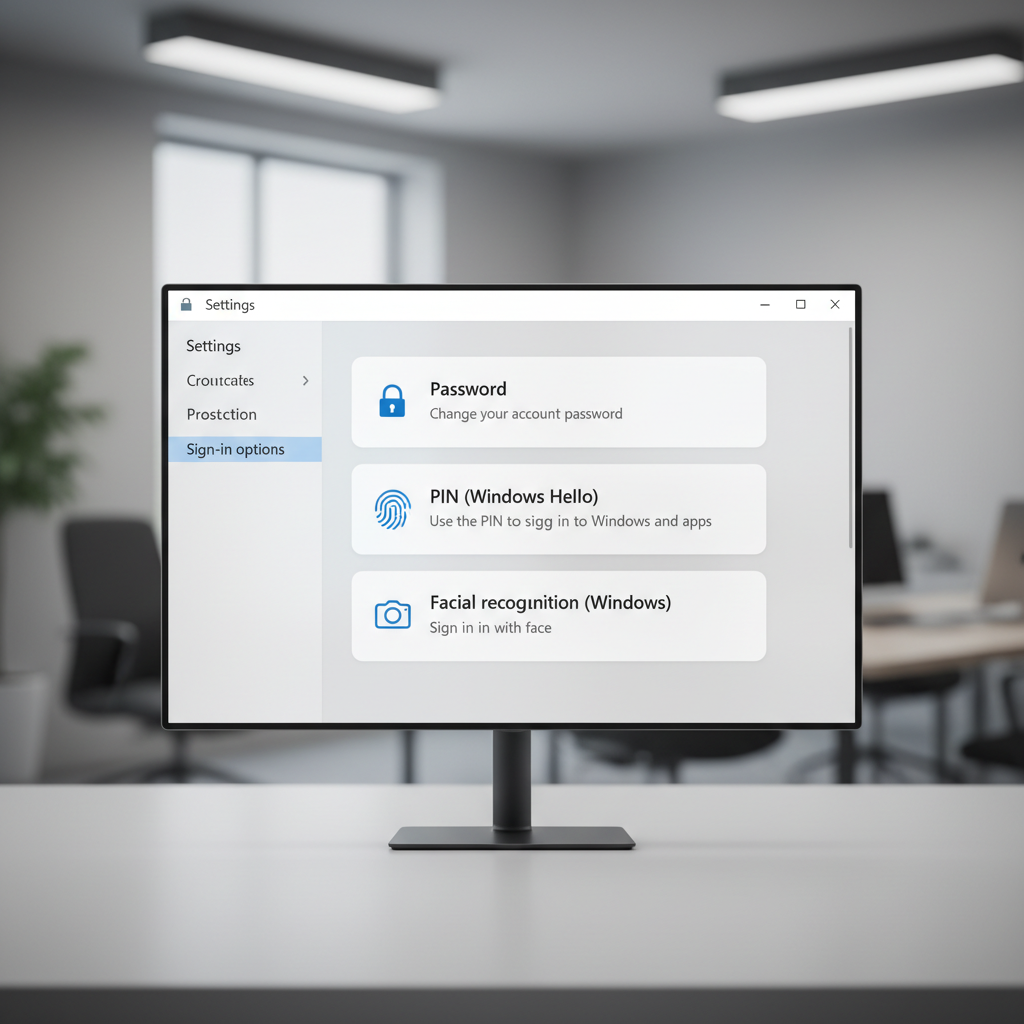
- Settings → Accounts → Sign-in options → PIN (Windows Hello)
- Set a PIN you can type quickly, avoid obvious patterns
A PIN is tied to that device, not your online Microsoft password, which reduces certain risks if the PIN is compromised.
Use fingerprint or face sign-in (if supported)
- Settings → Accounts → Sign-in options → Fingerprint recognition or Facial recognition
- Enroll, then test after a restart and after sleep
According to NIST, multi-factor approaches and phishing-resistant authentication methods can reduce account takeover risk, and biometrics paired with device protections often fits that direction, though details vary by hardware.
Common mistakes that create bigger problems
- Removing sign-in on a laptop you travel with: it only takes one forgotten device for this to become a real privacy issue.
- Confusing “remove password” with “remove PIN”: they are separate sign-in methods, deleting one might re-enable the other prompt.
- Forgetting about wake-from-sleep behavior: even if boot is password-free, sleep/lock settings can still require sign-in, which surprises people.
- Skipping recovery prep: if you use encryption, make sure recovery keys and account access are in order before you change sign-in settings.
Also, if this is a work device, don’t be shocked when Windows blocks changes. Company policy often enforces passwords, and trying to bypass it can violate IT rules.
When it’s worth getting professional help
If you’re locked out, dealing with a BitLocker recovery loop, or the PC belongs to a managed organization, it’s safer to stop and ask for help. A local repair shop or your IT admin can confirm whether encryption, domain policies, or account controls are involved, and help you avoid data loss.
And if your goal is to remove a password because you forgot it, the best path depends on whether it’s a Microsoft account, a local account, or a PIN. According to Microsoft Support, account recovery should be done through official recovery flows, not “registry hacks” you find in random videos.
Key takeaways (so you don’t overthink it)
- Local account: you may be able to set a blank password, but weigh the physical security risk.
- Microsoft account: you typically can’t remove the online password, but you can switch to local or use auto sign-in.
- Most people do best with PIN/Windows Hello: less typing, still blocks casual access.
- Auto sign-in is convenient, and risky on portable devices.
If you want the cleanest “no typing” setup, start with Windows Hello (PIN or biometric) and only go fully passwordless if the PC stays in a controlled environment. If you’re still set on how to remove password from windows 11, identify the account type first, then choose the method that matches your risk comfort level.
Action tip: after any change, restart once, test wake-from-sleep, and confirm you can still access your Microsoft account recovery options, that quick check prevents a lot of regret later.