
best budget home web servers for beginners usually come down to one question: do you want the easiest “plug it in and it works” box, or a cheap mini PC you can grow into without getting lost?
If you’re new, it’s easy to overspend on enterprise gear you’ll never use, or underspend on something so underpowered that even updates feel slow. The sweet spot is a small, quiet device that runs 24/7, handles a basic web stack, and doesn’t turn your network into a weekend-long troubleshooting session.
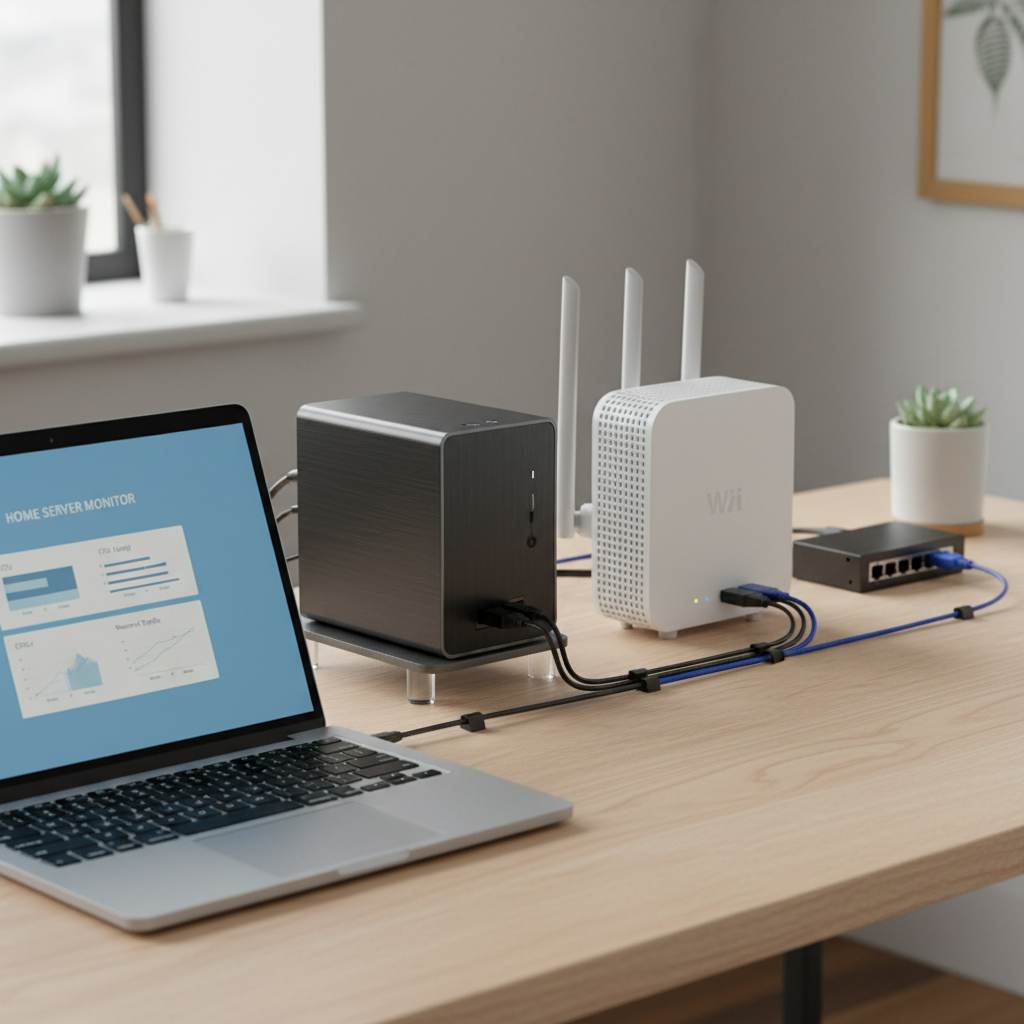
This guide focuses on budget-friendly picks that beginners in the U.S. can realistically buy, set up, and maintain. You’ll also get a quick self-check, a comparison table, and a simple “do this next” setup path so you don’t get stuck on the boring parts.
What “budget home web server” really means for a beginner
For most home labs, a web server is a small machine that runs Nginx/Apache and a few services like WordPress, a personal portfolio, a dev API, or a dashboard. It’s not the same as hosting a high-traffic business site, and that difference saves you money.
- Budget: typically under $300 all-in (device + storage), though many good setups land closer to $150–$250.
- Beginner-friendly: easy OS installs, stable network drivers, and hardware that doesn’t require “server room” thinking.
- Home-ready: quiet, low-power, can sit near your router without cooking itself.
One practical boundary: if you need public access from the internet, you’re also taking on security and router configuration. That’s doable, but it’s not “set and forget.” According to CISA, reducing internet-exposed services and keeping systems patched are core steps to lower risk, so plan for updates from day one.
Quick self-check: which type of beginner are you?
Pick the line that sounds most like you. This prevents buying the “right” box for someone else’s project.
- I want the simplest path: you’ll be happiest with a lightweight mini PC running Linux, or a used small-form-factor desktop.
- I want low power and silence: modern mini PCs and small ARM boards fit best.
- I want to learn Docker and self-host apps: aim for 16GB RAM (or at least upgradeable) and an SSD.
- I need multiple drives: consider a used small desktop or an entry NAS, but expect higher cost.
- I only need internal access: your security burden stays smaller, and you can keep it simple.
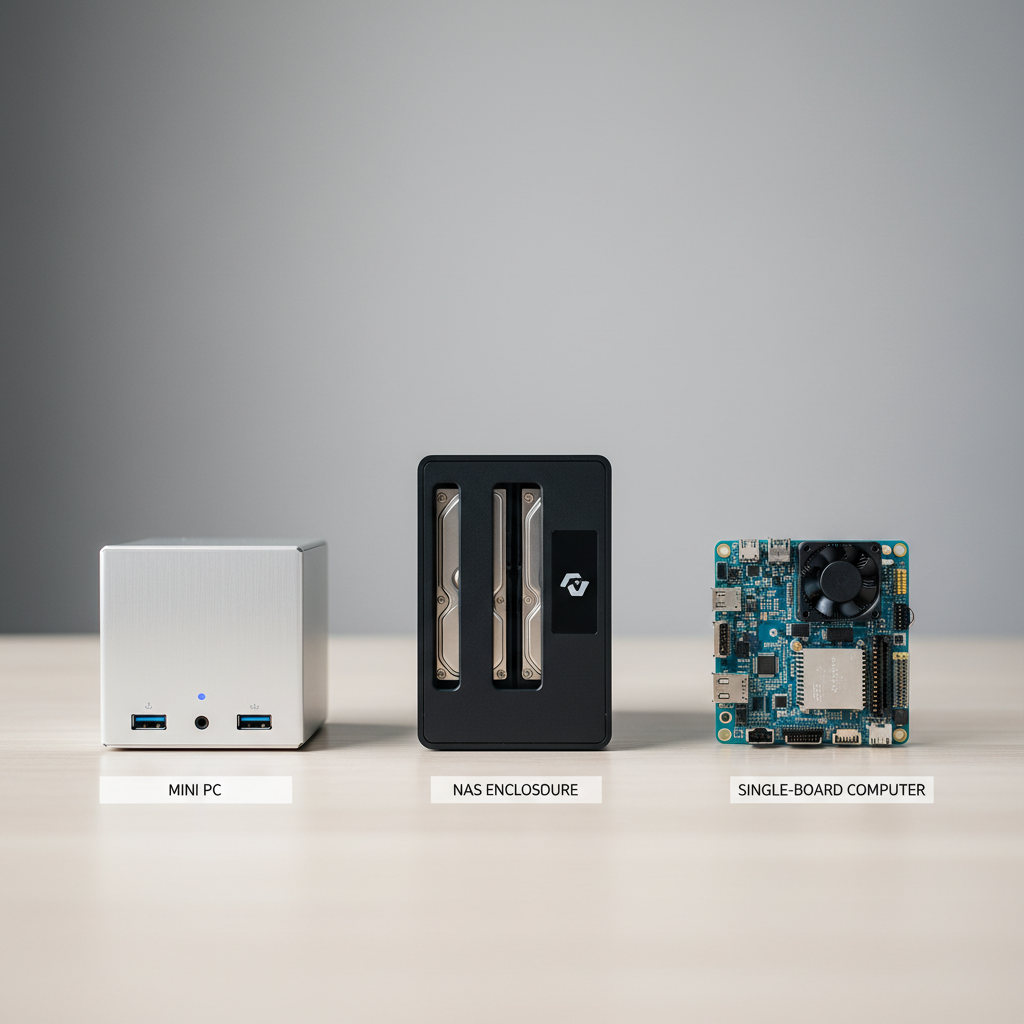
If you’re unsure, default to “mini PC + Linux + Docker.” It’s usually the least frustrating way to get a reliable home web stack without buying specialized gear too early.
The best budget home web servers for beginners (realistic options)
Below are the most common “good enough” categories. Specific model availability changes a lot, so this is intentionally brand-light and focused on what to look for.
1) Used small-form-factor (SFF) desktop (best value per dollar)
Think ex-office Dell/HP/Lenovo mini towers or SFF units. They’re not glamorous, but they’re easy to repair, usually have upgradeable RAM, and can run for years.
- Why it works: strong CPU for the price, upgrade options, standard parts.
- Watch-outs: older units may idle higher power, fans can be louder, and you may need a small SSD upgrade.
2) Budget mini PC (quiet, modern, beginner-friendly)
A modern mini PC with an Intel N-series or low-watt AMD chip is often the “no drama” choice: quiet, small, fast enough for a personal site plus a few containers.
- Why it works: low power, tiny footprint, often comes with Wi‑Fi and 2.5GbE on some models.
- Watch-outs: some models have limited upgradeability or weaker cooling under constant load.
3) Raspberry Pi / ARM single-board computer (good learning tool, limited headroom)
These can host a simple static site, reverse proxy, or small internal tools. They’re great for learning, but you’ll feel limits faster with databases or heavier apps.
- Why it works: very low power, huge community, simple projects feel fun.
- Watch-outs: storage reliability depends on your setup, and pricing can swing; don’t assume it’s always the cheapest route.
4) Entry NAS that supports apps/containers (convenient, not always cheapest)
NAS boxes are attractive because they’re “made to be on 24/7,” but once you add drives, the budget can creep up. For web serving, you’re often paying for storage features.
- Why it works: nice UI, built-in storage options, easy backups.
- Watch-outs: limited CPU/RAM on entry models, app ecosystems vary.
Comparison table: choose faster without overthinking
Use this as a quick filter. If two options look close, pick the one that’s easier for you to maintain.
| Option | Typical cost | Beginner setup | Power/noise | Best for |
|---|---|---|---|---|
| Used SFF desktop | $100–$250 | Medium | Medium | Best performance per dollar, upgrade paths |
| Budget mini PC | $150–$300 | Easy | Low | Quiet 24/7 home web + Docker |
| ARM board (Pi-class) | $80–$200+ | Medium | Very low | Learning Linux, light web services |
| Entry NAS | $200–$450+ (plus drives) | Easy | Low | Web + storage-first needs, simple admin |
What specs matter (and what usually doesn’t)
Beginners often focus on CPU brand names, but web servers get “slow” from boring bottlenecks like storage, RAM, or misconfigured containers.
- RAM: 8GB works for a simple site; 16GB feels comfortable for Docker, WordPress, and a database.
- Storage: pick an SSD for the OS and web stack. It removes a lot of “why is this hanging?” moments.
- Networking: gigabit Ethernet is plenty for most homes; 2.5GbE is nice but not required.
- CPU: any recent low-power x86 chip is fine for light workloads; prioritize stability and cooling over peak performance.
- What doesn’t matter early: ECC RAM, RAID cards, dual power supplies. Useful later, not mandatory for learning.
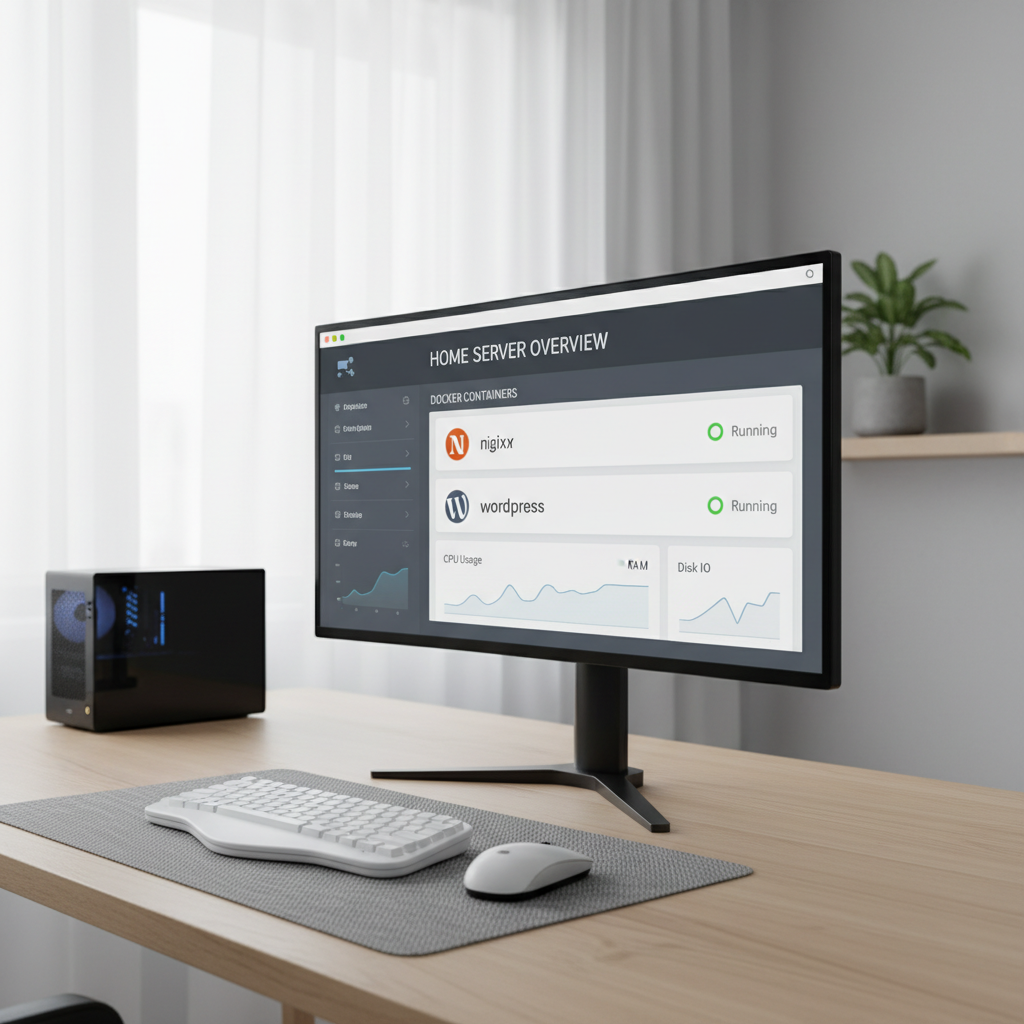
If your goal is the best budget home web servers for beginners, “enough RAM + SSD + stable Ethernet” beats chasing a “server-grade” label almost every time.
Practical setup path (beginner steps that usually work)
This is the path that avoids 80% of early frustration. You can get fancy later.
Step 1: Pick an OS you can maintain
- Ubuntu Server LTS: beginner-friendly docs and packages.
- Debian: stable and lightweight, slightly less hand-holding.
If you prefer a web UI, tools like Cockpit can help, but keep your core setup simple.
Step 2: Start with Docker (even if you’re “not a Docker person”)
Docker reduces “dependency soup” and makes it easier to roll back. A typical starter stack:
- Nginx or Caddy as a reverse proxy
- Your app (WordPress, Ghost, a Node API, etc.)
- PostgreSQL or MariaDB if needed
Step 3: Decide on access: internal only vs public
- Internal only: simplest, safer for learning, works great for dashboards and dev.
- Public: use HTTPS, strong auth, and keep patching. Many people choose a tunnel/VPN approach to avoid exposing ports.
According to NIST, basic cyber hygiene like timely patching and secure configuration is a foundational control area. You don’t need to become a security engineer, but you do need a routine.
Step 4: Backups before you “need” backups
- Schedule automatic backups of volumes and configs
- Keep one copy off the server (external drive or another device)
- Test a restore once, early
Common mistakes that waste money (and how to avoid them)
- Buying too small: a 4GB machine can work, but you’ll spend time trimming services instead of building.
- Using slow or fragile boot storage: if you go ARM, plan storage carefully; a cheap card can become your biggest headache.
- Exposing the server directly: opening ports without a plan invites trouble. If you’re unsure, keep it internal or use a safer remote-access method.
- No update habit: a home server still needs updates. Put it on your calendar.
- Chasing “enterprise” features: learn the workflow first, then upgrade based on real constraints.
If you want one simple rule: prioritize the setup you’ll actually keep running. That’s what makes a “budget” build pay off.
Key takeaways and a simple recommendation
Most people looking for the best budget home web servers for beginners will do well with a modern mini PC (8–16GB RAM, SSD) running Ubuntu Server and Docker, especially if the server stays inside the home network.
- If you want the best value: choose a used SFF desktop with an SSD upgrade.
- If you want the easiest day-to-day experience: choose a quiet mini PC.
- If you want a learning toy: an ARM board is fine, just be realistic about limits.
Your next action can be small: pick one option, install the OS, and deploy a single containerized web service. Once that’s stable for a week, add the next piece.
FAQ
What are the best budget home web servers for beginners if I only host a personal site?
A low-power mini PC or used SFF desktop is usually more comfortable than ultra-cheap hardware, because you get an SSD and enough RAM for updates, logs, and a simple reverse proxy without constant tuning.
Is a Raspberry Pi enough for WordPress at home?
It can be, especially for low-traffic internal use, but WordPress plus a database can feel tight when plugins grow. Many beginners end up happier on x86 hardware once they add caching, backups, and monitoring.
How much RAM do I need for Docker and a basic web stack?
8GB works for a small setup, but 16GB gives you room for a database container, a couple services, and breathing space during upgrades. If the device is upgradeable, that flexibility matters.
Do I need a NAS to run a home web server?
No. A NAS can be convenient if storage and backups are your main goal, but for web serving alone it’s often cheaper to start with a mini PC and add storage later.
Should I expose my home web server to the internet?
Many beginners do, but it adds security responsibilities: patching, strong authentication, and careful configuration. If you’re unsure, keeping it internal or using a VPN/tunnel approach is often lower risk.
What’s the easiest OS for a beginner home server?
Ubuntu Server LTS is a common starting point because guides and packages are plentiful. Debian is also solid if you prefer a more minimal base and don’t mind a little extra reading.
How do I keep costs low without buying junk?
Spend on the SSD and adequate RAM, then save money by buying used reputable hardware or a basic mini PC. Cutting the wrong corner usually shows up as instability, not a small speed loss.
If you’re building your first setup and want a more “hands-off” path, consider starting with a mini PC kit that includes an SSD and 16GB RAM, then follow a simple Docker template for Nginx + your app, it keeps the learning curve manageable while still leaving room to grow.