
Best budget webcams for zoom usually come down to one thing: getting clean 1080p video with reliable autofocus and a mic that doesn’t make you sound like you’re in a tunnel.
If you’ve ever joined a call and immediately started wondering whether your lighting, internet, or camera is the problem, you’re not alone. Budget webcams can look great, but only when you match the camera to your room, your laptop, and how you actually use Zoom.
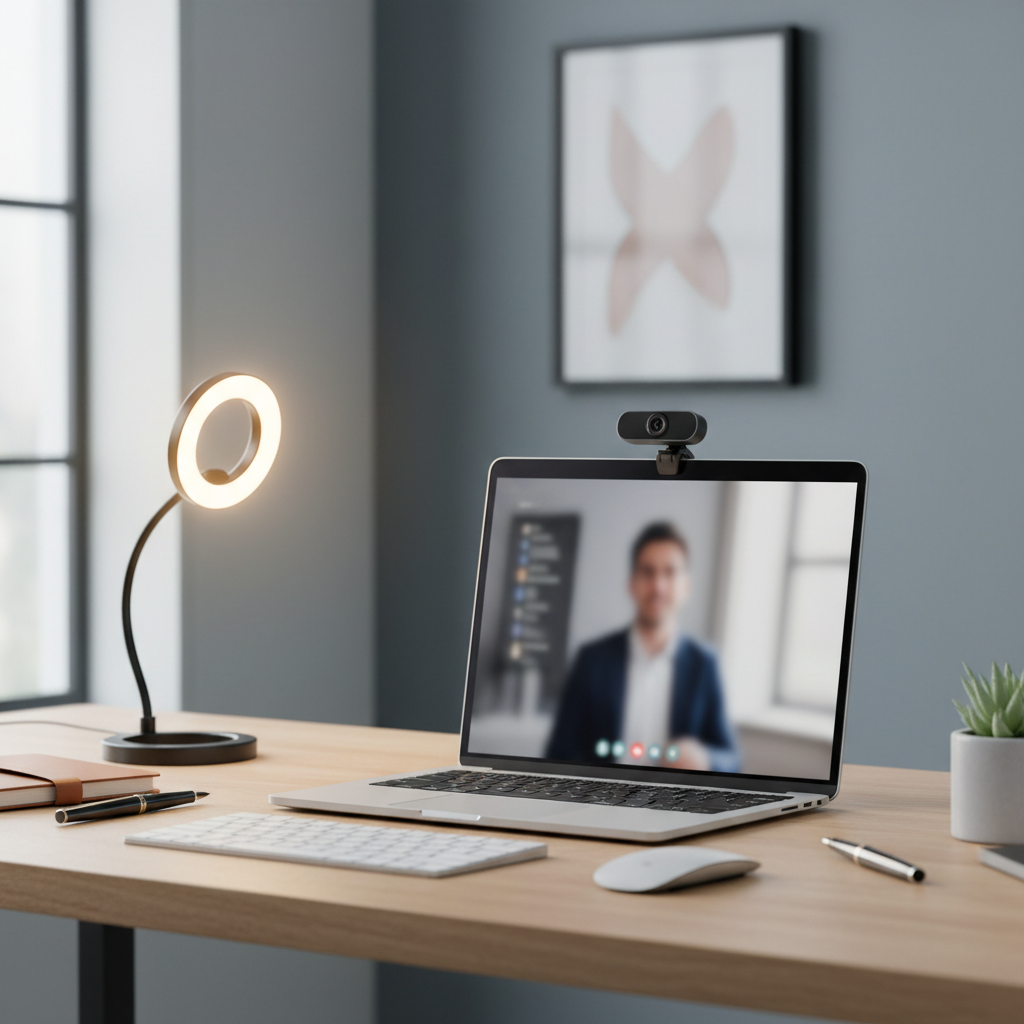
This guide focuses on what actually matters for Zoom and light streaming: real-world resolution, low-light behavior, field of view, microphone tradeoffs, and how to avoid paying extra for specs you won’t use. You’ll also get a quick checklist to pick fast, plus setup steps that can make a $40 camera look noticeably better.
What “budget” means for Zoom and streaming (and what to ignore)
For most people in the U.S., “budget” lands around $25–$80, with occasional sales pushing better models into that range. The sweet spot tends to be 1080p at 30 fps, decent color, and stable software support.
What to prioritize depends on your use:
- Zoom calls: consistent exposure, accurate color, and a normal-looking framing (not too wide).
- Streaming: stable focus, cleaner 1080p, and settings you can lock so the image doesn’t “pulse.”
What you can often ignore in this price tier:
- 4K claims on no-name webcams: sometimes it’s upscaled, sometimes the sensor struggles in typical indoor light.
- “AI enhancement” marketing: many effects are software filters that can add weird smoothing.
- Built-in microphones as a deciding factor: they’re fine for emergencies, but a $20 USB mic or even wired earbuds usually sound clearer.
According to Zoom Support, your meeting quality depends on network conditions and device capability, so even a great webcam can look worse if bandwidth or CPU is stressed.
Quick comparison table: solid budget picks
Prices shift weekly, so treat this as a short list of models that are commonly available and generally well-reviewed, then buy based on today’s deal.
| Model (common U.S. options) | Best for | Resolution / FPS | Field of view | Why it’s worth it |
|---|---|---|---|---|
| Logitech C920s / C920 | Most Zoom users | 1080p / 30 | ~78° | Reliable exposure, sharp image, widely supported |
| Anker PowerConf C200 | Small rooms, adjustable framing | 2K / 30 (best in good light) | Adjustable | Good software controls, flexible angle |
| Logitech C922 | Light streaming + calls | 1080p/30, 720p/60 | ~78° | Higher fps option for motion |
| Microsoft Modern Webcam | Color accuracy on calls | 1080p / 30 | Typical | Natural look, simple setup |
| Razer Kiyo (non-Pro) | Very dim rooms | 1080p / 30 | Wide-ish | Built-in ring light can help in a pinch |
How to choose the right webcam for your setup
If you want the best budget webcams for zoom, pick based on your room first, not the spec sheet. A “better” camera can look worse when it constantly hunts focus or blows out your forehead under a desk lamp.
Resolution and frame rate: 1080p is still the practical baseline
For Zoom, 1080p webcams are a good target because they usually downsample well and keep faces looking clean. 60 fps matters more for fast motion, gameplay, or lots of hand movement on stream, less for typical meetings.
- Meetings: 1080p/30 is typically enough.
- Streaming: 1080p/30 or 720p/60 can be the better “budget” tradeoff depending on your platform and lighting.
Field of view: too wide makes you look far away
Wide lenses are popular, but they can be unflattering for Zoom because your face becomes a small part of the frame, and your background becomes the star of the show.
- Solo calls: around 70–80° often frames nicely.
- Two people on one camera: wider makes sense, but plan your background.
Autofocus and exposure: stability beats “smart”
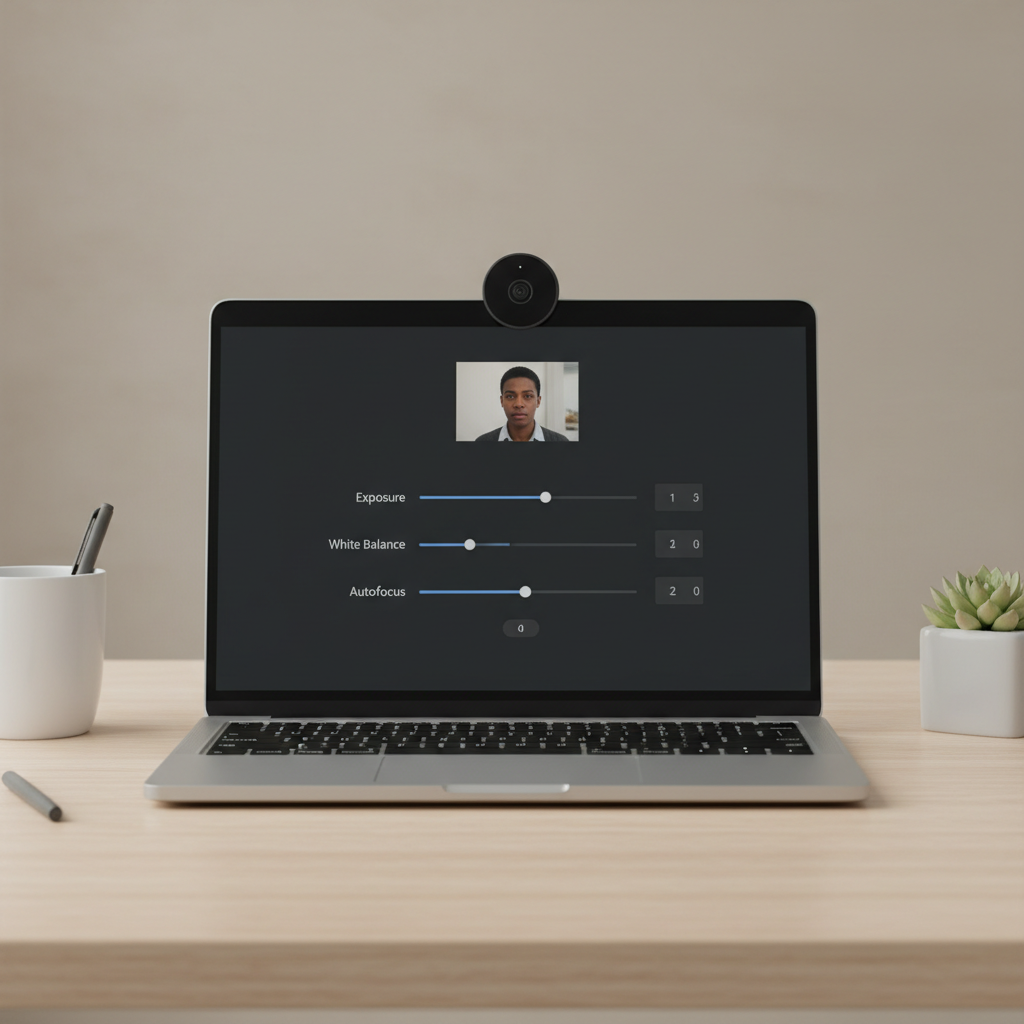
Budget autofocus can “breathe” as you move, and auto exposure can flicker if your monitor brightness changes. If the webcam software allows it, locking exposure and white balance often gives a more professional look.
Fast self-check: which “budget webcam problem” do you actually have?
Before buying anything, run this quick diagnosis. It saves people money more often than you’d think.
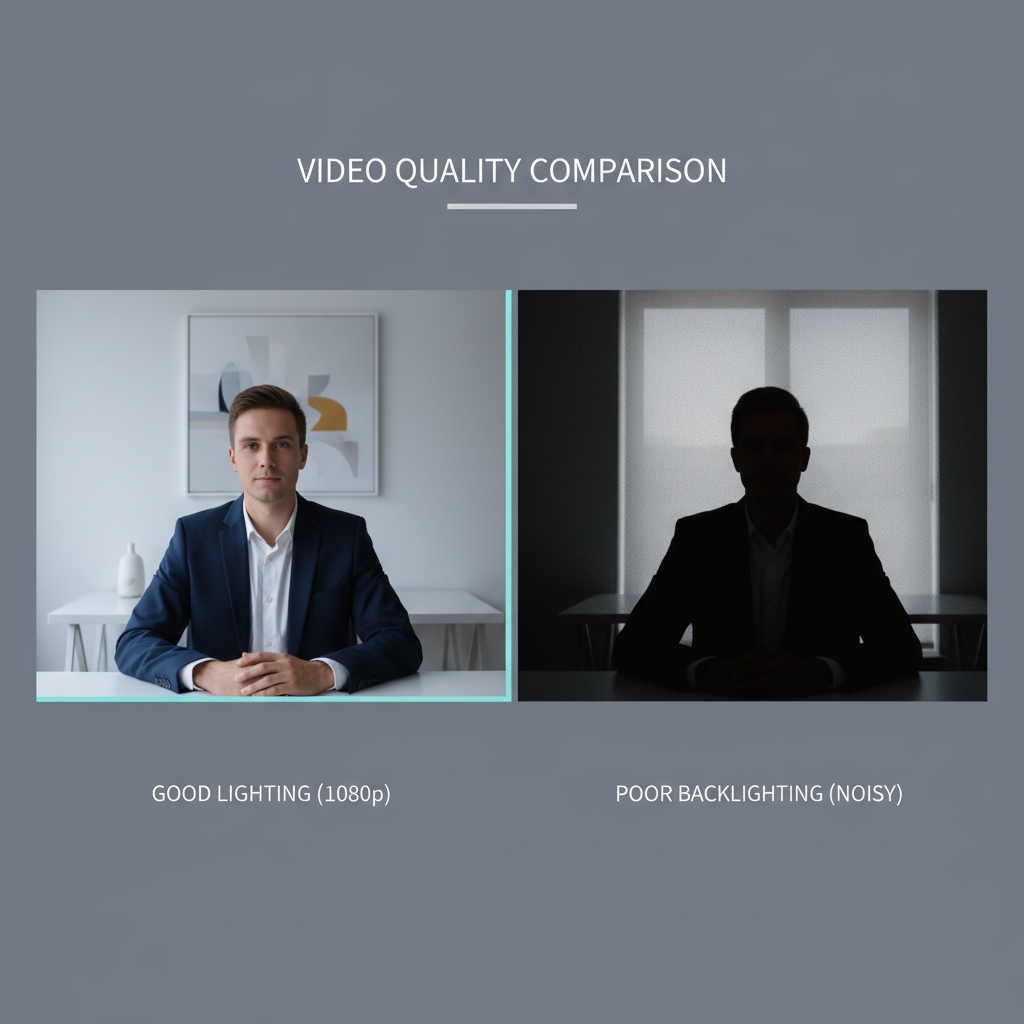
- You look grainy: usually low light, not “bad resolution.” Add a light or face a window.
- Your face is blurry: autofocus hunting, smudged lens, or the camera is too close.
- Color looks sickly/orange: mixed lighting (window + warm lamp) or wrong white balance.
- Background is sharp but you aren’t: camera aims focus at the wall or the webcam sits too low.
- Audio sounds hollow: mic is far away, room echo, or laptop fan noise.
If two or more of these apply, you may get a bigger improvement from lighting and placement than from upgrading hardware.
Practical setup steps that make any budget webcam look better
Most “my webcam looks terrible” situations improve with three small changes. Not glamorous, but it works.
1) Put light in front of you, not behind you
Face a window or place a lamp slightly above eye level, aimed toward your face. Backlighting forces the camera to choose between your face and the bright background, and your face usually loses.
- Cheap win: a $15–$30 ring light or small LED panel.
- Even cheaper: move your monitor and sit facing a window.
2) Raise the camera to eye level
A webcam looking up from a low laptop angle creates unflattering perspective and can confuse autofocus. Stack a book under your laptop or use a basic stand.
3) Turn off “HD” in Zoom if your connection struggles
Zoom can adjust quality dynamically, and sometimes the smoothest, sharpest-looking call comes from stable settings rather than max settings. According to Zoom Support, bandwidth and system load influence video performance, so if your laptop is older or your Wi‑Fi is busy, dialing it back can look better overall.
4) Clean the lens and check the USB port
It’s simple, but a fingerprint can soften the whole image. Also, plug into a direct USB port when possible, since some hubs can cause intermittent issues.
Buying tips: how to get more webcam for less
In the U.S. market, the “best budget webcams for zoom” list changes with sales. So instead of chasing one perfect model, shop smarter.
- Watch for older staples on discount: Logitech’s mainstream models drop in price often.
- Check return policies: low-light performance is hard to judge from listings.
- Prioritize software support: basic control apps can help you lock exposure and avoid flicker.
- Don’t overpay for 4K: if your lighting isn’t great, 4K won’t fix noise.
Common mistakes (that make people think they need a new webcam)
- Relying on overhead room lights: they cast shadows and create uneven exposure.
- Sitting too far away: any webcam looks worse when your face occupies a tiny part of the frame.
- Using digital zoom in software: it can amplify noise; move the camera closer instead.
- Mixing daylight and warm bulbs: color shifts during the call, which looks unprofessional.
- Expecting the built-in mic to sound “podcast quality”: it’s convenient, not magic.
When it’s worth upgrading beyond “budget”
A budget webcam is enough for most meetings, but there are a few signs you’ve outgrown it.
- You stream weekly and care about consistent image: you’ll want stronger low-light performance and manual controls.
- Your room is always dim: a better sensor helps, but lighting still matters more than price.
- You need a wide shot that still looks clean: wider framing pushes budget webcams harder.
If you’re streaming seriously, a mirrorless camera or a high-end webcam can make sense, but it also adds complexity. In many cases, improving lighting and audio first gives more “professional” value per dollar.
Key takeaways (so you can choose quickly)
- 1080p/30 with stable exposure is the practical baseline for Zoom.
- Lighting and camera height often matter more than upgrading models.
- A normal field of view looks better for solo calls than ultra-wide.
- Shop sales and prioritize support instead of chasing flashy specs.
Conclusion: a simple path to a better Zoom look
If you want the best budget webcams for zoom, aim for a proven 1080p model, then spend ten minutes fixing lighting and framing. That combo usually beats buying the most expensive “budget” option and hoping it solves everything.
Your next step: pick one webcam from the table that matches your room, then do a quick test call after you raise the camera and add front light. If the image still looks noisy, improve lighting before you upgrade again.