
how to fix pc randomly restarting issues usually comes down to a small set of repeat offenders: power instability, overheating, bad drivers, Windows update loops, or failing hardware.
If your PC restarts without warning, the hard part is that it can look “random” even when it isn’t, Windows often logs a clue, and a couple of quick checks can narrow the problem fast.
This guide focuses on practical troubleshooting you can do at home, plus a few moments where it’s smarter to stop and get help, especially if you smell burning, see sparks, or the machine shuts off instantly under load.
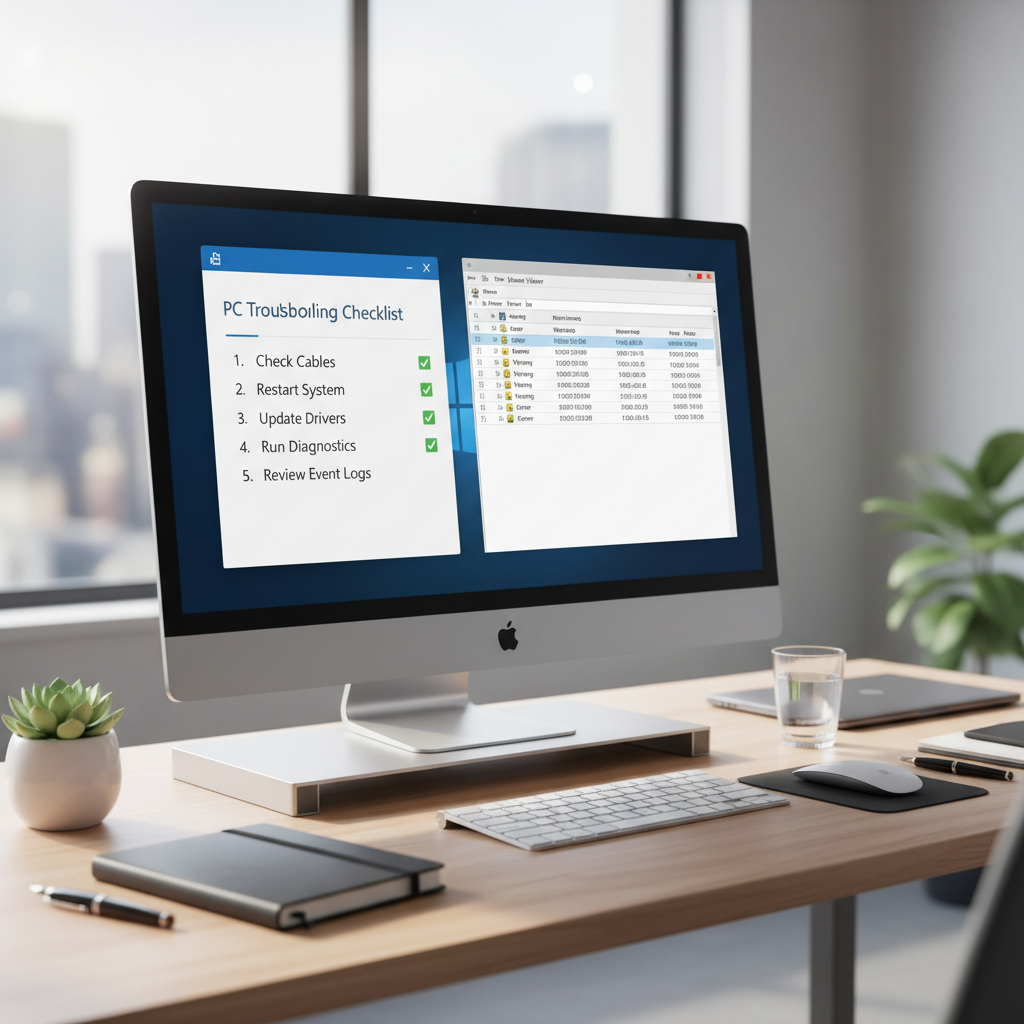
Quick triage: what “random restarts” typically mean
Before you change settings or buy parts, it helps to describe the restart. The pattern often points to the cause.
- Instant power-off then reboot: power supply, wall power, surge protector, loose cable, motherboard short.
- Blue screen then reboot: driver, corrupted system files, RAM, storage, sometimes GPU.
- Restart only during games or heavy work: overheating, PSU limits, GPU driver, unstable overclock.
- Restart while idle: Windows Update/restart settings, scheduled tasks, sleep/hibernate quirks, flaky PSU.
According to Microsoft, the Windows Event Viewer and reliability history can help identify what happened right before a crash or unexpected restart, and that’s usually the first place to look when the reboot seems “out of nowhere.”
Use Windows logs to stop guessing (Event Viewer + Reliability Monitor)
When people ask how to fix pc randomly restarting issues, they often skip logs and jump straight to “replace the PSU.” Logs won’t always give you a smoking gun, but they can save hours.
Step 1: Check Reliability Monitor
Open Start, search Reliability Monitor, then review the timeline around the restart. Look for “Windows failure,” “Hardware error,” or the name of an app/driver that crashed repeatedly.
Step 2: Check Event Viewer for power and bugcheck clues
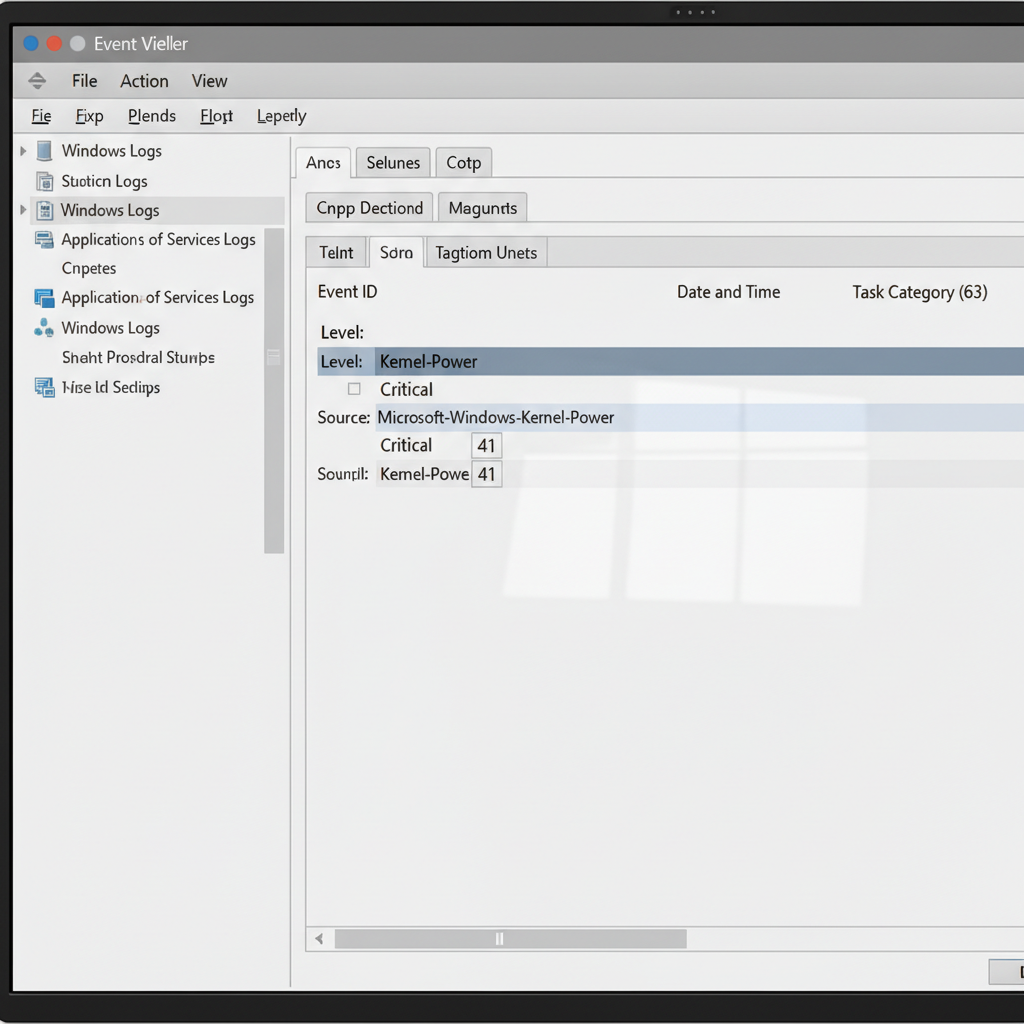
Open Start, search Event Viewer → Windows Logs → System. Common entries:
- Kernel-Power (Event ID 41): the system rebooted without cleanly shutting down. This is common and not specific, but it confirms an unexpected power event.
- BugCheck: indicates a blue screen occurred, often with a stop code you can look up.
- WHEA-Logger: can point to hardware instability (CPU, RAM, PCIe devices), sometimes heat or undervoltage related.
Write down the timestamps and any stop codes. If the PC restarts during a specific app or game, note that too, it matters later.
Self-check checklist: classify your case in 10 minutes
Use this quick checklist to decide which track to follow, it’s faster than trying everything.
- Heat: fans ramp up, case feels hot, restart happens after 10–30 minutes of load.
- Power: restart is instant, happens when GPU/CPU spikes, power strip feels warm, cable wiggle changes behavior.
- Software/driver: you recently updated GPU drivers, installed a new antivirus, or a Windows update just landed.
- Hardware aging: older PSU, random USB disconnects, new clicking from drive, or frequent “repairing disk” messages.
- Overclock/XMP: you enabled XMP/EXPO or CPU/GPU overclock and restarts started soon after.
If you can reproduce the restart with a predictable trigger (launching a game, exporting video, waking from sleep), you’re already ahead, reproducible problems are easier to fix.
Fix overheating and airflow issues (most common, often overlooked)
Overheating is a boring answer, but it’s a frequent one, especially with dusty coolers, dried thermal paste, or small cases with poor airflow.
What to do
- Check temps using a reputable monitor tool, then observe CPU/GPU temps at idle and under load.
- Clean dust from CPU cooler, GPU fans, and filters. Hold fans still while cleaning to avoid overspin.
- Confirm fan curves in BIOS or vendor software. A “silent” curve can cause shutdowns under burst load.
- Reseat the cooler if temps are unusually high, reapply thermal paste if you’re comfortable doing so.
- Improve airflow: front intake + rear/top exhaust, remove obstructions, avoid pushing the case against a wall.
According to Intel, thermal protection mechanisms can throttle performance and, in some cases, trigger shutdown behavior to protect components when temperatures exceed safe limits.
Fix power problems: PSU, cables, and wall power (the “instant reboot” path)
If the system goes black and immediately comes back like nothing happened, treat power as the prime suspect. This is also where safety matters more, if you notice burning smells, arcing, or heat at the outlet, stop and consult a qualified technician or electrician.
Start with the cheap checks
- Bypass the power strip/UPS temporarily and plug directly into a known-good wall outlet.
- Swap the power cable if you have another standard IEC cable.
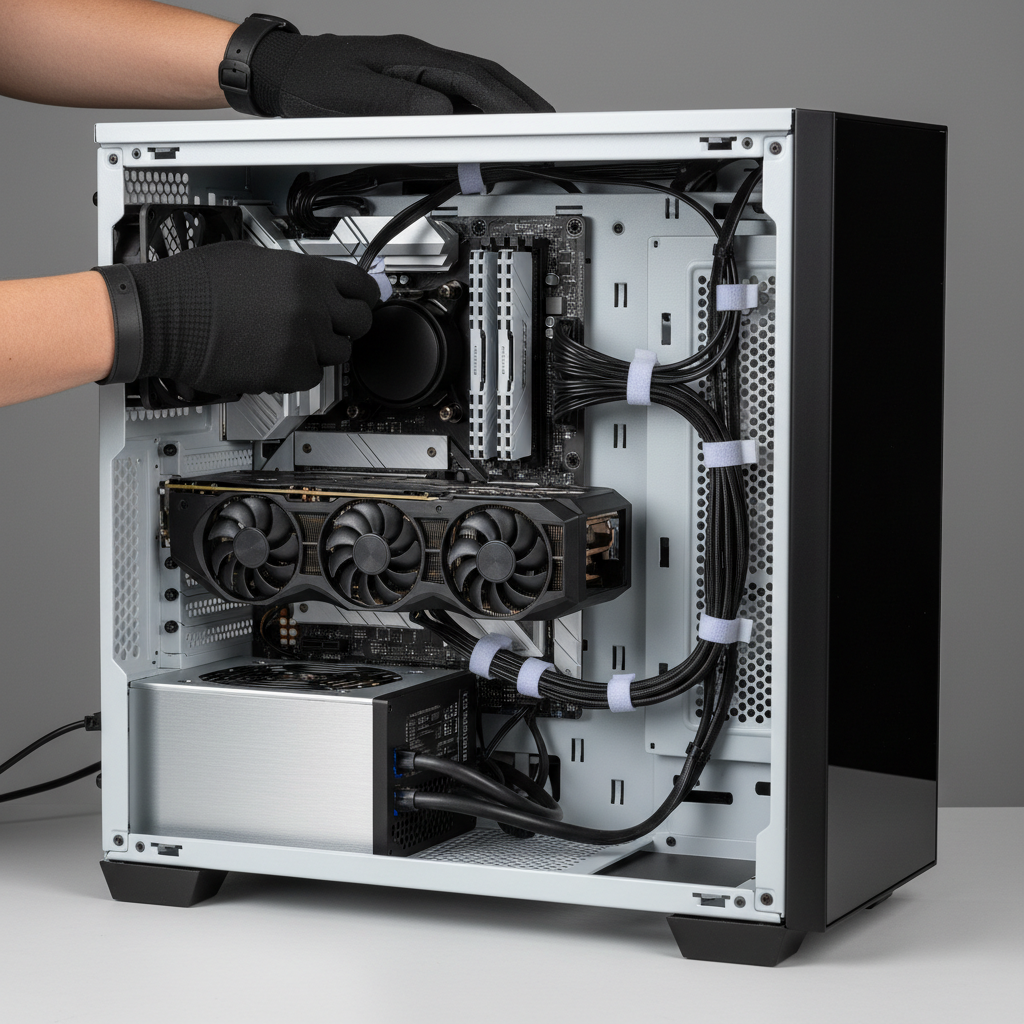
- Reseat power connectors inside the PC: 24-pin motherboard, 8-pin CPU, GPU PCIe connectors.
- Remove “extras”: unplug nonessential USB devices, hubs, and external drives and test again.
When the PSU is likely the cause
A power supply can degrade slowly, and failures often show up during GPU spikes (games, rendering). Signs include restarts only under load, coil whine changes, or stability improving when you cap FPS or lower GPU power.
If you’re unsure which wattage and quality tier you need, check your GPU vendor guidance. According to NVIDIA, PSU recommendations vary by GPU model and system configuration, and using a quality unit with adequate headroom can prevent instability under transient loads.
Fix drivers, Windows settings, and update-related reboot loops
If you saw a blue screen, or restarts started after an update, you’re usually in software territory. This is where “how to fix pc randomly restarting issues” becomes less about one magic switch and more about isolating a bad change.
High-signal actions that don’t waste time
- Update GPU drivers cleanly (or roll back). If the issue started right after a driver update, a rollback is a valid move.
- Run Windows Update fully, then reboot manually once, update cycles can cause multiple restarts.
- Check automatic restart settings: System Properties → Startup and Recovery → consider unchecking “Automatically restart” so you can read the stop code.
- Scan system files: run sfc /scannow and DISM repair commands if corruption is suspected.
- Perform a clean boot to rule out third-party startup services (common with RGB tools, overlays, some antivirus suites).
A practical “rollback ladder”
- Uninstall the most recent driver/app you added.
- Roll back the driver in Device Manager if available.
- Use System Restore (if enabled) to return to a stable point.
- If crashes continue, consider an in-place Windows repair install.
According to Microsoft, using Safe Mode, System Restore, and recovery options can help troubleshoot driver and update problems that prevent normal startup or cause repeated crashes.
Hardware instability: RAM, storage, GPU, and BIOS settings
When logs show WHEA errors, or you’ve already handled heat and power basics, hardware stability moves up the list. This can still be fixable without replacing half the PC.
Most common stability fixes
- Turn off overclocks: reset BIOS to defaults, disable CPU overclock and set XMP/EXPO off for a test window.
- Test RAM: run a memory diagnostic and, if possible, test with one stick at a time to isolate a bad module or slot.
- Check storage health: look for SMART warnings, run a drive check, and confirm your SSD firmware is current.
- Reseat GPU: reinsert the card, confirm latch engagement, and check PCIe power connectors.
- Update BIOS carefully: BIOS updates can improve stability, but follow vendor instructions closely and avoid power loss during the process.
What the symptoms often suggest (quick table)
| Symptom | Likely area | First action to try |
|---|---|---|
| Restarts right as a game loads | GPU driver, PSU transient load | Clean install/rollback GPU driver, cap FPS, check PSU cabling |
| Restarts after 15–30 minutes of load | CPU/GPU overheating | Check temps, clean dust, adjust fan curves |
| Blue screen with memory-related stop codes | RAM instability, XMP/EXPO | Disable XMP/EXPO, test sticks one by one |
| Restarts when waking from sleep | BIOS power settings, drivers | Update chipset drivers, adjust sleep settings, update BIOS if needed |
| Random restarts while idle | Background software, PSU aging | Clean boot, check Event Viewer, test with different outlet/strip |
A simple, safe troubleshooting plan you can follow (without thrashing your system)
If you try ten things at once, you won’t know what fixed it. This sequence keeps changes controlled and reversible.
- Step 1: Make it observable by disabling auto-restart and recording the exact time of the next crash.
- Step 2: Rule out heat with a quick temperature check and a cleaning pass.
- Step 3: Rule out wall power by testing a different outlet and removing the power strip/UPS briefly.
- Step 4: Stabilize software by rolling back the newest drivers/apps, then updating only what’s necessary.
- Step 5: Return BIOS to defaults and test for a day with XMP/EXPO off.
- Step 6: Isolate hardware with RAM stick testing and basic storage health checks.
Key takeaways: most “random” restarts have a pattern, logs help you see it, and power plus heat solve a surprisingly large share of cases.
When to stop DIY and seek professional help
Some situations deserve a faster, safer escalation. Consider a repair shop or qualified technician if any of these apply:
- You smell burning, see smoke, hear popping, or the outlet/power strip feels hot.
- Restarts continue after returning BIOS to defaults and testing basic power and thermal steps.
- Event Viewer repeatedly shows hardware error patterns you can’t isolate (persistent WHEA errors).
- The PC is under warranty, opening parts could affect coverage, depending on brand and policy.
If you rely on the machine for work, it’s often cheaper to pay for a targeted diagnosis than to keep swapping parts blindly.
Conclusion: how to fix pc randomly restarting issues is mostly about identifying which lane you’re in, heat, power, software, or hardware instability, then making one controlled change at a time. Start with logs and the low-risk checks, and you’ll usually get to a clear answer without a full rebuild.
If you want an action step today, pick one: check Reliability Monitor for the last crash, then do a quick power-strip bypass test. Those two moves alone often turn “random” into “repeatable.”
FAQ
Why does my PC randomly restart with no blue screen?
Many no-BSOD restarts are power-related or a hard shutdown triggered by protection mechanisms. Check Event Viewer for Kernel-Power 41, then test outlet/power strip and look at temperatures under load.
How do I know if it’s my power supply or overheating?
Overheating tends to show a time-to-fail pattern under sustained load and high temps. PSU issues often look like instant blackouts during sudden load spikes. If you can reproduce it by starting a game, both are possible, so check temps and do the basic power isolation steps.
Can Windows Update cause random restarts?
It can, especially if updates are pending restarts or a driver update introduced instability. Confirm updates finished, review update history, and consider rolling back the most recent driver if the timing lines up.
What is Kernel-Power 41 and is it “the cause”?
Kernel-Power 41 usually means Windows noticed an improper shutdown, not why it happened. Treat it as a signpost, then look for related errors around the same timestamp and test power/thermal paths.
Should I disable automatic restart in Windows?
For troubleshooting, yes, because it can let you read a stop code or see if it’s a hard power cut. Once stable, you can turn it back on if you prefer.
Does enabling XMP/EXPO cause restarts?
It can in some builds, especially with mixed RAM kits or older BIOS versions. A good test is to run defaults for a day; if stability returns, you can re-enable XMP/EXPO and adjust gradually.
What’s the fastest way to stop restarts during gaming?
Start with the highest-impact, lowest-risk moves: check GPU/CPU temps, clean dust, cap FPS or reduce GPU power slightly, then ensure GPU drivers are stable. If it still reboots instantly, power delivery becomes more likely.
If you’re trying to fix pc randomly restarting issues but want a more efficient path, consider using a diagnostic service that can test PSU, RAM, and thermals with known-good parts, it often shortens the trial-and-error loop without forcing you to buy hardware upfront.