
This phone app cleanup guide helps you remove unwanted apps without accidentally deleting something you still need, and it can also free storage, cut notification noise, and lower background battery drain.
If you’ve ever thought, “I don’t even remember downloading half of these,” you’re not alone, app clutter builds up quietly through old trials, preinstalled bloatware, duplicate utilities, and one-time event apps that never leave.
What makes cleanup tricky is that “delete the ones you don’t use” is too vague, some apps hide behind vague names, others are tied to accounts, subscriptions, or device features. Below you’ll get a practical way to decide what to keep, what to remove, and what to disable, with steps for iPhone and Android.
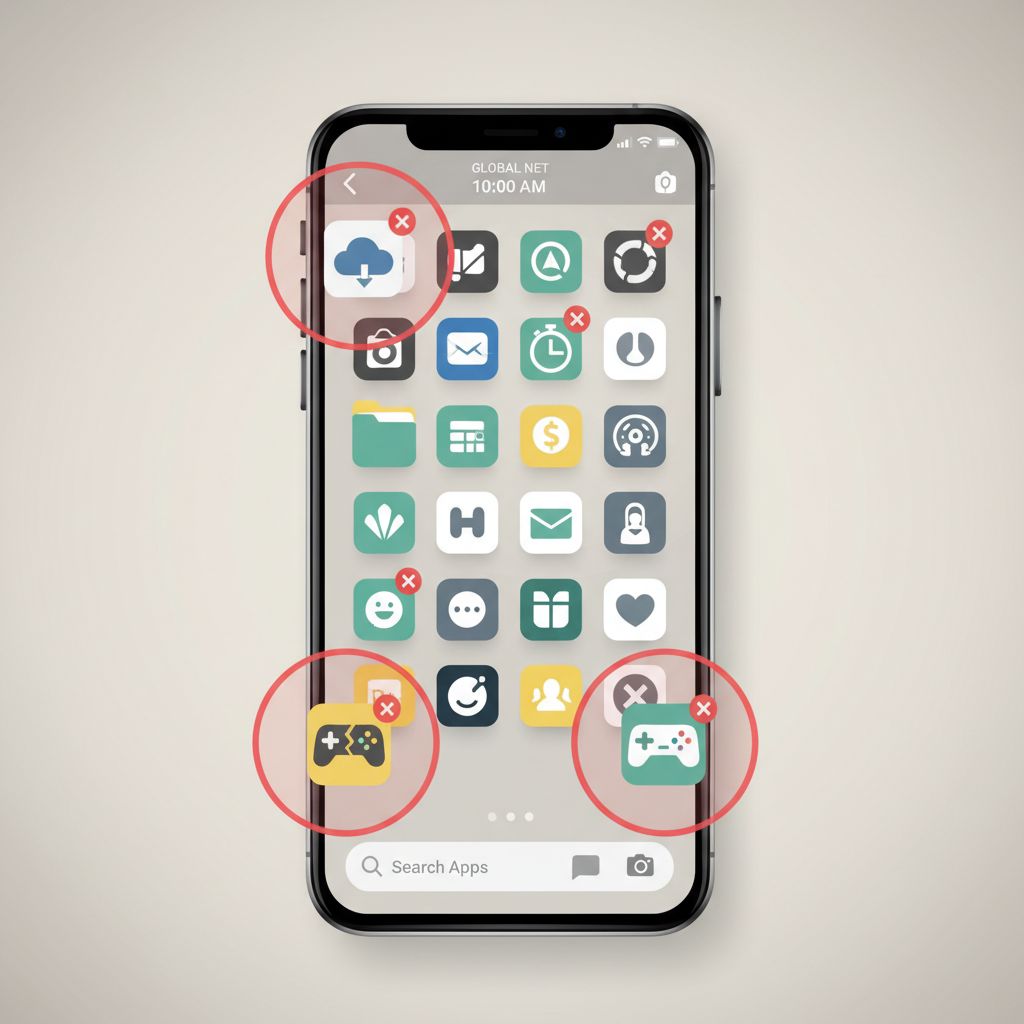
Why unwanted apps pile up (and why it matters)
Most people don’t “choose” to have a messy app library, it happens through normal phone life. The reasons matter because they tell you the safest cleanup approach.
- One-time installs: travel, parking, concerts, school portals, job apps, then you forget.
- Trials and promos: you tested an editor or game, the subscription ended, the app stayed.
- Preinstalled apps: many Android phones ship with carrier or manufacturer apps you never asked for.
- Duplicates: two note apps, three photo editors, multiple “file cleaner” tools.
- Account tie-ins: an app is only there because a login or device feature depends on it.
Beyond aesthetics, extra apps can mean more background activity, more permissions floating around, and more places for notifications to grab your attention. According to Apple Support, iPhone storage fills up not only from apps but also from their documents and data, which is why deleting the right apps can make a noticeable difference.
Quick “keep vs. remove” checklist (2-minute self-test)
Before you start tapping delete, do a fast sort. This part saves you from the classic mistake: removing a “weirdly named” app that turns out to run something important.
- Have you opened it in the last 60–90 days? If no, it’s a candidate.
- Does it store anything you’d miss? Notes, recordings, downloads, saved files.
- Is it tied to a device or service? Smartwatch, security camera, printer, car app.
- Do you pay for it? Subscriptions can continue even after deletion in some cases, so check billing.
- Does it have broad permissions? Location “Always,” contacts, microphone, photos, Bluetooth.
- Is there a built-in alternative? Many utilities overlap with iOS/Android features now.
Key point: If you feel unsure about an app, don’t delete first, start by checking its storage use and permissions. That usually reveals what it’s doing.
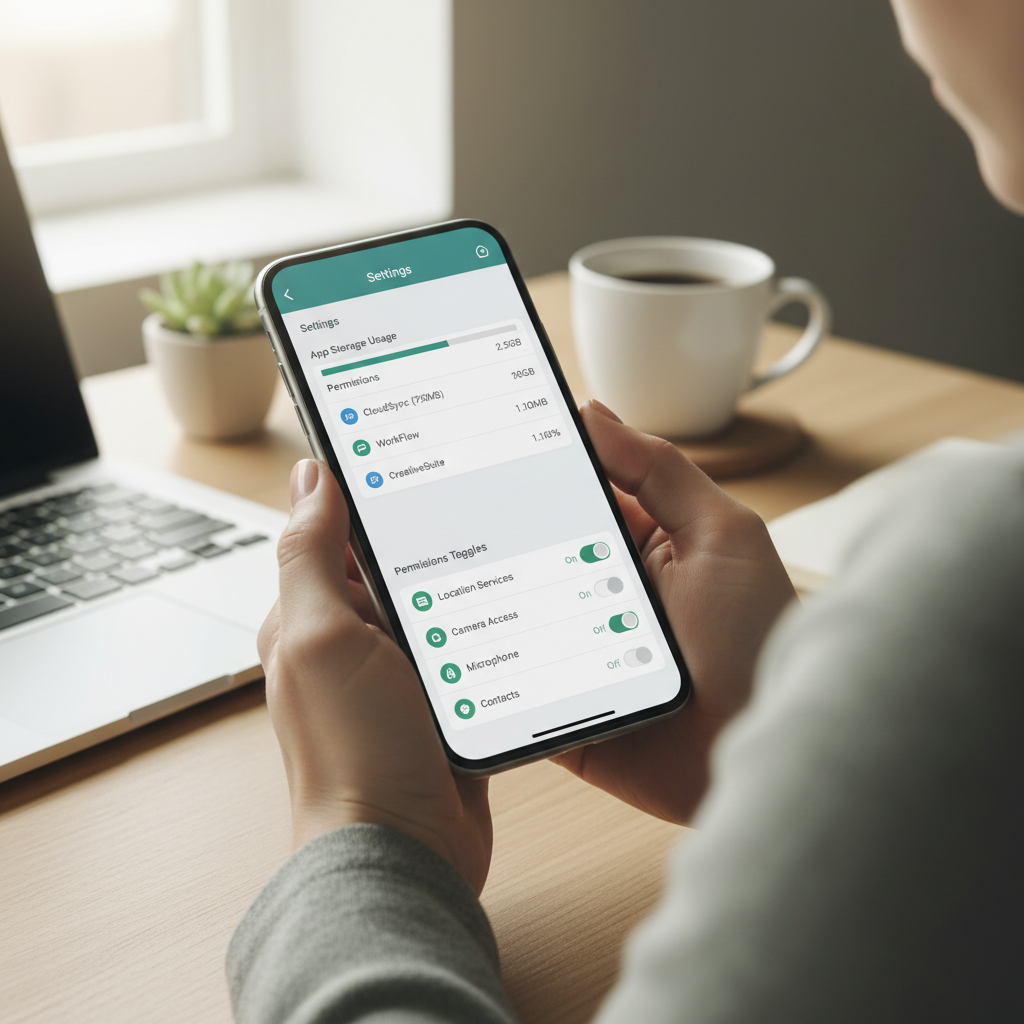
Start with the “high-impact” app cleanup: storage, battery, permissions
If you want the fastest wins, don’t begin on the home screen. Begin in Settings, where you can see which apps actually cost you space or power.
On iPhone (iOS)
- Storage: Settings > General > iPhone Storage
- Battery clues: Settings > Battery (look for apps with surprisingly high background activity)
- Permissions: Settings > Privacy & Security (audit Location, Photos, Microphone, etc.)
On Android (varies by manufacturer)
- Storage: Settings > Storage, or Settings > Apps > Sort by size
- Battery clues: Settings > Battery > Battery usage
- Permissions: Settings > Privacy > Permission manager
According to Google Safety Center, reviewing and managing app permissions is a core step to keeping your information safer. In real-world cleanup, this also helps you spot apps that behave like they “need everything,” which is rarely a good sign.
What to delete, what to offload, what to disable (use this table)
Not every app needs the same treatment. Some you can remove entirely, some are better offloaded, and some preinstalled apps can only be disabled.
| Situation | Best action | Why it works | Watch out for |
|---|---|---|---|
| You never use it and it stores no important data | Delete | Frees storage and reduces attack surface | Check subscriptions separately |
| You rarely use it but want settings/data kept (iPhone) | Offload | Removes app, keeps documents & data | Re-download required to use again |
| It’s preinstalled bloatware (many Android phones) | Disable | Stops running and hides it from view | Some apps re-enable after updates |
| It’s useful but noisy | Keep + restrict | Keep function, reduce interruptions | Don’t turn off critical security alerts |
| It’s suspicious, unknown, or asks for odd permissions | Remove + review accounts | Limits risk and stops background access | Change passwords if compromise suspected |
This phone app cleanup guide mindset is simple: remove what’s truly unnecessary, and tighten what you keep. You get most benefits without turning your phone into a “project.”
Step-by-step: safely removing unwanted apps (iPhone and Android)
Here’s a practical workflow that minimizes regret and “wait, where did my stuff go?” moments.
Step 1: Back up anything that lives inside the app
- Look for export options: files, notes, chat history, recordings.
- Confirm the data is actually accessible elsewhere (cloud account, email, computer).
- If the app is tied to work or school, confirm with your admin or help desk when needed.
Step 2: Remove the app the right way
- iPhone: press and hold the app icon > Remove App > Delete App, or Settings > General > iPhone Storage > Delete App.
- Android: press and hold > Uninstall, or Settings > Apps > Uninstall. If uninstall is unavailable, use Disable.
Step 3: Clean up leftovers (only where it makes sense)
- Review downloaded files in Files (iOS) or Files by Google/My Files (Android).
- Check Photos for duplicates and large videos created by editing apps.
- For messaging apps, review large media caches inside the app settings.
According to Federal Trade Commission (FTC), keeping software updated and limiting unnecessary access are common steps that can help reduce certain privacy and security risks. App cleanup fits that same “reduce what you don’t need” idea.
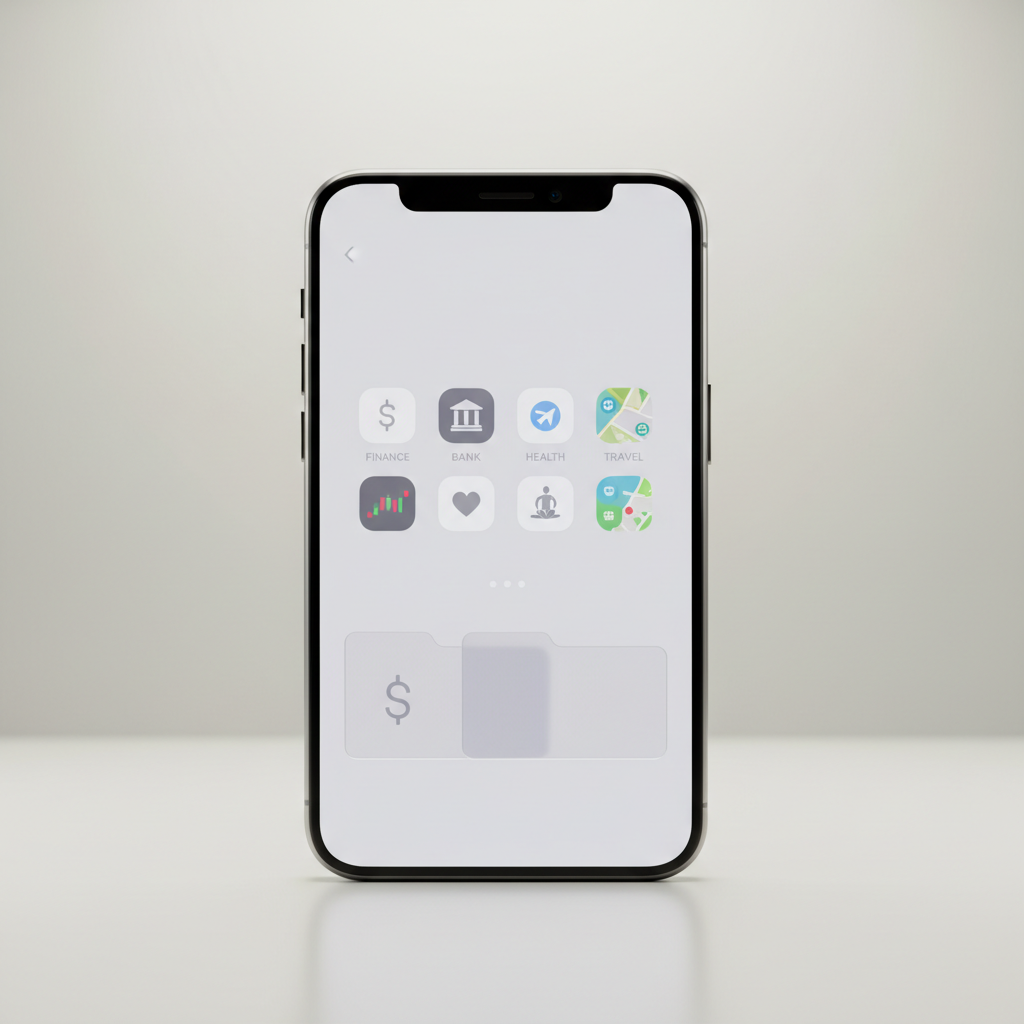
Organize what remains so clutter doesn’t come back
Deleting apps feels good for a week, then the clutter creeps back. A tiny bit of structure prevents repeat cleanups.
Simple organization options that usually stick
- One screen rule: keep daily essentials on the first screen, everything else goes to App Library (iOS) or a second screen/folder.
- Folders by intent: Money, Health, Travel, Work, Home, Social. Avoid 15 folders, you’ll stop using them.
- Search-first habit: if you can’t remember where an app is, use search instead of scrolling.
Notification cleanup (often the real quality-of-life win)
- Turn off marketing notifications, keep receipts, security alerts, delivery updates.
- Reduce badges for apps you check intentionally (news, shopping).
- For chat apps, keep direct messages, mute large groups if they drain attention.
If your goal is focus, you may find notification trimming more impactful than deleting five extra apps, this is where a phone starts to feel calmer.
Common mistakes that waste time (or cause accidental damage)
- Deleting without checking subscriptions: removing an app doesn’t always cancel a paid plan. Verify in Apple ID subscriptions or Google Play subscriptions.
- Using aggressive “cleaner” apps: on both iOS and Android, many promise miracle speedups; in practice they can be redundant, ad-heavy, or permission-hungry.
- Removing security or system tools blindly: authenticator apps, password managers, device management profiles, and carrier services can have real consequences.
- Confusing “clear cache” with “clear data” (Android): clearing data may sign you out or reset settings, which is fine sometimes, but know what you’re doing.
- Keeping risky permissions “just in case”: if an app doesn’t need Always-on location, don’t grant it.
This is where a phone app cleanup guide is more helpful than generic advice, the goal is fewer regrets, not just fewer icons.
When you should get extra help (or slow down)
Most cleanup is safe, but a few situations deserve a more cautious approach.
- Work-managed phones: if your device has MDM or company profiles, removing certain apps can break email, VPN, or compliance tools.
- Accessibility or medical-related apps: if an app supports hearing aids, glucose monitors, or emergency contacts, confirm alternatives before removal, if health is involved, it may be worth asking a clinician or device vendor.
- Signs of compromise: unknown admin apps, repeated pop-ups, or settings you can’t change might indicate malware on some Android devices, consider a reputable repair shop or your carrier’s support.
- Kids’ devices: if parental controls are in place, changes can affect monitoring and restrictions.
Conclusion: a cleaner phone is mostly about better decisions, not more deleting
You don’t need to purge half your phone to feel the difference, you need a quick way to spot high-impact apps, remove what’s truly unused, and tighten permissions and notifications on what stays. If you do one thing today, open storage settings and delete the top 3 apps you haven’t touched in months, then spend five minutes on notifications.
If you want a repeatable routine, bookmark this phone app cleanup guide and run the checklist once a month, it’s small effort, and it keeps your phone from drifting back into clutter.
FAQ
What’s the safest way to follow a phone app cleanup guide without losing data?
Assume the app may hold unique files until proven otherwise, open it, look for export or sync settings, and confirm you can access your content on another device or account before deleting.
Does deleting an app cancel the subscription on iPhone or Android?
Often it does not. Check subscriptions in your Apple ID settings (iOS) or Google Play subscriptions (Android), then cancel there if you no longer want to pay.
Should I use “Offload App” on iPhone or just delete?
Offload is useful when you rarely use an app but want its documents and data preserved on the phone. If you’re sure you’re done and data is backed up elsewhere, deletion is cleaner.
Why can’t I uninstall some apps on Android?
Some are system or carrier apps. In many cases you can disable them, which stops them from running and removes them from your app drawer, that’s usually the practical win.
Will removing unused apps improve battery life?
It can, especially if the removed apps were running in the background or using location services. Battery gains vary by device and usage, so focus on apps that show high background activity.
How do I identify suspicious apps during cleanup?
Look for unfamiliar names, odd icons, heavy permissions that don’t match the purpose, or high background usage. If something feels off, remove it and review connected accounts and passwords.
Is it worth clearing cache instead of deleting apps?
Clearing cache can help for certain apps that balloon in size, especially on Android. If you never use the app, deletion is usually simpler and more effective.
If you’re doing a cleanup because storage keeps filling up or your phone feels sluggish, and you’d rather not guess which apps are safe to remove, use the checklist above and focus on storage hogs first, it’s the most “low drama” way to see results.