
If you’re searching for how to turn off auto brightness iphone, it usually means your screen keeps dimming or blasting bright when you don’t want it to, and it’s getting in the way.
Auto-Brightness can be helpful outdoors, but lots of people notice it most when it feels “wrong”: the display drops too dark during reading, or spikes bright at night. The good news is the switch is easy to find, and if it seems to ignore your choice, there are a few common causes worth checking.
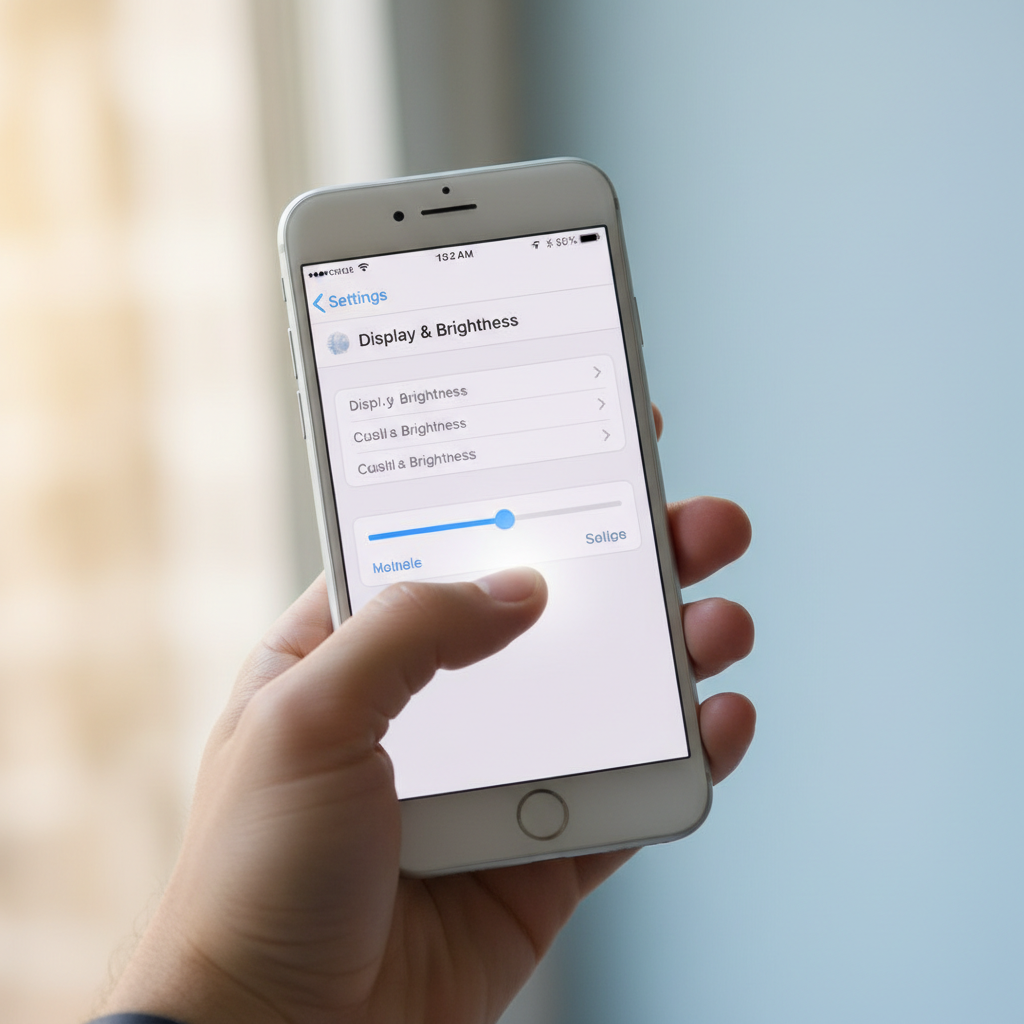
This guide walks you through the exact settings path, what to expect after you turn it off, and what to do if brightness still shifts because of other iPhone features that look similar.
What Auto-Brightness does (and why it can feel “random”)
Auto-Brightness uses the ambient light sensor to adjust the display based on your surroundings. In bright sun, it raises brightness for readability; in darker rooms, it lowers brightness to reduce glare and discomfort.
But in real life, it can feel unpredictable because lighting changes fast: moving past windows, sitting under mixed LEDs, riding in a car, or even turning your head so the sensor catches a different angle. According to Apple Support, Auto-Brightness is designed to adapt to ambient light conditions and can also help with battery efficiency in many situations.
- When it’s useful: outdoor use, commuting, constantly changing environments.
- When it’s annoying: reading in bed, watching video in a dim room, editing photos, using maps at night.
How to turn off Auto-Brightness on iPhone (current iOS path)
Here’s the most reliable path for how to turn off auto brightness iphone on recent iOS versions. Apple has moved this toggle over the years, so don’t be surprised if it’s not under Display & Brightness.
Steps
- Open Settings
- Tap Accessibility
- Tap Display & Text Size
- Scroll down and toggle Auto-Brightness Off
Once it’s off, your iPhone should stop adjusting brightness based on the room lighting, and it will stick much closer to whatever level you set manually.
Quick checklist: are you turning off the right feature?
A lot of “auto brightness” complaints aren’t actually Auto-Brightness. iOS has a few features that change how bright the screen looks, and they can overlap.
- Does the brightness slider move by itself? That often points to Auto-Brightness (or something controlling it).
- Does the screen look dim, but the slider stays high? That can be attention-aware dimming, thermal protection, or Reduce White Point.
- Does it only happen during video? HDR content and video playback behavior can make changes look more dramatic.
- Does it happen right before your phone locks? Auto-Lock and attention features can make the display appear to “fade.”
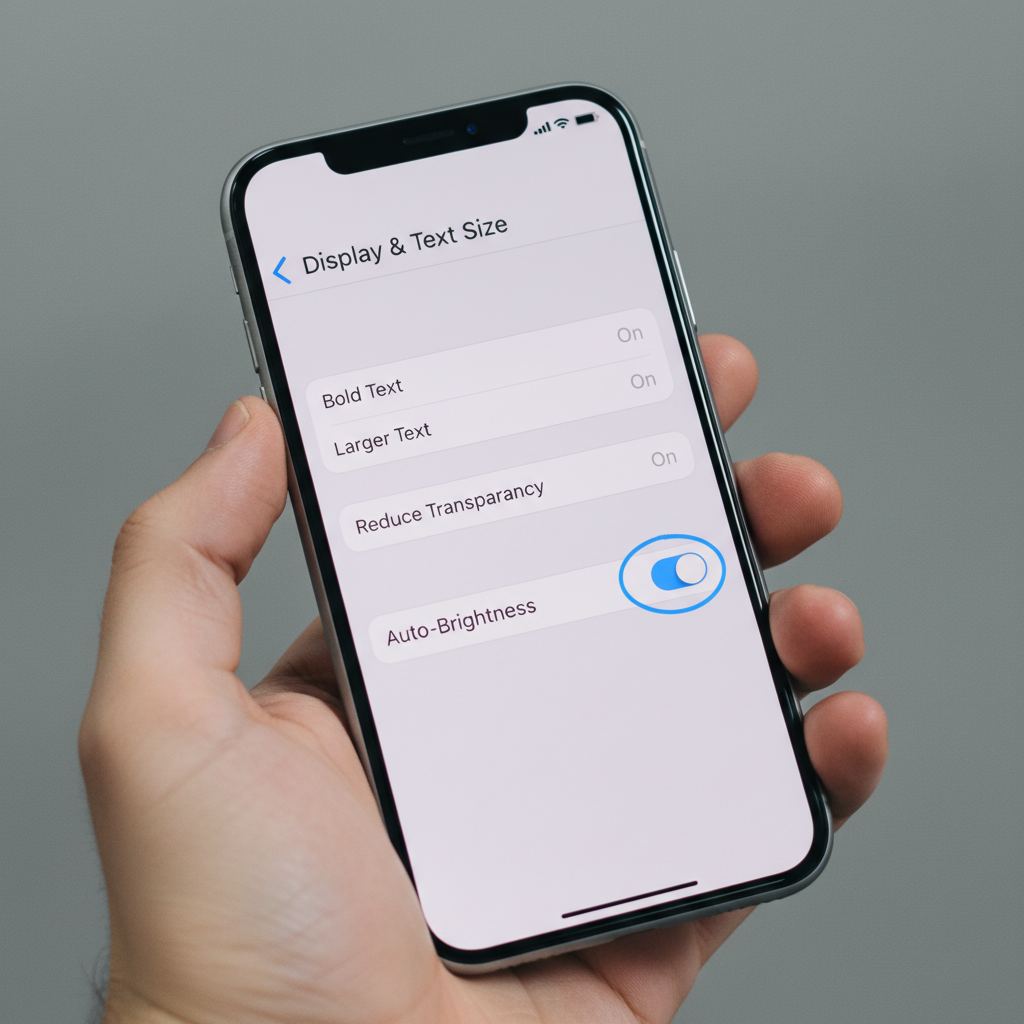
If you want the most straightforward win, toggle Auto-Brightness off first, then test for a day. If brightness still shifts, move to the next section.
If brightness still changes: the usual suspects (and what to do)
Even after you’ve done how to turn off auto brightness iphone, you might still see dimming or brightness swings. These are common causes that often get mistaken for the same thing.
1) Attention-aware dimming (Face ID models)
On some iPhones, the screen can dim if it thinks you’re not looking at it. This can feel like auto-brightness, but it’s really an “are you paying attention?” feature.
- Go to Settings > Accessibility > Face ID & Attention
- Toggle Attention-Aware Features off (test it)
If you rely on this for security or convenience, try turning it off temporarily just to confirm what’s causing the dimming.
2) Reduce White Point or other display filters
Reduce White Point lowers the intensity of bright colors, so the screen looks dimmer without the brightness slider necessarily dropping.
- Go to Settings > Accessibility > Display & Text Size
- Check Reduce White Point, Color Filters, and Night Shift (in Display & Brightness)
Night Shift and True Tone change color temperature more than brightness, but many people interpret that change as “the screen got dim.”
3) Overheating and thermal dimming
When iPhone gets hot, it may dim the display to reduce heat. This tends to show up during GPS navigation, gaming, fast charging, or sitting in direct sun.
- Let the phone cool down, remove thick cases temporarily
- Avoid charging while running heavy apps
- Move out of direct sunlight for a few minutes
If you regularly see thermal warnings, consider contacting Apple Support, since ongoing heat issues can be hardware- or environment-related.
4) Low Power Mode and battery behavior
Low Power Mode doesn’t always “auto-adjust” brightness like Auto-Brightness, but it can nudge you toward dimmer settings and reduce some background activity that changes how the phone feels overall.
- Check Settings > Battery
- Toggle Low Power Mode off and test
Manual brightness control that doesn’t fight you
After you disable Auto-Brightness, you’ll probably want a quick routine to keep the screen comfortable without constant fiddling.
Fast ways to adjust brightness
- Control Center: swipe down from the top-right corner (Face ID) or up from the bottom (Touch ID), then drag the brightness slider
- Siri: say “set brightness to 40%” for quick adjustments
- Settings: Settings > Display & Brightness for precise tuning
One practical tip: set a slightly lower “indoor default” brightness, then bump up temporarily for outdoor use. That pattern feels less annoying than chasing every small lighting change.
Battery, comfort, and accessibility: what changes when Auto-Brightness is off
Turning it off gives you consistency, but there are trade-offs. Higher brightness can drain battery faster, while very low brightness can increase eye strain for some people.
Here’s a simple comparison you can use to choose what matters most for your situation.
| Goal | Recommended approach | Why it works |
|---|---|---|
| Stable brightness indoors | Turn Auto-Brightness off, set a fixed level | Fewer sudden shifts while reading or watching video |
| Better outdoor visibility | Keep Auto-Brightness on, or raise brightness manually | Sunlight changes quickly, sensor adjustments can help |
| Battery-friendly daily use | Auto-Brightness on, moderate max brightness | Often avoids running the screen brighter than needed |
| Night comfort | Auto-Brightness off, lower brightness + Night Shift | Less chance of a sudden bright jump in a dark room |
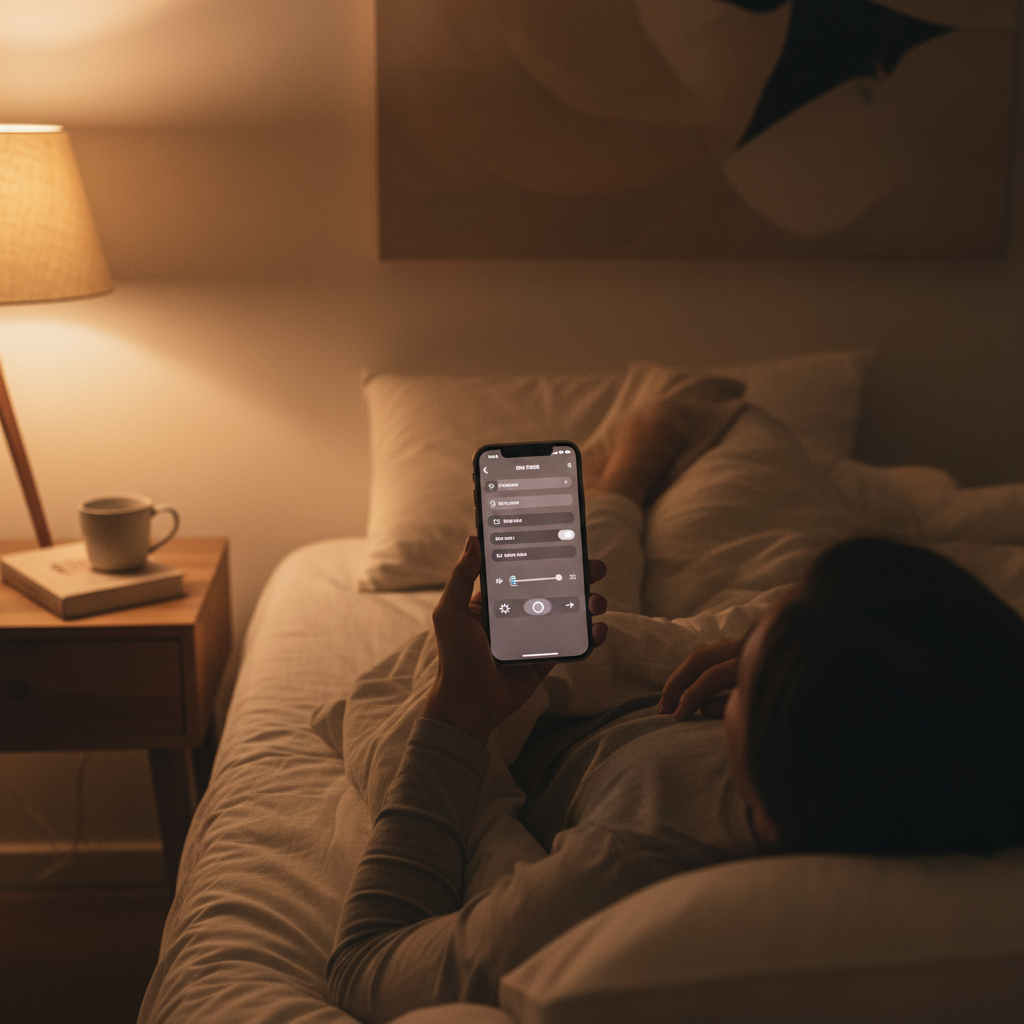
Key takeaway: if your main complaint is sudden dimming while you’re actively using the phone, disabling Auto-Brightness is usually the cleanest fix. If your complaint is “I can’t see my screen outside,” turning it off may make that worse unless you remember to raise brightness manually.
Practical troubleshooting if the toggle doesn’t “stick”
Sometimes people flip the switch, but the experience doesn’t change. Before you assume something is broken, try these steps.
- Restart your iPhone and re-test in a steady lighting environment
- Update iOS (Settings > General > Software Update), since display behavior can vary across versions
- Clean the top bezel area near the front camera, since the ambient light sensor can be affected by dirt or screen protectors in some cases
- Reset all settings only if you’re stuck (Settings > General > Transfer or Reset iPhone > Reset > Reset All Settings). This won’t erase your data, but it will reset many preferences.
If none of this changes anything and you suspect a sensor issue, it’s reasonable to talk with Apple Support or visit an Apple Store or authorized service provider for diagnostics.
Conclusion: keep control without making your iPhone harder to use
Once you know where the toggle lives, how to turn off auto brightness iphone becomes a 30-second fix, and for many people it instantly makes the screen feel more predictable. If brightness still shifts, it’s usually attention features, Reduce White Point, or heat-related dimming, not the same setting coming back to haunt you.
Try this: turn off Auto-Brightness, set a comfortable indoor brightness, then spend one day noticing when the screen still changes. That single observation usually tells you which secondary feature to adjust next.