
how to disable cortana windows 11 is usually about one thing: you want Cortana to stop popping up, stop running in the background, or stop collecting voice-related data you never meant to use.
On Windows 11, Cortana is less “built-in” than it was on Windows 10, but it can still show up as an app, run at sign-in, and keep permissions that feel unnecessary. Disabling it the right way matters because some people accidentally cripple Windows Search when they take shortcuts.
This guide walks through the practical options, from quick toggles to more “IT-style” controls, and helps you pick the least disruptive method for your PC, your workplace policies, and your comfort level.
What “Disable Cortana” Means on Windows 11 (and What It Doesn’t)
Before changing anything, it helps to separate Cortana from other Windows features people lump together.
- Disabling Cortana usually means preventing the Cortana app from running, launching at sign-in, using microphone access, or showing prompts.
- Windows Search is the search box and indexing service. Turning Cortana off should not remove Search.
- Voice typing / Speech services are broader Windows capabilities. You can keep or disable these separately depending on privacy needs.
According to Microsoft Support, Cortana has been transitioned away from being a core Windows shell experience and is offered as an app experience in supported versions. In plain English, you can typically remove or silence it without “breaking Windows,” as long as you avoid random registry hacks you don’t understand.
Quick Self-Check: Which Situation Are You In?
Pick the closest match, it saves time and reduces the chance you overdo it.
- Home PC, Cortana keeps launching: you likely just need to stop startup and background permissions.
- Work or school device: your IT may manage apps via policy, and removal might be blocked.
- You want it gone entirely: uninstalling might be available, but it depends on your Windows 11 build and admin rights.
- Privacy-focused setup: you’ll want to review microphone, speech, and diagnostics settings in addition to Cortana.
Method 1: Disable Cortana Startup (Fastest Fix)
If your main annoyance is Cortana appearing after you sign in, start here. It’s low-risk and easy to undo.
Turn off startup launch
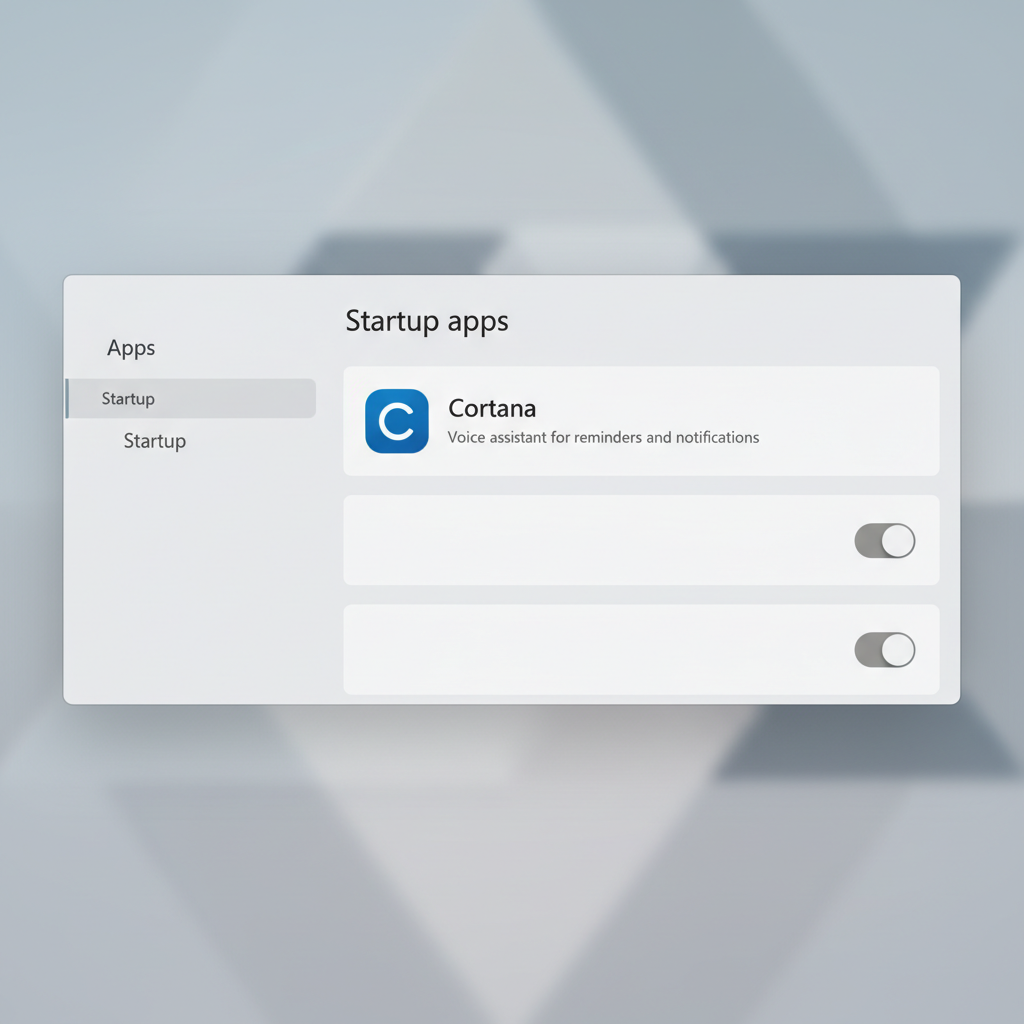
- Open Settings → Apps → Startup
- Find Cortana and toggle it Off
If you don’t see Cortana listed, it may not be set to start automatically, or it may already be removed in your build.
Key point: This doesn’t uninstall Cortana, it just stops the automatic launch loop that most people interpret as “Cortana is still enabled.”
Method 2: Disable Background Activity and App Permissions
Even when Cortana doesn’t “open,” you might still prefer it not to run in the background or touch mic-related permissions.
Stop background activity
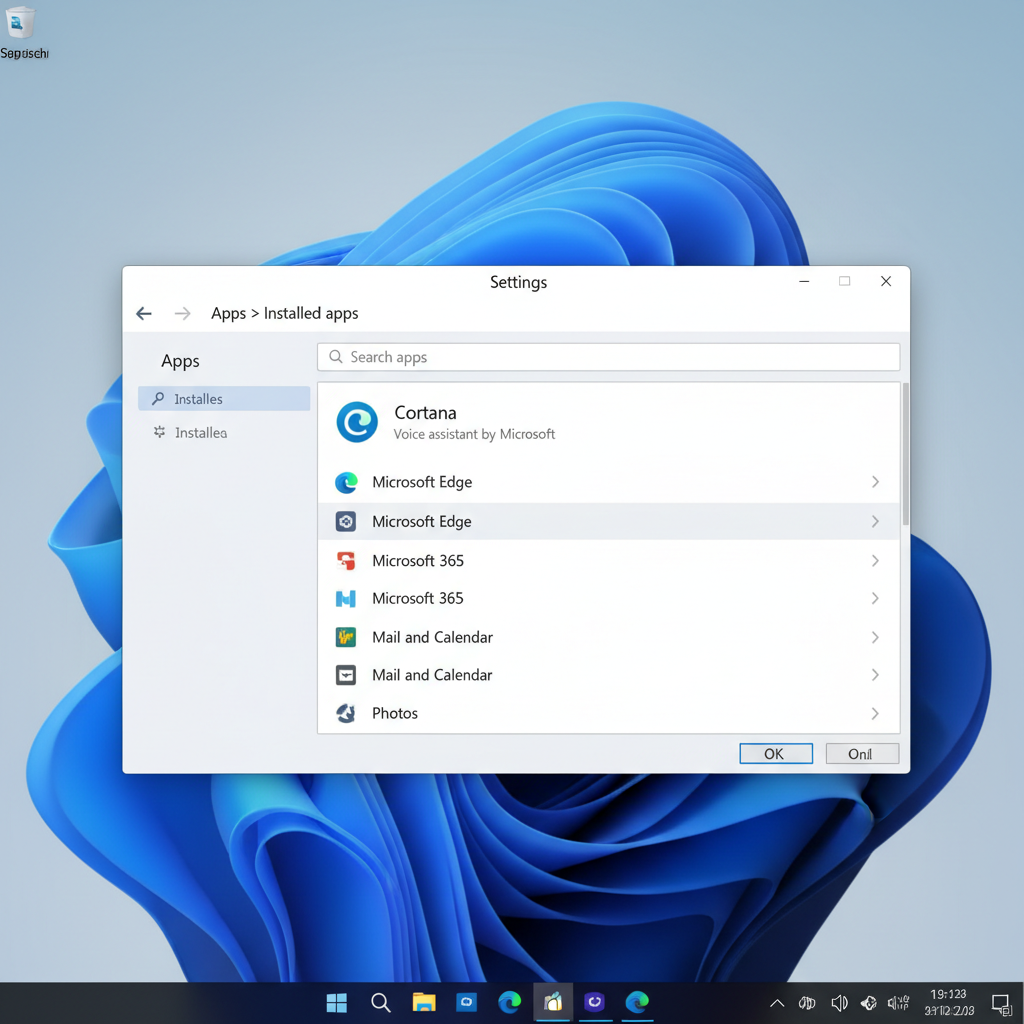
- Settings → Apps → Installed apps
- Search for Cortana → click the three dots → Advanced options
- Look for background permissions (wording varies by build) and set it to Never when available
Review microphone and speech access
- Settings → Privacy & security → Microphone
- Turn off microphone access for the Cortana app (if listed)
According to Microsoft Support, Windows privacy controls let you manage app permissions such as microphone access on a per-app basis. This is often the cleanest way to reduce voice-related access without ripping out components.
Method 3: Uninstall Cortana (When Available)
If you want the most direct “off switch,” uninstalling is the closest thing, when Windows 11 allows it.
Uninstall from Settings
- Settings → Apps → Installed apps
- Search Cortana
- Select Uninstall (if the option appears)
If you don’t see the uninstall button, you may be on a build where Cortana is not removable via Settings, or your device policies restrict removal.
Uninstall with Windows Terminal (PowerShell), for advanced users
If you’re comfortable with admin tools, you can try PowerShell. Use extra caution on managed work devices.
- Open Windows Terminal as Administrator
- Run: Get-AppxPackage -allusers Microsoft.549981C3F5F10 | Remove-AppxPackage
This command may fail depending on your Windows version, app state, or policy restrictions, and sometimes Cortana can return after major updates. If you’re not sure, stopping startup and permissions is usually enough.
Method 4: Disable Cortana via Group Policy (Pro/Enterprise)
For businesses or anyone on Windows 11 Pro/Enterprise, Group Policy is the more “official” control surface, especially when you want consistency across multiple PCs.
- Open gpedit.msc
- Go to Computer Configuration → Administrative Templates → Windows Components → Search
- Find Allow Cortana and set it to Disabled
Policy names and availability can vary by Windows 11 edition and update level. If you don’t see “Allow Cortana,” your build may already de-emphasize it, or Microsoft may have changed how it’s managed.
Quick Comparison Table: Which Option Should You Use?
| Goal | Best method | Upside | Trade-offs |
|---|---|---|---|
| Stop Cortana popping up | Disable Startup | Fast, reversible | Cortana still installed |
| Reduce background activity | Advanced options + permissions | Less “always running” feel | Menus vary by build |
| Remove Cortana entirely | Uninstall (Settings/PowerShell) | Cleanest removal when supported | May be blocked or return after updates |
| Enforce across work devices | Group Policy | Centralized, consistent | Pro/Enterprise only, admin needed |

Common Mistakes to Avoid (This Is Where People Break Things)
A few missteps show up again and again when people search how to disable cortana windows 11 and follow random forum snippets.
- Confusing Cortana with Windows Search: disabling indexing or Search services can slow down Start menu search, and it won’t necessarily affect Cortana anyway.
- Overusing registry edits: registry changes can work, but they’re easy to misapply, and Windows updates can change behavior.
- Assuming uninstall is always possible: on some builds, Cortana is already minimized or not present, and the UI won’t match older tutorials.
- Ignoring permissions: if the real concern is privacy, uninstalling one app may not address speech services or microphone permissions at the OS level.
Practical “Do This Next” Checklist
If you want a clean, low-drama path, this order usually works well:
- Step 1: Turn off Cortana in Startup apps.
- Step 2: Review Cortana Advanced options and background permissions, set to “Never” when available.
- Step 3: Check microphone permissions and disable access for Cortana if listed.
- Step 4: If you still want it gone, try uninstalling from Installed apps, then consider PowerShell if you’re comfortable.
- Step 5: On Pro/Enterprise fleets, enforce via Group Policy to avoid user-by-user drift.
Key takeaway: In many setups, you don’t need to “nuke” Cortana to get the quiet, private experience you’re after, you just need to stop it from launching and remove permissions you don’t want it to have.
When You Might Need Professional Help
If your Windows 11 device is managed by an employer or school, or you see messages that settings are controlled by your organization, it’s smart to talk with IT before forcing removal. The same goes if you rely on compliance tools, device encryption, or company login policies, because “simple” app changes can sometimes trigger support tickets nobody enjoys.
If you’re troubleshooting unusual CPU usage or persistent background tasks and you’re not sure whether Cortana is the cause, consider asking a qualified technician to review startup items and system logs rather than guessing.
Conclusion: A Quiet Windows 11 Without Cortana Drama
Most people looking up how to disable cortana windows 11 can get what they want by turning off startup, tightening permissions, and only uninstalling if the system supports it cleanly. Do the small moves first, then escalate, it keeps Windows Search stable and reduces the chance you spend your evening undoing a “clever” tweak.
If you want an easy win today, open Settings and switch off Cortana startup, then take one minute to check microphone permissions. That combination solves the most common complaints without turning your PC into a project.
FAQ
How do I disable Cortana on Windows 11 without uninstalling it?
Turn off Cortana in Settings → Apps → Startup, then restrict background activity and microphone permission. That usually stops prompts and reduces activity while keeping the app installed.
Is Cortana required for Windows Search on Windows 11?
In most everyday use, no. Windows Search is separate. Problems happen when people disable Search services or indexing while trying to “disable Cortana.”
Why can’t I uninstall Cortana on my Windows 11 PC?
Some Windows 11 builds don’t show an uninstall option, and managed devices may block removal. In those cases, startup and permission controls are the practical alternative.
Will Cortana come back after a Windows update?
It can, depending on the update and how Cortana is packaged on your build. If it returns, re-check Startup apps and permissions first before repeating more aggressive steps.
How do I disable Cortana for all users?
On Pro/Enterprise, Group Policy can apply device-wide settings. PowerShell commands sometimes remove the app for all users, but results vary by version and policy.
Does disabling Cortana improve performance?
Sometimes it reduces background activity and startup clutter, but big performance gains usually come from broader startup cleanup and resource checks, not just one assistant app.
What if my organization manages Cortana settings?
If Windows says settings are managed by your organization, changes may be blocked or reversed. It’s worth asking IT what’s allowed, especially on compliance-managed machines.
If you’re trying to keep Windows 11 lean and private and you’d rather not hunt through Settings each time an update changes the layout, a simple device-maintenance checklist or managed policy approach can be a calmer, more consistent solution.