
how to fix laptop screen flickering issues starts with one simple goal: figure out whether the problem comes from software (settings, drivers, apps) or hardware (cable, panel, GPU) before you spend money or waste time.
Screen flicker is more than “annoying.” It can make work hard, trigger headaches for some people, and it sometimes hints at a failing component. The tricky part is that the same symptom can come from totally different causes, so random fixes often feel like guessing.
This guide walks you through quick tests to pinpoint the cause, then gives fixes that match what you find. If you’re a student, remote worker, or just trying to keep an older laptop alive a bit longer, you’ll have a clear next step at every stage.
What laptop screen flickering usually means (and why it happens)
Flickering typically comes from one of four buckets: refresh-rate mismatch, graphics driver issues, app conflicts, or physical connection/panel problems. The “right” fix depends on which bucket you’re in.
- Refresh rate or resolution conflicts: Common after plugging into an external monitor or docking station, changing display profiles, or installing updates.
- Graphics driver glitches: After Windows/macOS updates, GPU driver installs, or waking from sleep, the driver can mis-handle the panel timing.
- Problem apps: Certain apps that hook into graphics acceleration can cause flicker even when everything else looks fine.
- Hardware wear or damage: A loose display cable, failing LCD backlight, or a struggling GPU can create persistent flicker.
According to Microsoft Support, display issues can be caused by outdated or incompatible display drivers, and updating or reinstalling drivers is a common troubleshooting step.
Fast diagnosis: determine software vs hardware in 5 minutes
Before changing settings, run a couple of quick checks. This is where most people save the most time.
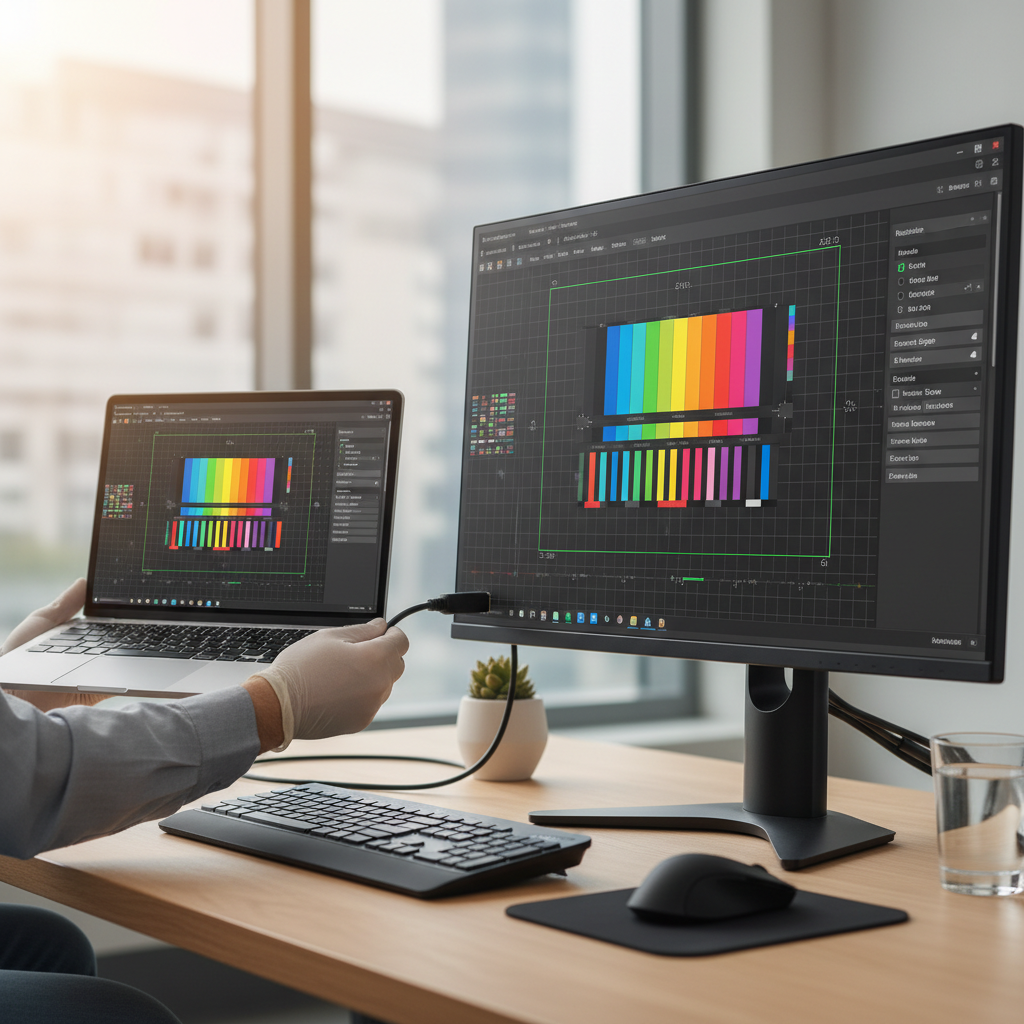
Test 1: Use an external monitor (best signal)
Connect your laptop to a TV/monitor via HDMI or USB-C and watch both screens.
- If only the laptop screen flickers, the problem often points to the built-in panel, cable, or panel power.
- If both screens flicker, it more often points to GPU driver, system settings, or GPU hardware.
Test 2: Check BIOS/UEFI or pre-login screen
Restart and watch the BIOS screen (or the Windows sign-in screen). If flicker shows up before the OS fully loads, software is less likely.
Test 3: Safe Mode (Windows) or Safe Boot (macOS)
Safe Mode loads basic display drivers and disables many startup items.
- If flicker stops in Safe Mode, a driver or app conflict is a strong suspect.
- If flicker continues, hardware moves higher on the list.
A quick “what it means” table
| What you observe | Most likely cause | Best next move |
|---|---|---|
| Flicker only in one specific app | App + hardware acceleration conflict | Disable app acceleration, update app |
| Flicker after an update | Driver mismatch | Update/rollback graphics driver |
| Flicker on BIOS/pre-login | Hardware (panel/cable/GPU) | External monitor test, service check |
| Flicker when moving the lid | Loose/damaged display cable | Service inspection, avoid flexing hinge |
Fixes you can try first (low risk, high payoff)
These steps are the ones worth doing early because they’re reversible and often solve the issue without deeper work.
1) Adjust refresh rate and resolution
A mismatched refresh rate can cause visible flicker, especially after you connect/disconnect external displays.
- Windows 11/10: Settings → System → Display → Advanced display → choose the correct refresh rate.
- macOS: System Settings → Displays → look for Refresh Rate (varies by model).
If you’re unsure, pick the panel’s “recommended” resolution and a standard refresh rate (many laptops default to 60Hz, some support higher).
2) Turn off variable refresh / dynamic features (if available)
Some systems use dynamic refresh rate, panel power saving, or adaptive sync. These features are great when they work, but a buggy driver or firmware can make them flaky.
- Windows: Settings → System → Display → Advanced display (look for dynamic refresh rate options).
- GPU control panels (Intel/NVIDIA/AMD): check for panel power saving or adaptive sync settings.
3) Disable HDR (quick test)
HDR can trigger weird flicker on some panels, especially with older drivers.
- Windows: Settings → System → Display → HDR → toggle off for testing.
Driver and update fixes (when software is the culprit)
If your quick tests suggest software, this is usually where how to fix laptop screen flickering issues becomes straightforward: clean up drivers and remove conflicts.
Update graphics drivers the “right” way
- Start with your laptop maker (Dell/HP/Lenovo/ASUS/Acer): their graphics packages sometimes include panel-specific fixes.
- If that doesn’t help, try the GPU vendor: Intel, NVIDIA, or AMD.
According to Apple Support, keeping macOS updated is one of the primary ways to ensure you have the latest graphics and display fixes delivered through system updates.
Roll back a driver if flicker started after an update (Windows)
If flicker began right after a driver update, rolling back can be more effective than “updating again.”
- Device Manager → Display adapters → right-click GPU → Properties → Driver → Roll Back Driver (if available).
Reinstall the graphics driver (clean-ish approach)
When updates stack on top of each other, settings can get messy. A reinstall resets the driver environment.
- Uninstall the display adapter driver (Device Manager) and reboot, Windows may load a basic driver.
- Install a fresh driver package from the manufacturer afterward.
If you rely on your laptop for work, consider setting a restore point before heavy driver changes, just in case you need to undo.
App conflicts: the sneaky cause many people miss
If flicker appears only while using Chrome, Zoom, Teams, Photoshop, or a specific game, the display is often fine. The conflict tends to be between the app and graphics acceleration.
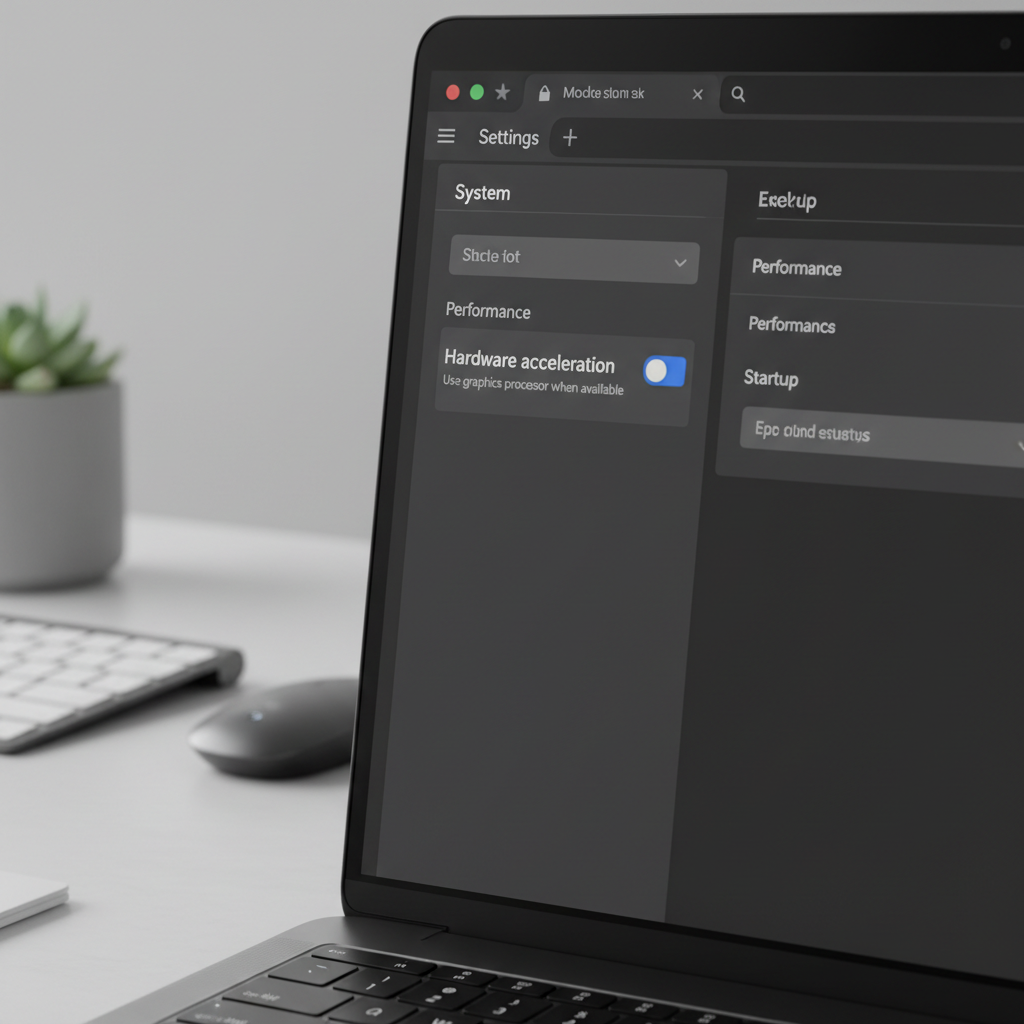
Try toggling hardware acceleration
- Chrome/Edge: Settings → System → Use hardware acceleration → toggle, then restart browser.
- Zoom: Settings → Video → Advanced → hardware acceleration options.
- Microsoft Teams: settings vary by version, look for GPU/hardware acceleration toggles.
Don’t treat this as “a permanent fix” automatically. If disabling acceleration helps, update the app and GPU driver next, then re-test with acceleration on.
When it’s hardware: practical checks without making things worse
Hardware issues are real, but you can still do a few safe observations before you book a repair.
Clues that point to cable or panel problems
- Flicker changes when you move the lid or adjust hinge angle.
- Flicker looks like horizontal lines, pulsing brightness, or intermittent backlight.
- External monitor is stable while the laptop panel flickers.
What you can do at home (safe list)
- Power reset: shut down, unplug, hold power button 15–30 seconds (model-dependent), then restart.
- Check for pressure: remove magnetic screen covers, heavy cases, or anything pressing the lid.
- Inspect ports and connectors: if flicker happens only on USB-C display output, try another cable or adapter.
Avoid opening the laptop unless you’re comfortable with delicate connectors, small screws, and ESD precautions. A partially seated display cable can be simple, but it’s also easy to damage.
Step-by-step action plan (in the order that usually makes sense)
If you want a clean workflow, follow this sequence and stop once the flicker is gone.
- Step 1: External monitor test to separate software vs hardware.
- Step 2: Set recommended resolution, then adjust refresh rate.
- Step 3: Update or roll back graphics drivers, then reboot.
- Step 4: Test in Safe Mode, then check app conflicts and hardware acceleration.
- Step 5: If lid angle changes flicker, treat it as likely hardware and plan repair.
Key takeaways (save this)
- External monitor test is the fastest way to avoid guessing.
- Driver changes help most when flicker started after an update or sleep/wake issues.
- Single-app flicker often comes from hardware acceleration, not the screen itself.
- If flicker shows on BIOS or changes with the hinge, hardware becomes the likely path.
Conclusion: stop guessing, confirm the cause, then fix what’s relevant
Most people get stuck because they try five random fixes instead of one good diagnosis. If you do the external monitor test, verify refresh rate, and clean up drivers, you’ve covered the highest-probability causes of laptop screen flicker without risky moves.
If you still see flicker before login, or it reacts to lid movement, it’s reasonable to talk with a repair shop or your manufacturer support to discuss the display cable, panel, or GPU. If headaches or eye strain show up, consider taking breaks and lowering brightness while you troubleshoot, and if symptoms persist you may want to consult a medical professional.
FAQ
- How do I know if screen flickering is a GPU problem?
If both the laptop screen and an external monitor flicker, or if the flicker appears during gaming and heavy graphics tasks, the GPU driver (or GPU hardware) becomes more likely. Safe Mode can help confirm whether it’s software. - How to fix laptop screen flickering issues after a Windows update?
Start by checking refresh rate and HDR settings, then update the graphics driver from your laptop manufacturer. If the issue started immediately after a driver update, rolling back the driver is often worth trying. - Why does my laptop screen flicker only in Chrome or Zoom?
This is commonly an app acceleration conflict. Toggle hardware acceleration in that app, restart it, then update both the app and your GPU driver so you’re not stuck with a workaround. - Can a bad charger cause screen flickering?
It can in some cases, especially if power delivery is unstable or the charger is not the correct wattage. Test on battery only, then with a known-good charger to compare. - Is screen flickering a sign my laptop screen is dying?
Sometimes, but not always. Flicker that changes with lid angle, shows on the BIOS screen, or only affects the internal panel points more toward cable/panel issues than simple settings. - What refresh rate should I set to stop flickering?
Use the panel’s recommended settings first. Many laptops run well at 60Hz, while high-refresh models may be stable at 120Hz/144Hz. If flicker appears, test one step lower or switch back to the recommended rate. - Should I replace the screen myself?
If you’ve done laptop repairs before, it can be doable, but it’s easy to crack the panel or mis-seat a cable. For many users, a reputable local repair shop is safer, especially if the laptop is still under warranty.
If you’re still chasing the cause after the quick tests, a simple next move is to write down when the flicker happens, after sleep, in one app, on battery, with an external display, then share that with support or a repair tech so they can narrow it down without trial-and-error.