
how to recover deleted videos from android is usually a race against time, because new photos, app updates, and downloads can overwrite the space where your video used to live.
If you act in the right order, you often can get videos back without doing anything risky, but a few common “quick fixes” actually make recovery harder, especially if you keep using the phone as normal.
This guide walks through practical recovery paths for the most common Android setups in the U.S., including Google Photos, Samsung Gallery, and situations where the video was on an SD card, plus a decision checklist so you can stop guessing.

Before you try anything: do these 3 things first
Most people lose recoverable videos because they do “normal phone stuff” right after deletion. Pause, then do this instead.
- Stop using the phone for recording, downloading, or installing apps. Less activity means less chance of overwriting deleted data.
- Turn on Airplane Mode if you suspect auto-sync might delete the video everywhere (some gallery apps mirror changes across devices).
- Write down where the video lived: Google Photos, device storage, SD card, a messaging app, or a cloud drive. Location determines the best recovery route.
Key point: if the video was only on internal storage and you deleted it, recovery becomes harder the more you keep using the phone.
Why videos “disappear” on Android (it’s not always true deletion)
“Deleted” can mean a few different things on Android, and the fix depends on which one you hit.
- Recently deleted / Trash folders exist in many apps. This is the easiest win.
- Sync side effects: delete on one device, it vanishes in the cloud and on other devices because changes sync.
- Moved to a different folder by an app (messengers, editors, file cleaners) so it looks gone in Gallery.
- SD card issues: corrupted file system or a flaky card reader can make media seem missing.
- Storage cleanup apps may purge caches and “duplicates,” sometimes too aggressively.
According to Google Support, items deleted in Google Photos are kept in the Trash for a limited time before permanent removal, which is why checking Trash early matters.
Quick self-check: which recovery route fits your case?
If you want the fastest path, answer these questions in order and follow the route it points to.
- Did you use Google Photos? If yes, start with Google Photos Trash, then check the web version.
- Is it a Samsung phone? If yes, check Samsung Gallery Recycle Bin (and Samsung Cloud settings if used).
- Was the video on an SD card? If yes, stop writing to the card and recover from a computer.
- Was it received in a messaging app? If yes, check the chat media, app storage folders, or ask the sender.
- Did you run a cleaner app or “free up space”? If yes, prioritize backups and cloud trash, because local recovery odds may drop.
Recovery methods (start with the least risky)
Below is a practical order that avoids making things worse. If you only try one method, try the Trash/Recycle Bin checks first.
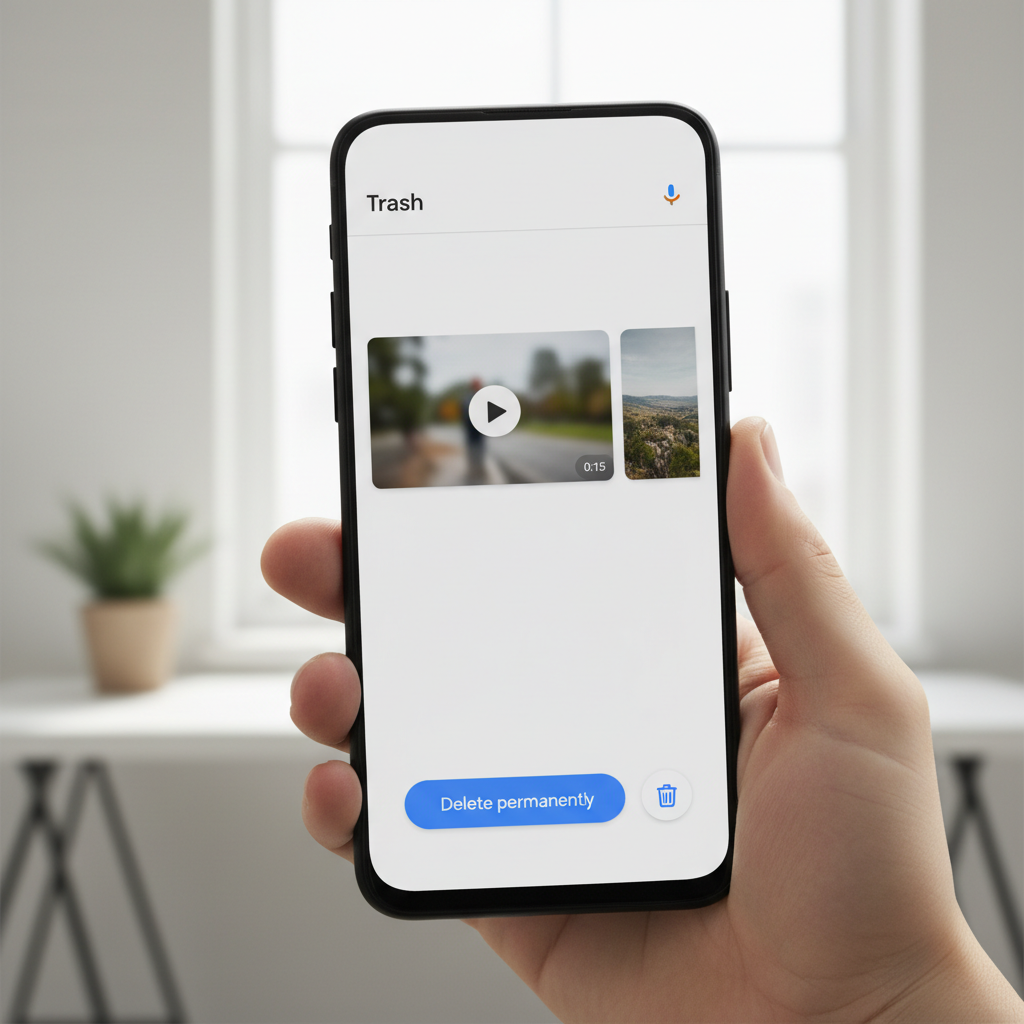
1) Check Google Photos Trash (and the web)
On the phone: open Google Photos, go to Library then Trash, find the video, tap Restore.
If the app feels out of sync, check from a computer at photos.google.com. Sometimes the web UI shows items that take time to appear on the device.
- If you see the video in Trash, restore it and then confirm it returns to your main library and the original album.
- If it’s not there, it may have been backed up elsewhere or deleted permanently.
2) Check your device Gallery “Recycle Bin” (Samsung and others)
Many Android OEM gallery apps include a Recycle Bin. Samsung Gallery commonly stores deleted items temporarily.
- Open Gallery → Menu → Recycle Bin (wording can vary) → select video → Restore.
- Also check My Files for a “Trash” feature if enabled.
If you recently switched phones, confirm you are signed into the same account and that gallery sync features are not removing items across devices.
3) Look for the file in a different folder (common “not really deleted” scenario)
Videos often land in folders like DCIM, Movies, Pictures, Download, or app-specific folders. Editors and social apps may create their own directories.
- Open a file manager (Files by Google or your OEM file app) and use search by file type: .mp4, .mov, .mkv.
- Check “Recently modified” sorting, especially if you edited the clip.
- If you use WhatsApp or similar apps, look in their media folders and within the chat thread.
4) Restore from cloud backups (Google Drive and other services)
If you had backups on, the easiest recovery might be pulling from a cloud copy rather than trying data recovery.
- Check Google Drive, OneDrive, Dropbox, or your carrier/OEM cloud service for uploaded videos.
- Look for a Trash/Deleted area in that service too.
According to Apple Support and Microsoft Support, most major cloud services include a deleted-items area for a limited time; Android users often overlook this because they focus only on Gallery.
SD card recovery: when a computer makes more sense
If the deleted video was on an SD card, your odds are often better because you can stop all writes to the card and scan it externally.
- Power off the phone, remove the SD card.
- Use a reliable card reader on a Windows PC or Mac.
- Run recovery software that can scan removable media, then save recovered files to the computer, not back to the SD card.
Be picky here: many “free recovery” tools bundle unwanted installers. If you’re not sure, choose well-known vendors and download only from official sites.

What works (and what usually wastes time): a realistic comparison
Here’s a simple way to choose the next step without spiraling into random app installs.
| Situation | Best first move | Success odds (typical) | Risk level |
|---|---|---|---|
| Deleted in Google Photos | Google Photos Trash → Restore | High if within Trash window | Low |
| Deleted in Samsung Gallery | Recycle Bin → Restore | High if not emptied | Low |
| Video “missing” after editing/sharing | Search in file manager, check app folders | Medium to high | Low |
| Deleted from SD card | Remove card, scan on computer | Medium (depends on overwrites) | Medium |
| Deleted from internal storage, no Trash | Stop use, consider pro tools/services | Low to medium | High if you install random apps |
Common mistakes that reduce recovery chances
- Installing multiple recovery apps on the same phone that lost the video. That write activity can overwrite recoverable data.
- Clearing storage “to make room” right after deletion, which often triggers more writes and cache rebuilds.
- Restoring to the same SD card you are scanning. Always save recovered files somewhere else first.
- Assuming “not in Gallery” means gone. Many clips still exist in app folders or cloud accounts.
- Emptying Trash without checking. It sounds obvious, but it happens a lot under stress.
If you’re trying to figure out how to recover deleted videos from android, the safest approach is boring: check built-in trash, check cloud trash, then consider deeper recovery only if needed.
When you should consider professional help
If the video is genuinely important (legal, business, irreplaceable family content) and it was deleted from internal storage, a professional data recovery service may be worth considering.
- If the phone has physical damage (won’t boot, storage errors), DIY attempts can make things worse.
- If the phone was factory reset, recovery becomes much less likely, especially on modern encrypted devices.
- If you suspect malware or account compromise, change passwords and enable 2-step verification before focusing on recovery, and consider getting IT help.
Many modern Android devices use file-based encryption, so deep recovery can be limited. A reputable service should explain constraints upfront rather than promise guaranteed results.
Practical next steps (a simple plan you can follow today)
- Do the Trash/Recycle Bin checks now, including the web version of your photo service.
- If the video was on an SD card, remove it and do recovery from a computer.
- If the video was internal-only and not in any Trash, stop heavy phone use and decide whether the video is worth a paid tool or a professional service.
- After recovery, set up a backup habit: Google Photos backup, plus one additional copy (Drive/Dropbox/external).
Bottom line: how to recover deleted videos from android is less about one magic app and more about choosing the lowest-risk path first, before storage changes erase your chances.
FAQ
How can I recover deleted videos from Android without an app?
Start with built-in options: Google Photos Trash, your Gallery Recycle Bin, and any cloud service Trash. If the file isn’t there, true recovery without tools becomes harder, especially for internal storage.
Where is the Recycle Bin on Android?
It depends on the brand and gallery app. Samsung Gallery commonly has a Recycle Bin in the menu, while Google Photos uses a Trash section under Library.
Can I recover permanently deleted videos from Android internal storage?
Sometimes, but odds vary a lot. On modern encrypted Android phones, “deep” recovery can be limited, and continued phone use can overwrite deleted data quickly.
How long do deleted videos stay in Google Photos Trash?
Google Photos keeps deleted items in Trash for a limited time before removal. Check Google’s current policy in Google Photos Help, because the time window can change.
Does turning on Airplane Mode help recovery?
It can help prevent sync from propagating deletions across devices and cloud services while you check Trash folders. It won’t restore files by itself, but it can prevent accidental “second deletions.”
What if the deleted video was in a text message or WhatsApp?
Check the chat thread media first, then the app’s media folders via a file manager. If it was received from someone else, asking them to resend is often the fastest “recovery.”
Are Android video recovery apps safe?
Some are fine, many are sketchy. If you try one, avoid apps with intrusive permissions or unclear vendors, and remember installing apps can reduce recovery chances by writing new data.
If you’re trying to recover a video quickly and want a more guided, less trial-and-error approach, list your phone model, where the video was stored, and whether backups were on, then follow a single recovery path instead of stacking multiple tools at once.