
how to fix blurry webcam on video calls comes down to a few usual culprits: the lens is dirty, the camera is focusing on the wrong thing, lighting is working against you, or your call app is compressing the video to survive a weak connection.
The good news is you can typically narrow it down in 5–10 minutes without buying anything, as long as you test in the right order. Most people jump straight to “my webcam is bad,” when the real issue is a smudged lens, auto-exposure hunting, or a privacy filter quietly degrading quality.
This guide walks you through quick checks, then the deeper fixes for Windows, macOS, Zoom/Teams/Meet, and external webcams. You’ll also get a simple table to match symptoms to likely causes, plus a short checklist you can reuse before important calls.

Fast triage: identify what “blurry” really means
Before changing settings, name the blur. “Blurry” can mean soft focus, blocky compression, low-light noise, or a fake-smooth beauty filter. Each has a different fix, and guessing wastes time.
- Soft focus: your face looks fuzzy even when you’re still, edges never get crisp.
- Blocky or smeared motion: details disappear when you move, the image “melts.”
- Grainy + blurry: the camera boosts ISO in low light, detail collapses.
- Only blurry in one app: preview looks fine in Camera/Photo Booth but not in Zoom/Teams.
Quick rule: if it gets worse when you move, it’s often bandwidth/compression or low light. If it’s always soft, it’s usually lens, focus, resolution, or a filter.
Common causes and the quickest fixes (symptom-to-solution table)
If you want the fastest path, start here and match what you see. Then jump to the section that fits.
| What you see | Most likely cause | What to do first |
|---|---|---|
| Always soft, like a fog | Dirty lens or privacy film | Clean lens with microfiber, remove film |
| Sharp then suddenly blurry | Auto-focus hunting | Increase light, sit still, lock focus if possible |
| Fine in Camera app, bad in Zoom/Teams | App set to low resolution | Enable HD / correct camera selection |
| Blocky/pixelated during movement | Low bandwidth or CPU overload | Use Ethernet, stop downloads, close heavy apps |
| Grainy, smeary in dim room | Poor lighting, high noise reduction | Add front light, reduce backlight |
| Looks “beautified,” waxy skin | Beauty/skin smoothing filter | Disable filters in app or webcam software |
5-minute checklist (do this before touching advanced settings)
This is the order that tends to save time because it rules out the dumb stuff first.
- Clean the lens: microfiber cloth, a tiny bit of lens cleaner if needed, no paper towels if you can avoid it.
- Remove anything covering the lens: shipping film, a scratched privacy sticker, a misaligned shutter.
- Restart the video app: camera drivers and virtual cameras get stuck more often than people expect.
- Check the right camera is selected: laptops + docks + monitors can create confusion.
- Test outside the call app: Windows Camera or macOS Photo Booth helps you see whether it’s system-wide.
If it’s sharp in the system camera preview but blurry in calls, skip ahead to the app and resolution sections. If it’s blurry everywhere, you’re dealing with lighting, focus, drivers, or hardware limits.
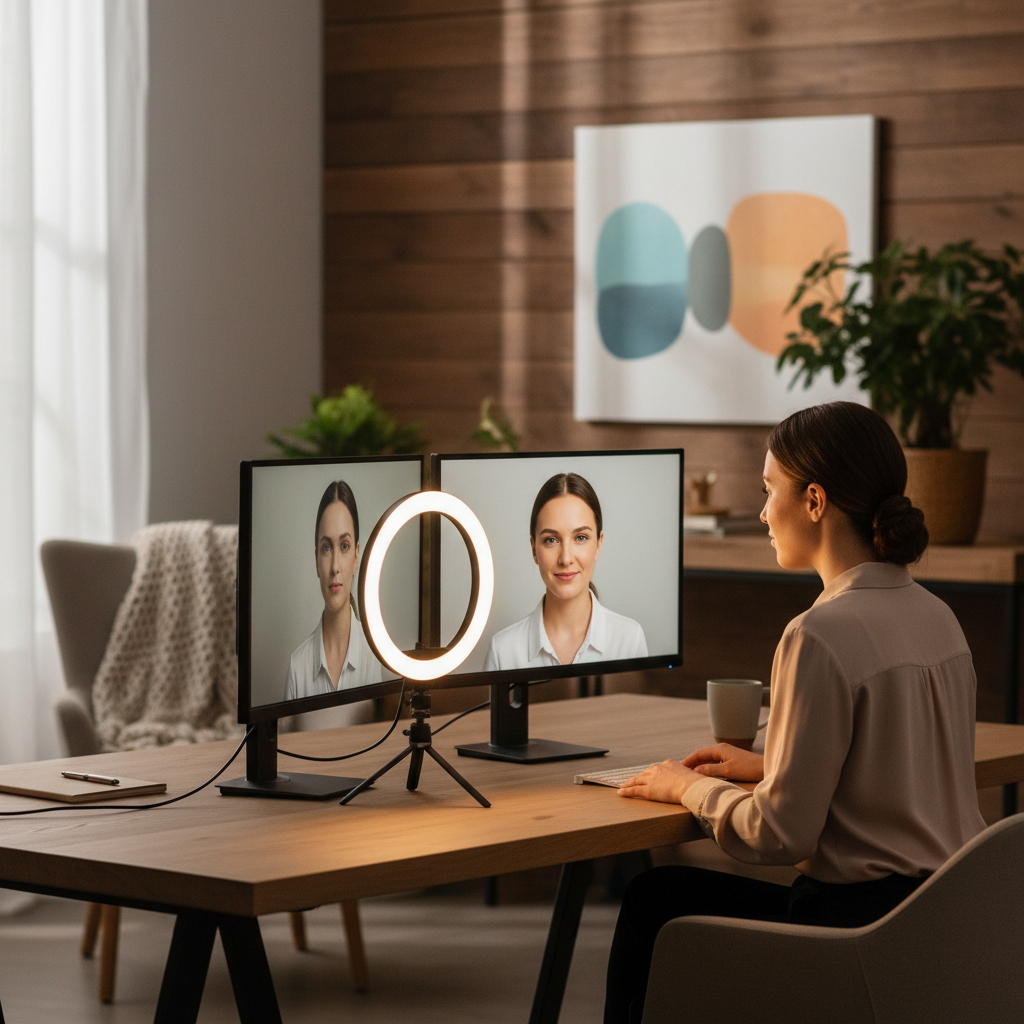
Fix blur caused by lighting and exposure (the most common real-world issue)
Poor lighting makes cameras “cheat” by slowing shutter speed and applying heavy noise reduction, which creates that mushy blur. If you’ve ever looked okay at noon and terrible at 7 p.m., this is probably your issue.
Get the light in the right place
- Put a light in front of you, slightly above eye level, aimed at your face.
- Avoid bright windows behind you; backlight forces the camera to expose for the window, not your face.
- Use a desk lamp with a shade, bounce it off a wall, or use a small ring light on low power.
Simple camera positioning that helps focus
- Sit an arm’s length away; too close can push webcams outside their sweet spot.
- Keep the background a little farther back; busy backgrounds can confuse autofocus.
- Wipe fingerprints again if you touched the lens while repositioning.
Key takeaway: better front light often improves sharpness more than any “HD” toggle, because it lets the camera use faster shutter and less aggressive processing.
Make sure your call app isn’t forcing low resolution
Even with a good camera, the app can downshift resolution and bitrate, especially on shaky Wi‑Fi or crowded meetings. This is where how to fix blurry webcam on video calls becomes app-specific.
Zoom (common settings to check)
- Settings → Video: confirm the correct camera, then enable HD if your account and device support it.
- Turn off Touch up my appearance if it makes the image waxy.
- If you use virtual backgrounds, try disabling them; they can soften edges and increase CPU load.
Microsoft Teams
- Settings → Devices: select the correct camera and disable “soft focus” or background effects while testing.
- Close extra browser tabs and heavy apps; Teams can drop quality if CPU spikes.
Google Meet
- Settings → Video: set Send resolution higher (when available) and verify the camera source.
- Try a different browser profile or disable extensions that inject video effects.
According to Zoom Support, meeting conditions can affect video quality and the app may adjust performance to maintain a stable call, so a “blurry” picture is sometimes the app choosing stability over detail.
Stop bandwidth and performance from crushing your video
If the image looks okay when you’re still but falls apart when you gesture, you may be hitting compression limits. This can happen even with “fast internet” if upload is weak or Wi‑Fi is unstable.
Quick network moves that usually help
- Switch to Ethernet if possible; it removes a lot of random Wi‑Fi issues.
- Pause cloud backups, large downloads, and streaming on the same network.
- Move closer to your router or use a 5 GHz band when available.
Performance fixes (often overlooked)
- Close video editors, games, and browser tabs with heavy scripts.
- Disable background blur/virtual background during important calls.
- Unplug and replug USB webcams directly into the computer, not a low-power hub.
According to Microsoft Support, video call quality can degrade with limited bandwidth or high device resource usage, and reducing background effects can improve stability.
Driver, OS, and hardware checks (when the basics don’t work)
If you’ve done the obvious steps and the webcam still looks soft everywhere, it’s time to rule out driver glitches, wrong camera mode, or hardware limits.
Windows
- Settings → Privacy & security → Camera: confirm camera access is allowed for your app.
- Device Manager: update the camera driver, or roll back if the issue started after an update.
- Disable “enhancements” in any webcam utility if it adds smoothing or aggressive denoise.
macOS
- Quit every app using the camera, then restart the Mac if the camera seems stuck in low quality.
- System Settings → Privacy & Security → Camera: confirm permissions are correct.
- If you use Continuity Camera (iPhone as webcam), check Wi‑Fi/Bluetooth connection quality and try USB tethering when possible.
Know your webcam’s real limits
- Many built-in laptop webcams are 720p with small sensors; in dim rooms they look softer, even when “working correctly.”
- Some external webcams default to 640×480 in certain apps until you force 720p/1080p in settings.

Practical “do this now” setup for consistently sharp calls
If you want one reliable routine, use this. It’s not fancy, but it tends to produce a visibly sharper image across apps.
- Lighting: one front light, no strong backlight.
- Camera angle: eye level, arm’s length distance.
- App settings: select the correct camera, enable HD if available, turn off smoothing/beauty filters.
- Background effects: keep them off unless you truly need them.
- Network: Ethernet for important calls, or sit near the router.
Key points to remember: clean lens beats tweaking sliders, good light beats buying “4K,” and if it’s only blurry in one app, that app’s resolution or effects are usually responsible.
When to consider professional help or new hardware
If you’ve tried how to fix blurry webcam on video calls across different apps and it’s still soft, the camera may be failing or simply not capable for your use case.
- If the lens is scratched, internal focus is broken, or the image has permanent haze, replacement is often more practical than repair.
- If your job depends on frequent video, an external 1080p webcam plus decent lighting can be a meaningful upgrade, though results vary by room and setup.
- If you suspect a workplace-managed device policy or driver restriction, it may be worth asking IT; they can confirm approved drivers and settings.
If you’re unsure whether it’s hardware or software, a computer technician can run a quick diagnostic. For most people, that’s only necessary after you’ve confirmed the blur appears in multiple apps and the system camera preview.
Conclusion: the fastest path to a sharp webcam
Most blurry webcam issues on calls come from three places: a dirty lens, bad light, or the app/network dropping quality to stay stable. Clean the lens, fix your lighting, then verify your call app is sending a reasonable resolution without beauty filters or heavy background effects.
If you want one action today, do this: set up a front light and test your camera in both the system preview and your call app. That one comparison usually tells you where the problem actually lives.
FAQ
- Why is my webcam blurry only on Zoom but fine in the Camera app?
That usually points to Zoom settings, background effects, or Zoom adapting to bandwidth. Check camera selection, enable HD when available, and disable appearance touch-ups while you test. - Does cleaning the lens really make that much difference?
In a lot of real setups, yes. A thin fingerprint film can reduce contrast and make everything look softly out of focus, especially with small laptop lenses. - How do I fix blurry webcam on video calls when Wi‑Fi is “strong”?
“Strong” signal doesn’t always mean stable upload. Try Ethernet, pause backups, and reduce background effects; those steps often improve bitrate consistency. - Should I use 1080p or 720p for better clarity?
1080p can help if your camera, app, and network support it, but lighting still matters more. In dim rooms, 1080p can look worse if the camera adds noise reduction. - Why does my face look smooth and slightly blurry, like a filter?
Many apps and webcam utilities have skin smoothing or “touch up” features. Turn those off first, then recheck sharpness. - Can a virtual background make my webcam look blurry?
Yes, it can soften edges and increase CPU usage, which may trigger lower video quality. Disable it as a test, then re-enable only if quality stays acceptable. - Is there a way to lock focus on a webcam?
Some external webcams and their software allow manual focus or focus lock. Many built-in webcams don’t, so improving lighting and distance is the practical workaround.
If you’re trying to look consistently sharp across Zoom, Teams, and Meet without fiddling every time, it may help to standardize a simple “call setup” with one front light, a stable connection, and a quick pre-call test so you catch the blur before the meeting starts.