
how to fix laptop keyboard some keys not working usually comes down to one of three buckets: software mapping issues, debris or liquid under specific keys, or a failing keyboard membrane or ribbon cable.
If it’s only a few keys, you actually have an advantage, patterns matter here, one “dead zone” often points to hardware, while random letters failing can be software or contamination. The goal is to avoid guesswork, do the low-risk checks first, and stop before you turn a small issue into a bigger repair.

This guide walks you through quick diagnosis, safe cleaning, Windows and macOS checks, and when it’s smarter to stop and get help. I’ll also call out common “fixes” that waste time, or risk damaging your laptop.
Start with the pattern: what “some keys” usually means
Before you change settings or pry off keycaps, take 60 seconds to notice the pattern. It sounds basic, but it’s where most good troubleshooting starts.
- Keys in one area fail (for example: 7-8-I-K or a whole column): often hardware, like a worn membrane, damaged traces, or a loose ribbon cable.
- Only letters, only numbers, or only shortcuts fail: can be layout, language input, accessibility settings, or a stuck modifier key.
- Keys work sometimes: debris, slight liquid residue, or a key mechanism starting to fail.
- Keys fail after a spill: treat it as contamination first, even if it “dried.”
Also note what kind of laptop you have, many thin models use top-case assemblies where the keyboard is not a simple drop-in part, which affects repair decisions.
Fast self-check list (5 minutes, no tools)
If you want the fastest route to clarity, use this quick checklist. You’re trying to answer one question: software or hardware?
- Restart (not sleep/wake). A surprising number of keyboard driver hiccups clear on reboot.
- Test in a different app (browser, Notes, Word) to rule out a single program.
- Test with an on-screen keyboard to confirm the OS can type normally.
- Plug in an external USB keyboard. If it works perfectly, your OS is likely fine, focus on the laptop keyboard itself.
- Try the keys in BIOS/UEFI or startup menus (Windows: enter BIOS; Mac: use startup key combos if possible). If keys fail there too, it leans hardware.
According to Microsoft Support, the On-Screen Keyboard is a built-in accessibility tool you can use to type and to help confirm whether a physical keyboard issue exists.
Software causes that commonly break specific keys
When people search how to fix laptop keyboard some keys not working, they often assume it’s physical damage, but software can disable “some keys” in very specific, annoying ways.
1) Keyboard layout or input language mismatch
If symbols are wrong, or a few keys “type something else,” check layout before anything else.
- Windows 11/10: Settings → Time & language → Language & region → Keyboard.
- macOS: System Settings → Keyboard → Input Sources.
Remove extra layouts you don’t use, accidental hotkeys can switch languages without you noticing.
2) Sticky Keys, Filter Keys, or modifier keys “stuck” logically
Accessibility features can make Shift/Ctrl/Alt behave strangely, which then makes other keys appear broken.
- On Windows: Settings → Accessibility → Keyboard, look for Sticky Keys / Filter Keys.
- On macOS: System Settings → Accessibility → Keyboard, check Sticky Keys / Slow Keys.
If your Shift key seems “held down,” toggle these off, then restart once.
3) Driver or firmware glitches
Drivers usually don’t kill isolated keys, but after updates or sleep issues, it can happen.
- Windows: Device Manager → Keyboards → uninstall the keyboard device, then reboot.
- Run Windows Update and your laptop maker’s update utility, BIOS/firmware updates sometimes include input fixes.
According to Apple Support, resetting certain system controllers on some Mac models can resolve issues related to power and built-in hardware behavior, though steps vary by model and Apple has updated procedures over time.

Physical causes: dirt, spills, and wear (the real-world stuff)
If an external keyboard works and the problem stays with the built-in keys, physical causes move to the top of the list.
- Crumbs, dust, hair can block a scissor switch or keep a dome from registering a press.
- Oil and residue build up and make keys feel “mushy,” then intermittent.
- Liquid exposure can corrode contacts, sometimes days later, not always immediately.
- Wear happens, especially on frequently used keys like Space, Enter, E, R, T, Backspace.
One more realistic scenario: a slightly swollen battery or chassis flex can press on internal components and affect the keyboard connection. It’s not the most common cause, but it’s worth keeping in mind if your trackpad also feels odd or the bottom case looks bowed.
Practical fixes you can try safely (step-by-step)
These steps aim to solve the common issues without risking the laptop. If you feel resistance at any point, stop, forcing parts is where “cheap fix” becomes “expensive repair.”
1) Do a careful surface clean
- Power down completely and unplug, if possible remove the battery (many models can’t).
- Hold the laptop at a slight angle and use compressed air in short bursts, sweeping across rows.
- Use a soft brush (clean paintbrush works) around the affected keys.
Avoid blasting air straight down for too long, it can push debris deeper.
2) Spot-clean sticky keys (minimal moisture approach)
- Use 70% isopropyl alcohol on a microfiber cloth or cotton swab, not dripping.
- Wipe around the key edges, then press the key repeatedly to work the residue loose.
- Let it dry fully before powering on.
In many cases, alcohol helps remove oils without leaving water behind, but on spill damage or heavy sugar residue, it may not be enough.
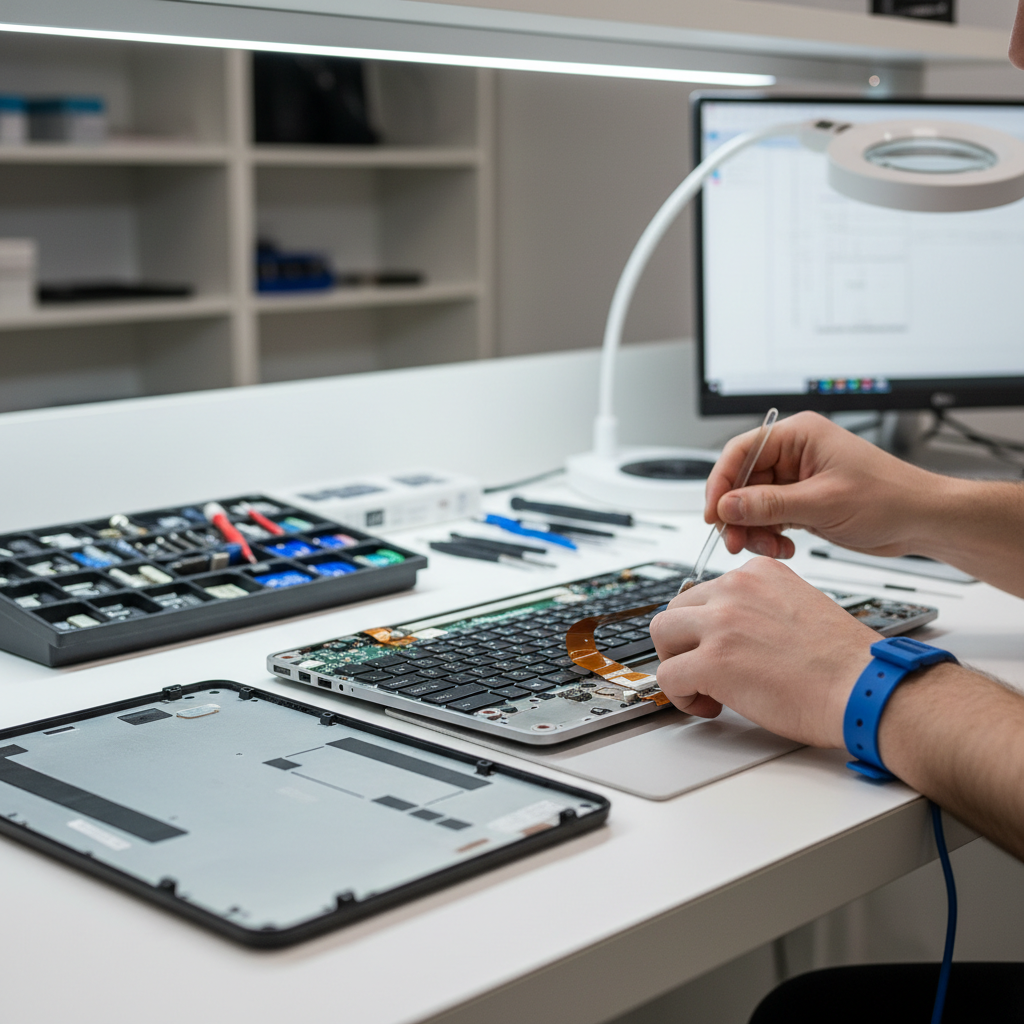
3) Reseat the keyboard connector (only if you’re comfortable)
If a whole cluster of keys fails and cleaning does nothing, a loose ribbon cable becomes plausible. This varies a lot by laptop model, and opening the case can affect warranty.
- Find your exact model’s service guide from the manufacturer.
- Disconnect power, open the back cover, locate the keyboard ribbon cable.
- Carefully lift the connector latch, reinsert the ribbon fully, close latch.
If you see corrosion, sticky residue, or torn cable ends, stop there, reseating won’t fix damaged parts.
4) Temporary workaround while troubleshooting
- Use an external keyboard for work, it keeps you productive while you diagnose.
- Remap keys as a short-term bandage (Windows PowerToys, macOS keyboard shortcuts), useful if one key is dead and you need a week to schedule repair.
Quick diagnosis table: symptom → likely cause → best next step
Use this as a shortcut if you don’t want to read everything twice.
| Symptom | Likely cause | Best next step |
|---|---|---|
| One key not working, feels sticky | Residue/debris under key | Compressed air, then alcohol spot-clean |
| Several keys in a line/zone fail | Ribbon cable, membrane/trace wear | Test in BIOS, consider reseat or service |
| Keys type wrong characters | Layout/input source mismatch | Check language/layout settings |
| Shift/Ctrl/Alt behaves weirdly | Sticky/Filter/Slow Keys enabled | Disable accessibility keyboard features |
| Issue started after update/sleep | Driver/firmware glitch | Reboot, reinstall keyboard device, update |
| After spill, keys intermittently fail | Liquid contamination/corrosion risk | Power off, avoid heat, consult repair |
Common mistakes that waste time (or make things worse)
- Pulling keycaps without checking your model. Some laptop keys are easy to break, and replacement hinges can be annoyingly specific.
- Using too much liquid cleaner. “Just a little” can still seep under the keyboard layers.
- Hair dryer or heat gun after a spill. Heat can warp key mechanisms and accelerate corrosion in some situations.
- Assuming it’s malware for isolated key failures. It’s not impossible, but it’s rarely the reason a few physical keys stop registering.
If you’re stuck repeating the same steps, pause and switch strategy, confirm whether the failure appears outside the operating system, then decide on cleaning vs repair.
When to stop DIY and get professional help
There’s a point where “one more try” becomes risk, especially if you rely on the laptop for work or school.
- Any liquid spill with ongoing key issues, corrosion can spread, and internal cleaning may be needed.
- Swollen battery signs (bulging bottom case, wobbly trackpad, unusual gaps). This can be a safety issue, consider professional evaluation.
- Keys fail in BIOS/UEFI and the pattern suggests a matrix failure, replacement is often the practical route.
- Warranty coverage still active, opening the device may complicate claims.
If you suspect a battery problem or see smoke/odor/heat, power down and seek qualified service, safety comes first.
Key takeaways and next steps
If you want the shortest path: confirm the issue outside your apps, check layout and accessibility settings, then do a careful clean. When the dead keys fall into a neat block or row, it’s often not “settings,” it’s the keyboard hardware or connector.
Action steps: (1) test with an external keyboard and in BIOS to separate software from hardware, (2) if it’s hardware-leaning, decide whether a gentle clean is enough or whether you should schedule service before the problem spreads.
FAQ
Why are only some keys on my laptop keyboard not working?
Usually it’s either a keyboard matrix issue (a row/column failing), debris under specific switches, or a software factor like layout and accessibility settings. The “pattern” of dead keys is the clue that points you in the right direction.
How do I test if it’s a hardware problem or Windows settings?
Try an external USB keyboard and also test the built-in keyboard in BIOS/UEFI. If the same keys fail outside Windows, that strongly suggests a hardware cause.
Can compressed air fix laptop keys that don’t work?
It can, especially when crumbs or dust keep a key from traveling correctly. Use short bursts at an angle, and avoid pushing debris deeper by blasting straight down for too long.
Is it safe to remove laptop keycaps to clean underneath?
Sometimes, but it depends on the mechanism. Many laptop scissor switches break easily, and the replacement parts are model-specific, so if you can’t find a service guide for your exact model, it’s safer to stick to surface cleaning or get help.
What if my keyboard stopped working after a spill, but it dried?
Dry doesn’t always mean clean. Sugary or acidic liquids can leave residue that causes corrosion, sometimes gradually. It’s often wiser to power down and consult a repair shop than to keep typing and hoping it recovers.
Do I need to reinstall keyboard drivers for a few dead keys?
Driver reinstall can help with glitches, especially after updates, but it’s less likely to fix a consistent “same keys always dead” problem. It’s a reasonable early step, just don’t let it distract from the pattern pointing to hardware.
How much does it usually cost to fix a laptop keyboard with some keys not working?
It varies by brand and design. Some laptops allow a simple keyboard swap, others require replacing the entire top case with the keyboard attached, which can cost more in parts and labor. A repair quote after a quick inspection is typically the most reliable way to decide.
What’s the fastest workaround if I need my laptop today?
Use an external keyboard (USB or Bluetooth) and consider temporary key remapping if one essential key is dead. It’s not a permanent fix, but it keeps you working while you plan the repair.
If you’re trying to fix laptop keyboard issues quickly and you’d rather not gamble on trial-and-error, a local repair shop or manufacturer service can usually confirm the root cause fast, and tell you whether cleaning, reseating, or a keyboard replacement makes the most sense for your model.