
How to disable location tracking on android usually comes down to three layers: the main Location toggle, app permissions, and a few “quiet” background services that can still use or infer your whereabouts.
If you’re trying to cut down on targeted ads, stop constant location pings, or just feel less “followed,” this matters because Android location can be used by apps, system features, and connected accounts in different ways. Turning off one switch often helps, but it doesn’t always finish the job.
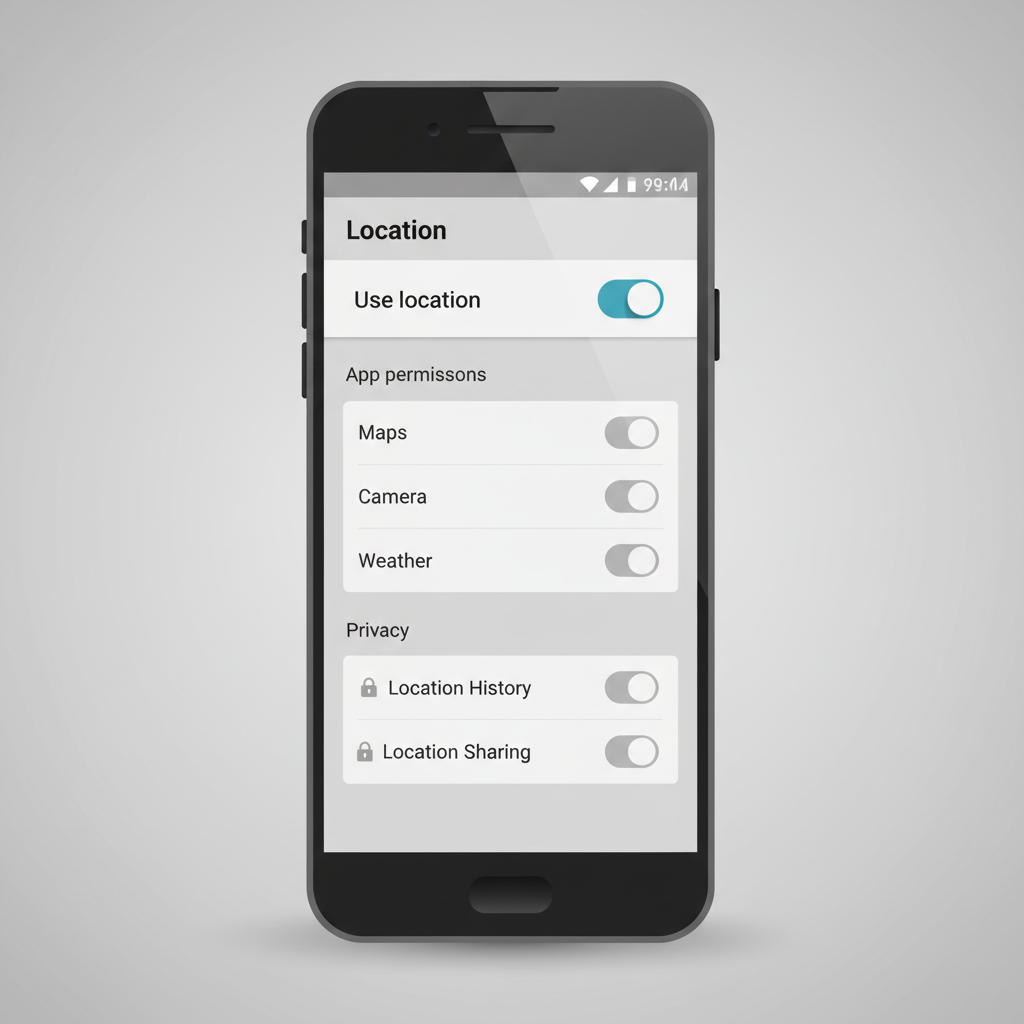
This guide walks through practical options that work for most Android phones in the U.S., plus what changes on Pixel vs Samsung. You’ll also get a quick self-check, a table of “what to turn off vs what it affects,” and common mistakes that waste time.
Why Android location tracking keeps turning back on (or still seems active)
Even after you flip off Location, you might still see location-related activity or prompts. In real life, it’s rarely “one culprit,” it’s usually overlap.
- App-level permissions: An app can have “Allow all the time” access, so it keeps checking in the background.
- System services: Features like Emergency Location Service or Wi‑Fi scanning can still help determine location in specific situations.
- Google account settings: Some location-related history and personalization settings live in your Google account, not only in phone settings.
- Bluetooth and Wi‑Fi scanning: Even with Wi‑Fi off, scanning may remain enabled for “improved accuracy.”
- Connected devices: Wearables, car systems, or family safety apps can request location regularly.
According to the Federal Trade Commission (FTC), app permissions and data sharing are a major privacy consideration, and users should review what apps can access and why. That advice maps well to Android location, because most location tracking is permission-driven.
Quick self-check: which kind of tracking are you trying to stop?
Before you change settings, get clear on what “tracking” means in your case. It saves a lot of back-and-forth.
- I want apps to stop using GPS → Focus on Location toggle + app permissions.
- I don’t want background tracking → Focus on “Allow only while using,” background restrictions, and battery settings.
- I want Google to stop saving location history → Focus on Google account controls (Location History, Web & App Activity).
- I still want Maps/navigation to work → Use per-app permissions and quick settings rather than a global shutdown.
- I’m concerned about safety features → Be cautious disabling emergency-related options.
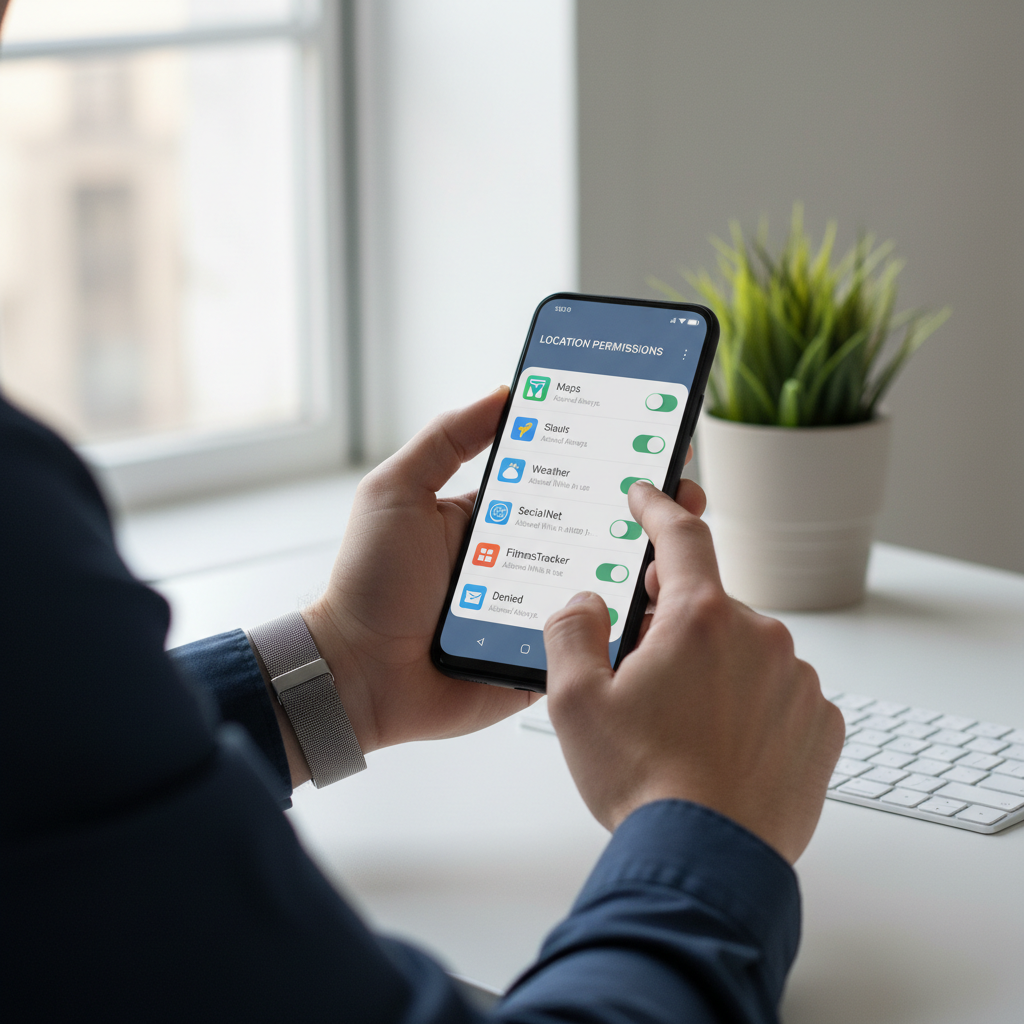
If you’re not sure, check your battery usage and permission manager first, it often reveals the few apps doing most of the work.
Core steps: turn off Location and tighten app permissions
1) Turn off the main Location toggle
This is the blunt instrument, it stops most GPS-based access immediately.
- Pixel/stock Android: Settings → Location → toggle off
- Samsung Galaxy: Settings → Location → toggle off
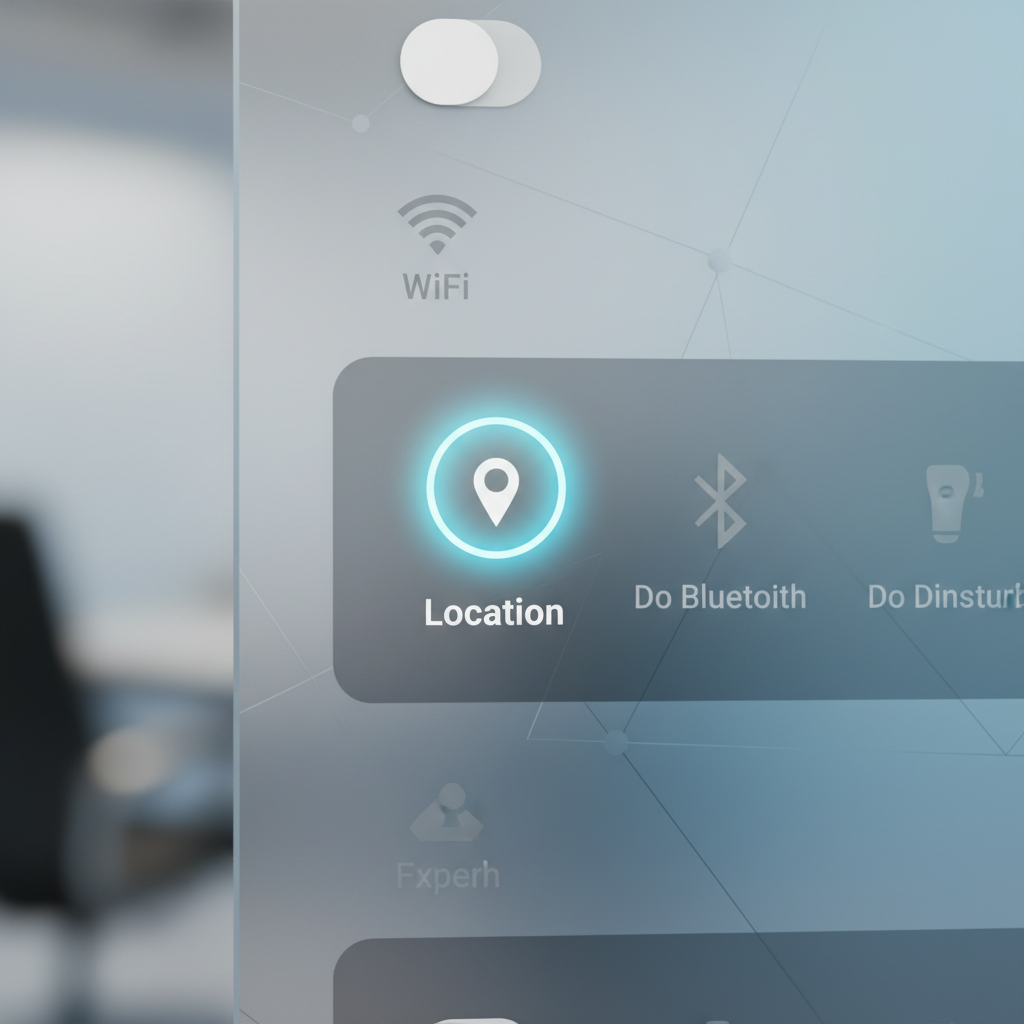
You can also use Quick Settings: swipe down twice → tap Location.
2) Audit app permissions (the step most people skip)
Even if you keep Location on for convenience, you can still cut tracking by forcing most apps into “only while using.”
- Settings → Privacy (or Security & Privacy) → Permission manager → Location
- Review apps under: Allowed all the time, Allowed only while in use, Ask every time, Not allowed
Rules of thumb that usually work:
- Allow only while using for rideshare, maps, delivery, camera geotagging.
- Ask every time for apps you rarely use but occasionally need location.
- Not allowed for games, shopping apps, and most social apps unless you truly need it.
3) Remove “precise location” where it isn’t needed
Android often lets you choose Precise vs Approximate. Approximate is a meaningful privacy win for weather and local news apps, and it usually still works fine.
Deeper privacy: stop background location signals and “scanning”
If your goal is to reduce passive tracking, you’ll want to adjust the settings that help estimate location even when GPS isn’t the main input.
Turn off Wi‑Fi and Bluetooth scanning (where available)
- Settings → Location → Location services (or similar) → Wi‑Fi scanning / Bluetooth scanning → toggle off
This can reduce “ambient” location estimation, but it may also impact features like quick device discovery or some smart home behaviors.
Limit background activity for heavy offenders
When an app doesn’t need to run in the background, limiting it reduces the chance it checks location indirectly or prompts for it again.
- Settings → Apps → select app → Battery → choose Restricted (wording varies)
- Settings → Apps → select app → Mobile data & Wi‑Fi → consider disabling background data if appropriate
This is especially helpful for apps that “shouldn’t” need location but keep requesting it.
Google account controls: Location History and activity settings
Disabling phone location reduces collection, but if you want fewer location records tied to your account, check Google’s account-level settings too.
According to Google, Location History is an account setting that can be turned on or off, and it controls whether location events are saved to your Google account for certain services.
- Google app → tap profile icon → Manage your Google Account → Data & privacy
- Review: Location History
- Review: Web & App Activity (may include location-related signals depending on usage)
If you see older entries you don’t want stored, look for the deletion controls and auto-delete options. Just keep in mind that turning these off can change personalized recommendations in Maps or Search.
What to turn off vs what it breaks: a practical table
Here’s the tradeoff view, because not every “privacy win” is worth the daily annoyance.
| Setting / Action | Privacy impact | What might stop working well |
|---|---|---|
| Location toggle OFF | High | Navigation, ride-share pickup accuracy, local automation |
| App permission: Allow only while using | High (for background tracking) | Background alerts that depend on location, some safety/family apps |
| Disable Precise location for select apps | Medium | Weather hyper-local precision, camera location accuracy, nearby results |
| Turn off Wi‑Fi/Bluetooth scanning | Medium | Indoor accuracy, device discovery convenience |
| Google Location History OFF | Medium to High | Timeline features, some personalized suggestions in Google services |
Common mistakes (and what to do instead)
- Mistake: Only turning off GPS
Fix: Do the permission audit, especially “Allowed all the time.” That’s where background tracking usually lives.
- Mistake: Blanket “Not allowed” for Maps, then wondering why it’s broken
Fix: Use “Allow while using” and keep Precise on just for navigation apps you trust.
- Mistake: Ignoring system location services
Fix: Check Location services for scanning toggles and emergency-related settings, then decide based on your risk tolerance.
- Mistake: Confusing ad personalization with location access
Fix: Ad settings can reduce targeting, but they don’t automatically remove location permissions from apps.
When you may want extra help (or a more cautious approach)
If this is about personal safety, stalking concerns, or workplace monitoring, treat it differently than everyday privacy tuning. You may want to talk with a qualified professional or a local support organization, because device settings alone may not cover everything.
- You suspect spyware: unusual battery drain, unknown admin apps, accessibility services enabled without your action, or new “device admin” entries can be warning signs.
- A managed work phone: employer MDM can enforce location policies; changing settings might not stick.
- Family safety setups: disabling location may conflict with agreements or safety expectations in your household.
According to the Cybersecurity and Infrastructure Security Agency (CISA), improving mobile security often involves reviewing app permissions and limiting unnecessary access, and escalating when you suspect compromise.
Key takeaways you can act on today
- Start with permissions, especially “Allow all the time,” because that’s where most unwanted background tracking happens.
- Use Approximate location for apps that don’t need a pinpoint.
- Check Google account settings if your goal includes reducing saved history, not just live access.
- Balance safety features carefully, turning off everything can have real downsides.
If you want the simplest next step, open Permission manager → Location, pick the top 3 apps you use least, and set them to Not allowed or Ask every time.
FAQ
How do I disable location tracking on Android without turning off GPS for everything?
Keep Location on, then change app permissions to “Allow only while using” or “Ask every time.” That approach keeps navigation usable while limiting background access.
Why does my Android phone still show location activity after I turned Location off?
Some indicators can reflect recent access, and some services rely on network signals. Review Location services, Wi‑Fi/Bluetooth scanning, and app permissions to see what remains enabled on your model.
Does disabling Location History stop apps from tracking me?
Not necessarily. Location History mainly affects what is saved to your Google account for certain services. Apps can still request location via permissions unless you restrict them.
What’s the difference between Precise and Approximate location on Android?
Precise uses GPS-level accuracy, Approximate gives a broader area. Many apps work fine with Approximate, but turn Precise on for driving navigation, ride pickup, or emergency use cases.
How can I see which apps used my location recently?
On many Android versions, Settings → Location shows recent access, and Permission manager → Location groups apps by access level. If your phone supports it, look for a “recent location requests” section.
Will turning off Wi‑Fi and Bluetooth scanning improve privacy?
It can, especially in dense areas where scanning helps infer location. The tradeoff is reduced indoor accuracy and occasional friction with device discovery features.
How to disable location tracking on android for one specific app?
Settings → Apps → select the app → Permissions → Location → choose Not allowed, Ask every time, or Allow only while using. If the app nags, also restrict background battery usage.
If you’re trying to tighten privacy without breaking the apps you rely on, a “permission-first” tune-up is usually the most painless route, you keep Location available for Maps while quietly shutting down background access where it doesn’t belong.